Docker Applications: Difference between revisions
| (5 intermediate revisions by the same user not shown) | |||
| Line 11: | Line 11: | ||
* [https://www.blackvoid.club/docker-top-10-images-and-solutions/ Docker top (18) images and solutions] | * [https://www.blackvoid.club/docker-top-10-images-and-solutions/ Docker top (18) images and solutions] | ||
* [https://www.smarthomebeginner.com/best-docker-containers-for-home-server/ 60+ Best Docker Containers for Home Server Beginners 2023] | * [https://www.smarthomebeginner.com/best-docker-containers-for-home-server/ 60+ Best Docker Containers for Home Server Beginners 2023] | ||
* 15 Best Docker Containers To Self-Host For A Powerful Setup | |||
** [https://kasm.com/downloads Kasm Workspaces] (run full desktop sessions inside Docker containers), Plex/Jellyfin/Emby, Nextcloud, Pi-Hole/AdGuard Home, Home Assistant, Bitwarden, Ghost, Gitea, Dashy, Uptime Kuma, [https://github.com/YoRyan/mailrise Mailrise] (converts the emails it receives into [https://github.com/caronc/apprise Apprise] notifications), FreshRSS. | |||
= Templates = | = Templates = | ||
| Line 231: | Line 233: | ||
== Immich == | == Immich == | ||
* [https://github.com/immich-app/immich immich] - High performance self-hosted photo and video backup solution | * [https://github.com/immich-app/immich immich] - High performance self-hosted photo and video backup solution | ||
* [https://immich.app/docs/overview/quick-start/ Quick Start] | ** [https://immich.app/docs/overview/quick-start/ Quick Start] | ||
** [https://docs.immich.app/FAQ FAQ] | |||
** It does not delete photos/videos from local devices | |||
* [https://www.makeuseof.com/raspberry-pi-immich-google-photos-alternative/ Immich Is a Great Google Photos Alternative You Can Host on Raspberry Pi] | * [https://www.makeuseof.com/raspberry-pi-immich-google-photos-alternative/ Immich Is a Great Google Photos Alternative You Can Host on Raspberry Pi] | ||
* [https://linuxiac.com/how-to-install-immich-with-docker/ 9How to Install Immich with Docker: A Comprehensive Guide] | * [https://linuxiac.com/how-to-install-immich-with-docker/ 9How to Install Immich with Docker: A Comprehensive Guide] | ||
* [https://pimylifeup.com/immich-docker/ Setting up Immich using Docker | * [https://pimylifeup.com/immich-docker/ Setting up Immich using Docker] | ||
== PhotoPrism == | == PhotoPrism == | ||
| Line 394: | Line 398: | ||
== File browser == | == File browser == | ||
<ul> | |||
<li>https://filebrowser.org/installation/, | |||
* https://github.com/filebrowser/filebrowser | |||
* Default credential: admin/admin | |||
The | <li>[https://youtu.be/30MYRgCObu8 Pi-Hosted : Installing JDownloader and File Browser On The Pi Docker Server Part 4] (video) | ||
<li>It appears Filebrowser can only browse files in one directory from the same computer only. | |||
<li>[https://www.bitdoze.com/deploy-filebrowser-docker/ Simplify File Management with Docker Filebrowser: Easy Setup Guide] still works in 2025. | |||
* Note the username is "admin". The password was generated randomly and can be found using 'docker logs' command. We can modify the password after the first login. | |||
<syntaxhighlight lang='sh'> | <syntaxhighlight lang='sh'> | ||
$ touch filebrowser.db | $ touch filebrowser.db | ||
$ | $ nano settings.json | ||
{ | { | ||
"port": 80, | "port": 80, | ||
| Line 415: | Line 418: | ||
"root": "/srv" | "root": "/srv" | ||
} | } | ||
$ sudo chown 911:1001 filebrowser.db | |||
$ mkdir project | |||
$ nano compose.yml | |||
services: | |||
filebrowser: | |||
container_name: filebrowser | |||
volumes: | |||
- ./root:/srv | |||
- ./filebrowser.db:/database/filebrowser.db | |||
- ./settings.json:/config/settings.json | |||
environment: | |||
- PUID=$(id -u) | |||
- PGID=$(id -g) | |||
ports: | |||
- 8088:80 | |||
image: filebrowser/filebrowser:s6 | |||
$ docker compose up -d | |||
$ docker logs -f filebrowser | |||
... | |||
User UID: 911 | |||
User GID: 1001 | |||
... | |||
2025/11/29 21:27:44 Using config file: /config/settings.json | |||
2025/11/29 21:27:44 WARNING: filebrowser.db can't be found. Initialing in /database/ | |||
2025/11/29 21:27:44 Using database: /database/filebrowser.db | |||
2025/11/29 21:27:44 Performing quick setup | |||
2025/11/29 21:27:44 User 'admin' initialized with randomly generated password: Mq12FFSReZ8EVzqW | |||
2025/11/29 21:27:44 Listening on [::]:80 | |||
</syntaxhighlight> | </syntaxhighlight> | ||
== Quantum == | == FileBrowser Quantum == | ||
https://github.com/gtsteffaniak/filebrowser. It supports multiple sources! | https://github.com/gtsteffaniak/filebrowser. It supports multiple sources! | ||
| Line 619: | Line 638: | ||
== VS Code == | == VS Code == | ||
* [https://github.com/coder/code-server code-server] VS Code in the browser. https://hub.docker.com/r/codercom/code-server | <ul> | ||
* | <li>[https://coder.com/ Coder] - Your Self-Hosted Remote Development Platform | ||
* [https://github.com/coder/code-server code-server] (75.1k star) VS Code in the browser. https://hub.docker.com/r/codercom/code-server (100M+ pulls) | |||
* docker image is 792MB | |||
* current directory is the project path | |||
* access url http://ip:8080 | |||
<pre> | |||
docker run -d --name code-server -p 8080:8080 \ | |||
-v "$HOME/.config:/home/coder/.config" \ | |||
-v "$PWD:/home/coder/project" \ | |||
-u "$(id -u):$(id -g)" \ | |||
-e "DOCKER_USER=$USER" \ | |||
-e PASSWORD="MySecretePassword" \ | |||
codercom/code-server:latest | |||
</pre> | |||
<li>[https://hub.docker.com/r/gitpod/openvscode-server OpenVSCode Server] 1M+ pulls. [https://github.com/coder/code-server/discussions/4267 Difference to OpenVSCode Server]. | |||
* [https://docs.linuxserver.io/images/docker-openvscode-server/ linuxserver] | |||
* docker image is 425MB | |||
* ./config/workspace is the project path | |||
* access url http://ip:3000 | |||
<pre> | |||
services: | |||
openvscode-server: | |||
image: lscr.io/linuxserver/openvscode-server:latest | |||
container_name: openvscode-server | |||
environment: | |||
- PUID=1000 | |||
- PGID=1000 | |||
- TZ=America/New_York | |||
- CONNECTION_TOKEN= #optional | |||
- CONNECTION_SECRET= #optional | |||
- SUDO_PASSWORD=password #optional | |||
- SUDO_PASSWORD_HASH= #optional | |||
volumes: | |||
- ./config:/config | |||
ports: | |||
- 3000:3000 | |||
restart: unless-stopped | |||
</pre> | |||
</ul> | |||
= Docker for R (r-base, rstudio) = | = Docker for R (r-base, rstudio) = | ||
Latest revision as of 17:30, 29 November 2025
Homelab
- Self hosting
- What are your Most Used Self Hosted Applications? and more
- Best Docker Containers for Home Server! 2022/11 (video)
Top/best
- https://hub.docker.com/
- Awesome Docker
- LinuxServer.io. Need to sort by downloads.
- Reddit what are your must docker containers for home lab?
- Docker top (18) images and solutions
- 60+ Best Docker Containers for Home Server Beginners 2023
- 15 Best Docker Containers To Self-Host For A Powerful Setup
- Kasm Workspaces (run full desktop sessions inside Docker containers), Plex/Jellyfin/Emby, Nextcloud, Pi-Hole/AdGuard Home, Home Assistant, Bitwarden, Ghost, Gitea, Dashy, Uptime Kuma, Mailrise (converts the emails it receives into Apprise notifications), FreshRSS.
Templates
LXC != VM
- When I try to run a seafile docker in LXC, I got an error.
error during container init: open sysctl net.ipv4.ip_unprivileged_port_start file: reopen fd 8: permission denied
Why it happens: The Seafile Caddy image tries to make itself able to bind to ports <1024 without root.
- LXC vs full VM
- LXC containers share the host kernel.
- By default, LXC limits certain sysctls and capabilities, especially ones that can affect networking or security, like net.ipv4.ip_unprivileged_port_start.
- In a normal VM (like a full Proxmox KVM VM), the container would have its own kernel, so this wouldn’t be blocked.
- Privileged vs. unprivileged LXC: Pick your poison. Here's how I run Docker in an LXC on Proxmox, and why it's a solid alternative to a VM
App store
Tipi
Dockerizing Compiled Software
- https://ram.tianon.xyz/post/2017/12/26/dockerize-compiled-software.html
- How to Containerize a Legacy Application
Crontab
Install macOS
- Install macOS Big Sur Or Catalina In A Virtual Machine Using Docker-OSX
- This is Real!! MacOS Docker 2022/12/2
- How to Create a macOS Virtual Machine Using Docker
Raspberry Pi servers based on Docker
- https://github.com/pi-hosted/pi-hosted
- Raspberry Pi Server based on Docker, with VPN, Dropbox backup, Influx, Grafana, etc.
Data Science
Illumina BaseSpace
- http://blog.basespace.illumina.com/2013/10/21/introducing-the-native-app-engine/
- https://developer.basespace.illumina.com/docs/content/documentation/getting-started/overview
- https://developer.basespace.illumina.com/docs/content/documentation/native-apps/manage-docker-image
Bioinformatics analyses
- Hot-starting software containers for bioinformatics analyses
- Bio-Docklets: virtualization containers for single-step execution of NGS pipelines
- Performance and scaling behavior of bioinformatic applications in virtualization environments to create awareness for the efficient use of compute resources Hanussek, 2021
- docker-builds - Dockerfiles and documentation on tools for public health bioinformatics
- ACTIONet and the paper Transcriptional vulnerabilities of striatal neurons in human and rodent models of Huntington's disease 2023.
- CREDO: a friendly Customizable, REproducible, DOcker file generator for bioinformatics applications 2024
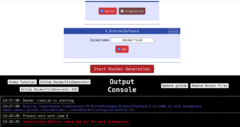

Cloud provider
Docker can be deployed on any cloud provider like Digital Ocean, Amazon Web Services (AWS), Microsoft Azure, Google Cloud Computing.
- https://www.digitalocean.com/community/tutorials/how-to-use-the-digitalocean-docker-application
- http://go.mkb.io/post/118463195802/docker-machine-with-digital-ocean
- http://networkstatic.net/running-docker-machine-on-digital-ocean/
- http://linoxide.com/linux-how-to/use-docker-machine-cloud-provider/
- HTC採用AWS的三大原因: 上市時間縮短、節省成本以及提供創新發想的低成本空間。
Notification
Gotify
- https://gotify.net/
- Gotify: My New Favorite Way To Get Notified!
- Create an app (e.g. "Uptime" in the Gotify interface). It will automatically create a Token
- Go to Uptime Kuma - Settings - Notifications - Notification type = Gotify.
- Copy Gotify application token here.
- Copy Gotify server URL http://xxx.xxx.x.xxx:8010
- Do a test
- Gotify shall show` a notification on the app "Uptime"
- Create another app called "watchTower"
- WatchTower is launched through a docker compose
- Docker compose file can specify notification settings. It can receive notifications from many apps.
- Create an app (e.g. "Uptime" in the Gotify interface). It will automatically create a Token
Dashboard
Homelab Dashboard: What It Is and Why You Need One
Homepage
- https://github.com/gethomepage/homepage
- Documentation
- Meet Homepage - Your HomeLab Services Dashboard. Examples of yaml files in the config folder.
- Homepage: a single pain of glass for your Homelab
- How I Created a Detailed Dashboard for All of My Self-Hosted Apps
- How-to:
nano compose.yml # copy from https://github.com/gethomepage/homepage # remember to the URLs on HOMEPAGE_ALLOWED_HOSTS mkdir config # it's ok the folder is empty docker compose up -d nano config/services.yaml # modify for our need nano config/bookmarks.yaml # modify for our need - Tip:
- By default, port 3000 is used.
- If I want to use port 80, make sure DO NOT INCLUDE ":80" to HOMEPAGE_ALLOWED_HOSTS in the compose.yml since browsers usually send the request with the Host header as just "homepage.local" (without ":80").
- To include pihole as a widget in the dashboard, I need to modify services.yaml. I also need to get the pihole api from Settings -> api. The api key is needed in order to access pihole statistics.
- Files under the config folder
$ ls -t config/*.*
settings.yaml  widgets.yaml  bookmarks.yaml  services.yaml  docker.yaml  kubernetes.yaml  custom.css  custom.js
It seems the most important ones are services.yaml and bookmarks.yml. Homepage automatically creates default/skeleton config files on first run inside /app/config if they do not already exist.
- Icons
- Icons can be specified by names. They are obtained from https://dashboardicons.com/.
- Local icons can be placed in a new folder 'icons' and use -v ./icons:/app/public/icons in docker command. Recall Homepage's web root is /app/public.
- Icons can be specified by using the way "/icons/myicon.png" in config/services.yaml file.
- Icons can be specified by full URLs.
- To download some website's favicon file, go to the source of a website and search for "icon". Alternatively, use a web tool.
- Supported formats: .ico, .png, .svg, .webp
- Use docker compose restart homepage to see its effects.
- Widgets
- To hide the CPU usage, RAM, storage, and the search box in your Homepage dashboard, modify config/widgets.yaml file. If you want to hide the entire "resources" section, you can simply remove or comment out the entire - resources: block from your widgets.yaml.
- (Related to hide CPU/RAM/Storage/Search) To hide a horizontal bar at top (related to the header section), modify config/settings.yaml file by adding a line: headerStyle: none
- Examples :
Dashy
- https://github.com/Lissy93/dashy
- Dashy, a configurable, themable, flexible personal dashboard for your homelab! (video) and Notes
- Icons are located in ~/dash/icons/dashboard-icons/png directory.
- Download an icon from icons8.com or uxwing.com. The default 48x48 works fine.
- Better to work on one icon and then save the change. Repeat.
docker run -d \
  -p 8295:80 \
  --volume /home/$USER/dashy/public/conf.yml:/app/public/conf.yml \
  --volume /home/$USER/dashy/icons:/app/public/item-icons/icons \
  --name dashy \
  --restart=unless-stopped \
  lissy93/dashy:latest
Glance
Flame
https://github.com/pawelmalak/flame
Homer
- https://github.com/bastienwirtz/homer
- Homer Dashboard - Open Source, Self Hosted, Beautiful Shortcuts to all your sites and services, This Homelab Dashboard is simple and beautiful! (videos)
Uptime Kuma
- Docker, Github
- Uptime Kuma Docker Setup Guide: Installation and Configuration
- Uptime Kuma | Fancy service and server monitoring (Video)
- Since I like to use Uptime Kuma to monitor servers using IPs from my tailscale, I need to expose host's network to the container. That is, I would use something like "docker run -d --network host louislam/uptime-kuma" or
services:
  uptime-kuma:
    image: louislam/uptime-kuma:1
    container_name: kuma
    volumes:
      - ./data:/app/data
    network_mode: "host"  # Use host network mode
    restart: always
Note
- In host network mode, the container shares the network stack of the host directly, bypassing Docker's network isolation.
- The container can access all host network interfaces directly.
- Any ports exposed by the container are automatically accessible on the host without explicit port mapping.
- Port mapping is not applicable when the container is using host network. In host network mode, the container shares the network stack of the host system directly, bypassing Docker's network isolation.
heimdall
https://github.com/linuxserver/docker-heimdall
Dashboard for monitoring system: grafana
- Docker Dashboard Using Grafana, Prometheus & Node Exporter
- Another good tutorial: Server Monitoring // Prometheus and Grafana Tutorial 2021
- When I try to create a new stack in Portainer, the error message is not clear.
- When I try it on a LXC container in Proxmox, I got an error ERROR: for node-exporter Cannot start service node-exporter: path / is mounted on / but it is not a shared or slave mount. This is the same error as some users reported.
- It works when I try a regular container in Proxmox!
- Node exporter. The docker run command works if I run it in a regular Ubuntu system. You can check it is working by going to IP:9100.
- https://prometheus.io/docs/guides/node-exporter/
- curl http://localhost:9100/metrics works but using IP does not. So it is a firewall problem.
- How to Monitor Linux Servers with Prometheus and Node Exporter. sudo ufw allow 9090/tcp & sudo ufw allow 9100/tcp & sudo ufw reload
- Use IP:9100 to check if Node Exporter works. Use IP:9090 to check if Prometheus works (Status -> Targets). Use IP:3457 to access the Grafana where 3457 is the one I used in the docker-compose.yml (the default one is 3000).
- Use admin/admin to log in. Add data source. Select Prometheus. Add the IP address, e.g., http://IP:9090.
- Google: node exporter grafana dashboards. https://grafana.com/grafana/dashboards/. E.g. 11074 (1 Node Exporter for Prometheus Dashboard).
After I change the firewall by adding two ports (9090 & 9100), the docker-compose method of grafana works like a charm.
- Reboot the host OS will not affect the grafana (assuming we include restart: unless-stopped in the 3 containers). But if we modify docker-compose.yml and run docker-compose down; docker-compose up it will result in data lose and we will need to re-create the admin password and all the setup.
Google keep
Joplin
Google photo
Immich
- immich - High performance self-hosted photo and video backup solution
- Quick Start
- FAQ
- It does not delete photos/videos from local devices
- Immich Is a Great Google Photos Alternative You Can Host on Raspberry Pi
- 9How to Install Immich with Docker: A Comprehensive Guide
- Setting up Immich using Docker
PhotoPrism
Document management
Navidrome Is the Perfect Self-Hosted Music Server for Raspberry Pi
File server
samba
https://github.com/dockur/samba
services:
  samba:
    image: dockurr/samba
    container_name: samba
    environment:
      NAME: "Data"
      USER: "samba"
      PASS: "secret"
    ports:
      - 445:445
    volumes:
      - ./samba:/storage
    restart: always
- It works on Linux (smb://192.168.x.x) and Windows (\\\\192.168.x.x\Data)
- It doesn’t announce itself on the local network, so Windows Explorer or Linux “Files” doesn’t auto-discover it. It’s a networking limitation of Docker by default.
- Network discovery (SMB browsing) depends on NetBIOS / mDNS broadcasts, which are local-network (Layer-2) broadcast packets.
- Docker NATs traffic through a virtual bridge. The container cannot announce itself via NetBIOS name service (UDP 137/138) or mDNS.
ownCloud
- https://hub.docker.com/_/owncloud/
- https://doc.owncloud.com/server/10.0/admin_manual/installation/docker/
- https://blog.securem.eu/serverside/2015/08/25/setting-up-owncloud-server-in-a-docker-container/
- How to put ownCloud behind Nginx with Docker?
- Migrating ownCloud to Docker
- "You are accessing the server from an untrusted domain" message when I use IP to access the server
- trusted_domains (config.php)
- https://forum.owncloud.org/viewtopic.php?t=34158
- https://blog.securem.eu/serverside/2015/08/25/setting-up-owncloud-server-in-a-docker-container/
- Fix ownCloud accessing the server from an untrusted domain
- My simple fix: use the IP instead of localhost when opening the browser to set up the first time
After I use docker run --rm --name myowncloud -p 81:80 owncloud:8.1, I find I can only access it through http://localhost:81. If I try to access it through another computer by http://xxx.xxx.xx.1:81, the URL is changed back to http://localhost:81 so it failed to load.
nextcloud
- https://hub.docker.com/_/nextcloud/
- https://github.com/nextcloud/docker
- App store
- Installing and Managing Apps
- Based on owncloud's github repositories or nextcloud's github repositories, android app has been updated more often than ios app.
- Setting Up NextCloud on Docker w/ NGINX and CloudFlare for Remote Access! (video)
- How to Install Nextcloud on Proxmox
- How I Self-Host a Synced Password Manager
Nextcloud looks more modern than owncloud though their interface are very similar. I got the same problem (URL is changed from IP to localhost) when I try to access its web from another computer. Using the IP instead of localhost to finish the initial setup can fix the error.
Note:
- The first we open the webpage, we need to create the admin username/password.
- Nextcloud uses owncloud mobile application.
- Nextcloud includes a small mp4 file. I can use browser to play mp4. Photos files can be opened in browsers too (including slideshow).
Add external storage like SAMBA
To connect to a Samba drive in Nextcloud, you will need to use the External Storage app. This app allows you to mount external storage services, including Samba shares, as directories within your Nextcloud instance. Here are the steps to connect to a Samba drive in Nextcloud:
First, make sure that the External Storage app is installed and enabled on your Nextcloud instance. You can do this by going to the Apps section in the Nextcloud admin panel and searching for the External Storage app. If it is not installed, you can install it from there.
Once the External Storage app is installed and enabled, go to the Settings section in the Nextcloud admin panel and select the External Storages option under the Administration section (Left panel, scroll down to see the app).
On the External Storages page, click on the Add storage button and select SMB / CIFS from the dropdown menu.
In the configuration form that appears, enter the details of your Samba share, including the hostname or IP address of the server, share name, username, and password. You can also specify a subfolder within the share if you only want to mount a specific subfolder.
Once you have entered all of the required information, click on the Save button to save your configuration.
Nextcloud Apps
- "access through untrusted domain" error. On my Casaos, I found the file /DATA/AppData/nextcloud/var/www/html/config/config.php shows trusted domain is casaos.local:10081. So I just need to change the app's setting in CasaOS to use http://casaos.local:10081 instead of http://IP:10081 to open the page.
- Audio Player. When I play mp3 files, the web interface does not show a progress bar:(
$ docker run --rm --name mynextcloud -v ~/Downloads/nextcloudapps:/var/www/html/custom_apps -p 81:80 nextcloud
# above will create an empty folder ~/Downloads/nextcloudapps (www-data:root)
$ tar xzvf Downloads/audioplayer-2.3.1.tar.gz -C Downloads/
$ docker cp Downloads/audioplayer mynextcloud:/var/www/html/custom_apps
# Go to nextcloud and '+Apps', a new app 'Audio Player' should have shown up.
- Music. GOOD. The app is from the owncloud team though for some reason the app is not included in owncloud/nextcloud. Yes, a progress bar is shown when I played a song downloaded from Youtube:)
# No need to create a volume
$ docker run -d --name mycloud -p 81:80 nextcloud

# Open another terminal
# Don't download the zip file from github. Get the zip file from the app store
$ tar xzvf ~/Downloads/music_0.7.0_nc-signed.tar.gz -C ~/Downloads/
$ docker cp Downloads/music mycloud:/var/www/html/custom_apps
$ docker exec mycloud chmod -R 0750 /var/www/html/custom_apps
$ docker exec mycloud chown -R www-data:www-data /var/www/html/custom_apps
Now open the website. Click the gear icon (Settings) and click "Apps". Find out the 'music' app from the bottom of the list and click the 'Enable' button. A new Music icon will be created next to the Gallery icon at the top. Note: if we want to play music repeatedly, I should not play the music directly from Files. I should click the Music icon at the top and let it start to scan musics. Then once I can play a music from there, it will show two new icons; one is shuffle and the other is loop. To have a persistent data, we can 'run' using$ mkdir -p ~/nextcloud/{html,apps,config,data} $ docker run -d \ --name mycloud \ -p 81:80 \ -v ~/nextcloud/html:/var/www/html \ -v ~/nextcloud/apps:/var/www/html/custom_apps \ -v ~/nextcloud/config:/var/www/html/config \ -v ~/nextcloud/data:/var/www/html/data \ nextcloudIf we like to delete the contain and its unamed volume, run$ docker stop mycloud; docker rm -v mycloud
If we run the container again mounting all volumes, all apps,files,configuration,admin's username & password are kept. - PDF viewer. PDF files will be downloaded instead of opening on the browser. This can be easily fixed. Click '+Apps' from the personal settings (the response is slow when I tested using Docker). Search for PDF viewer. Click the 'Enable' button (it will be changed to 'Disable' after that)
- draw.io. After enable it, we can click the "+" sign and choose "Diagram" to create a new diagram (*.xml).
- Radio. After enable it, a new "Radio" icon will be shown at the top. Only 20 stations are available from the 'Top'. No response after I clicked "Categories".
Seafile
- https://en.wikipedia.org/wiki/Seafile. Seafile's functionality is similar to other popular file hosting services such as Dropbox and Google Drive.
- Official manual: Installation of Seafile Server Community Edition with Docker
- Github source (516 star)
- How to Deploy Seafile Server with Docker to Host Your Own File Synchronization and Sharing Solution 2021
- Running a Seafile Server using Docker 2025
- Seafile 13.0.
- It works. No need to use any special port.
- The admin email and password defined in .env will be used to login.
- Seafile vs File browser app
- Versioning / Snapshots: You can restore a previous versiceon if a file gets overwritten or deleted.
- Sync Clients: Seafile has desktop and mobile sync clients. You can sync specific libraries (folders) to multiple devices automatically.
- Collaboration & Sharing: Seafile share folders or files with other users inside your server or via secure links. Permission control: read-only or read-write per folder.
- Libraries & Organization. Seafile: Uses libraries instead of flat folders.
Copyparty
- https://github.com/9001/copyparty. A lightweight, portable file server supporting protocols like HTTP, FTP,WebDAV, and more.
- Examples
docker run --rm -it --name copyparty \
  -u 1000 \
  -p 3923:3923 \
  -v "$PWD/share:/w" \
  copyparty/ac \
  -v .::rw
- The interface looks weird.
File manager
Filestash
Filestash – Dropbox-like file manager
File browser
- https://filebrowser.org/installation/,
- https://github.com/filebrowser/filebrowser
- Default credential: admin/admin
- Pi-Hosted : Installing JDownloader and File Browser On The Pi Docker Server Part 4 (video)
- It appears Filebrowser can only browse files in one directory from the same computer only.
- Simplify File Management with Docker Filebrowser: Easy Setup Guide still works in 2025.
- Note the username is "admin". The password was generated randomly and can be found using 'docker logs' command. We can modify the password after the first login.
$ touch filebrowser.db
$ nano settings.json
{
  "port": 80,
  "baseURL": "",
  "address": "",
  "log": "stdout",
  "database": "/database/filebrowser.db",
  "root": "/srv"
}
$ sudo chown 911:1001 filebrowser.db
$ mkdir project

$ nano compose.yml
services:
    filebrowser:
        container_name: filebrowser
        volumes:
            - ./root:/srv
            - ./filebrowser.db:/database/filebrowser.db
            - ./settings.json:/config/settings.json
        environment:
            - PUID=$(id -u)
            - PGID=$(id -g)
        ports:
            - 8088:80
        image: filebrowser/filebrowser:s6
$ docker compose up -d
$ docker logs -f filebrowser
...
User UID:    911
User GID:    1001
...
2025/11/29 21:27:44 Using config file: /config/settings.json
2025/11/29 21:27:44 WARNING: filebrowser.db can't be found. Initialing in /database/
2025/11/29 21:27:44 Using database: /database/filebrowser.db
2025/11/29 21:27:44 Performing quick setup
2025/11/29 21:27:44 User 'admin' initialized with randomly generated password: Mq12FFSReZ8EVzqW
2025/11/29 21:27:44 Listening on [::]:80
FileBrowser Quantum
https://github.com/gtsteffaniak/filebrowser. It supports multiple sources!
FilGator
Run a Linux desktop
Run a Linux desktop VM with VNC
Run Ubuntu Linux in Docker with Desktop Environment and VNC
Webtop
- See Guacamole - Webtop
- Each Docker run will create one linux desktop
Kasm Workspaces
- https://www.kasmweb.com/community-edition
- Installation Guide
- Kasm UI Login Credentials & Database Credentials are listed after the installation is complete. It's good to save the information.
- Kasm Workspaces includes several Linux Desktop already.
- Linux in browser
Distrobox & BoxBuddy (No Desktop)
- https://github.com/89luca89/distrobox (in the 'Installation' section there is a table. It seems the green color is used to show which Linux distributions has the latest version of distrobox)
- Idea: Distrobox uses containerization technologies like Podman, Docker, or LXC to create containers with your chosen Linux distribution (Why worry about Podman/LXC?)
- Important: Since it integrated with the host system, always back up important data and double-check configurations to avoid unintended changes. Changes may happen when we use a software (eg install R packages) launched from a box.
- Practical uses:
- Running GUI Applications from Other Distros (Containers): distrobox-enter fedora-box -- firefox
- (not tested) OnlyOffice (Ubuntu/Debian, CentOS/RHEL, snap, flatpak, appimage). 1. Install Distrobox on Manjaro sudo pacman -Syu && sudo pacman -S distrobox, 2. Create an Ubuntu container distrobox create --image ubuntu:latest --name ubuntu-container , 3. Enter the Ubuntu container distrobox enter ubuntu-container, 4. Update package lists and install ONLYOFFICE Desktop Editor sudo apt install onlyoffice-desktopeditors, 5, Run ONLYOFFICE Desktop Editors onlyoffice-desktopeditors.
- Developing and Testing on Multiple Linux Distributions
- Using Up-to-Date Tools on Older Systems
- Lightweight Alternative to Virtual Machines
- Persistent Workflows Across Systems: the created container is tightly integrated with the host, allowing sharing of the HOME directory (yes, no extra configuration), external storage, USB devices
- Running Different Package Managers: Use Arch's pacman or Fedora’s dnf on a system where apt is the native package manager.
- Running GUI Applications from Other Distros (Containers): distrobox-enter fedora-box -- firefox
- How I Break Linux's Rules and Install Any Package on Any Distro
- Archwiki
- Installation
- Distribution's version
- PPA for Ubuntu https://launchpad.net/~michel-slm/+archive/ubuntu/distrobox
- Installation script provided by distrobox. "curl -s https://raw.githubusercontent.com/89luca89/distrobox/main/install | sudo sh". See How To Install Distrobox on Debian 12
- DEB Files on Arch? Run Any App on Any Linux Distro With This Tool
- Distrobox: Try Multiple Linux Distributions via the Terminal. The line "distrobox-export --app foliate" gives an error "cannot find any desktop files".
- Stop Distro Hopping! Use this AWESOME tool on Linux 7/15/2023
- Linux subsystem in another Linux
- How to Run Any Program from Any Linux Distro with Distrobox
- Testing using arch linux container where packages are always updated. Refer to distrobox create doc for examples.
sudo apt install distrobox
distrobox --version # 1.7.0

distrobox create # default is fedora-toolbox:XX

distrobox-create --name ubuntu2404 -i ubuntu:24.04 # same as docker.io/library/ubuntu:24.04

distrobox-create --name arch --pull -i quay.io/toolbx/arch-toolbox:latest
distrobox enter arch # slow on Celeron N3160 Udoo

cat /etc/os-release  # guest
uname -r             # still host
sudo pacman -Syu     # update the entire arch linux system
sudo pacman -S r     # install R
R                    # plotting also works
sudo pacman -S netsurf
sudo pacman -R netsurv
sudo pacman -S vivaldi
sudo pacman -Sy chromium
# Arch Linux Package Search:
# https://archlinux.org/packages/?q=browser&sort=-last_update
# and sort by 'Last Updated'
chromium &            # so prompt is returned

distrobox-list

podman images # list image's size; podman is the default container manager on my debian
              # possibly 'docker images'

distrobox-rm ubuntu2404
Use GUI Applications from the Container
apt install x11-apps -y
xeyes
- add-apt-repository command not found in Ubuntu box. This happened when I try to run a command like "sudo add-apt-repository ppa:rvm/smplayer".
sudo apt update
sudo apt install soft-properties-common
- List of compatible images and container managers, Compatibility page.
- Some images works fine on my distrobox 1.7.0
- quay.io/toolbx/arch-toolbox:latest
- docker.io/library/archlinux:latest
- registry.fedoraproject.org/fedora-toolbox:35
- docker.io/library/debian:bullseye-backports
- quay.io/toolbx-images/debian-toolbox:12
- Change the default container manager. distrobox-create --help.
DBX_CONTAINER_MANAGER="docker"
- distrobox-export --app XXX
- This is to export an application to the host system
- It seems there is no way to undo it. We need to enter the guest OS, remove the app and then remove the guest OS from the host.
Atoms
- Easily manage Linux Chroot(s) and Containers with Atoms. https://github.com/AtomsDevs/Atoms (421 stars)
- 4 Useful Free and Open Source Distrobox GUI Tools
BoxBuddy
- https://www.dvlv.co.uk/BoxBuddyRS/ & https://github.com/Dvlv/BoxBuddyRS. Currently it is 2.5.5 (443 stars)
- BoxBuddy – graphical manager for Distrobox
- The advantage is it includes a list of all distributions. Users only need to select one and enter a name for the 'box'.
- Install by flatpak install flathub io.github.dvlv.boxbuddyrs (no need to download flatpakref file)
- How does the software keep an updated list of images?
- Tested:
- install Debian12,
- install sublime deb inside Debian12 through host's right click button. Sublime can be launched too from "View Applications".
- Upgrade my arch Box (rolling release) works
QuickEmu (Non Docker approach)
See KVM - QuickEmu/
Guacamole
- Guacamole is nothing more than a centralized front end to access multiple VNC/RDP devices. You are still using either VNC or RDP to access the device.
- Probably there is no point to use Guacamole if the VM was created in Proxmox since Proxmox provides a web interface to access the VM.
- Guacamole Remote Desktop - Open Source, Self Hosted remote access to your machines in the browser! (video). https://github.com/jwetzell/docker-guacamole
- One line script to install Docker-CE, Docker-Compose, Portainer-CE (not needed), and NGinX Proxy manager (not needed)
- Once creating docker-compose.yml, we can fire up it using docker-compose up -d
- We can create a new admin user and delete the default username/password guacadmin/guacadmin
- Open a browser tab and go to the IP:Port to open guacamole web page
- We can add various connections (Kubenetes/RDP/SSH/Telnet/VNC). After that, we can run connections through our web browser.
- After saving the new connection, go back to "Home" to use the new connections.
- Guacamole Remote Access Gateway on Docker (video). https://github.com/boschkundendienst/guacamole-docker-compose works fine. Your guacamole server should now be available at https://ip:8443/. The default username is guacadmin with password guacadmin. Four containers will be launched: nginx, postgres, guacamole and guacd.
- How To Access Your PCs and Servers from Anywhere Using Guacamole and CloudFlare Tunnels
Webtop: Linux desktop in a browser
- https://hub.docker.com/r/linuxserver/webtop/, or https://github.com/linuxserver/docker-webtop. Ubuntu, Alpine, Arch, and Fedora based Webtop images, Linux in a web browser supporting popular desktop environments.
- An example. It seems the host's Disk space, Memory are all passed to VM. In this example, the host's directory "/tmp/downloads" will serve as the HOME directory in VM.
mkdir /tmp/downloads/
docker run -d --name=webtop   \
  -e PUID=1000 -e PGID=1000   \
  -e TZ=US/Eastern   \
  -p 3000:3000   \
  -v /tmp/downloads:/config   \
  --shm-size="1gb"   \
  --restart unless-stopped   \
  linuxserver/webtop:ubuntu-xfce
- Meet Webtops A Linux Desktop Environment In Your Browser
- Run Linux Desktops in your Browser with Docker and Webtops! (video) and Notes
- Default username/password is abc/abc. But we don't need to enter the password when we use "sudo".
- Linux desktop, inside of a container, inside of a browser??? Yes. A Webtop, privileged: true is required for installing something like vscode in VM (video) and Doc
- If I'm not using the default desktop, I need to switch to use some user's account instead of root to run docker-compose command. If I use root to launch ubuntu-kde, for example, the desktop is blank.
- It's cool. I got Ubuntu 22.04 released 1.5 months ago.
- After I installed 'htop', the htop command shows the cpu & memory & uptime ... from the 'host' system. But docker stats shows webtop (ubuntu-mate) desktop is using around 300MB memory.
- When I want to copy text from VM to remote client, I need to open the clipboard using the black circle tool on the left-hand side.
- After I played around, KDE-konsole does not respond to my keyboard. Logged out and logged in again fixes the problem.
- I got the following errors when I try to install RStudio 2022.02.3 Build 492 on Ubuntu 22.04; this solution Installing R Studio on Ubuntu 22.04 works for me.
$ sudo apt install /config/Downloads/rstudio-2022.02.3-492-amd64.deb the following packages have unmet dependencies: rstudio : Depends: libssl1.0.0 but it is not installable or libssl1.0.2 but it is not installable or libssl1.1 but it is not installable- Since the config subfolder is mounted, if we want to try different flavors of Linux/Desktop, we should create different folders.
- From scratch From Start to Finish Build a Desktop on a Browser Docker Container
instantbox
IDE
cloud9
https://hub.docker.com/r/linuxserver/cloud9
VS Code
- Coder - Your Self-Hosted Remote Development Platform
- code-server (75.1k star) VS Code in the browser. https://hub.docker.com/r/codercom/code-server (100M+ pulls)
- docker image is 792MB
- current directory is the project path
- access url http://ip:8080
docker run -d --name code-server -p 8080:8080 \
  -v "$HOME/.config:/home/coder/.config" \
  -v "$PWD:/home/coder/project" \
  -u "$(id -u):$(id -g)" \
  -e "DOCKER_USER=$USER" \
  -e PASSWORD="MySecretePassword" \
  codercom/code-server:latest
- OpenVSCode Server 1M+ pulls. Difference to OpenVSCode Server.
- linuxserver
- docker image is 425MB
- ./config/workspace is the project path
- access url http://ip:3000
services:
  openvscode-server:
    image: lscr.io/linuxserver/openvscode-server:latest
    container_name: openvscode-server
    environment:
      - PUID=1000
      - PGID=1000
      - TZ=America/New_York
      - CONNECTION_TOKEN= #optional
      - CONNECTION_SECRET= #optional
      - SUDO_PASSWORD=password #optional
      - SUDO_PASSWORD_HASH= #optional
    volumes:
      - ./config:/config
    ports:
      - 3000:3000
    restart: unless-stopped
Docker for R (r-base, rstudio)
See R Docker.
Docker for Shiny Server
- UseR!2022: Best Practices for Shiny Apps with Docker and More
- Containerizing Interactive R Markdown Documents 2022/7
- By default, Shiny Server looks for either:
- A single-file Shiny app named app.R in the root of a directory.
- A pair of files named ui.R and server.R within a directory.
- Using Shiny Server in Docker 2022/9/7. Hello world example. Need to generate Dockerfile.
FROM rocker/shiny:4.1.0
RUN rm -rf /srv/shiny-server/*
WORKDIR /srv/shiny-server/
COPY ./app.R ./app.R
docker build -t shiny-in-docker .
docker run --rm -p 3838:3838 shiny-in-docker
- https://hub.docker.com/r/rocker/shiny/. Pay attention to the Dockerfile there.
# sudo mkdir /srv/
sudo mkdir /srv/shinylog
sudo mkdir /srv/shinyapps
cd /srv/shinyapps
sudo wget https://raw.githubusercontent.com/rstudio/shiny-examples/master/050-kmeans-example/ui.R
sudo wget https://raw.githubusercontent.com/rstudio/shiny-examples/master/050-kmeans-example/server.R
sudo lsof -i -P -n | grep LISTEN    # nmap localhost
docker run -d --restart always -p 3838:3838  \
   -v /srv/shinyapps/:/srv/shiny-server/  \
   -v /srv/shinylog/:/var/log/shiny-server/  \
   rocker/shiny:4.0.3
nmap localhost
If the 3838 port method (http://IP:3838) works, we can move on to use Nginx + reverse proxy method; see Apache->R/Shiny example for the instruction.
- Shiny Administrator Guide
- Docker Reference. See Engine (docker) CLI from their LHS.
- Dockering a shiny app
- Dockerizing Shiny Applications
- Pin package versions in your production Docker image. Need to modify Dockerfile to install 'shiny' along with 'renv'. We need to create a directory 'shinyapp' with simple shiny files (eg kmeans example).
docker build -t pinrpackageversion .
mkdir shinyapp
wget https://raw.githubusercontent.com/rstudio/shiny-examples/master/050-kmeans-example/ui.R -P shinyapp
wget https://raw.githubusercontent.com/rstudio/shiny-examples/master/050-kmeans-example/server.R -P shinyapp
docker run --name shinyapp --rm -p 3838:3838 pinrpackageversion
- Question: what happened if there is a new version of R or shiny-sever?
# specify --name so we don't need to use container id to access it later
$ docker run -d --name rshiny -p 81:3838 rocker/shiny

$ docker ps -l

# Run in container's bash
# https://stackoverflow.com/questions/30172605/how-to-get-into-a-docker-container
# non-interactive
$ docker exec -it rshiny ip addr
1: lo: <LOOPBACK,UP,LOWER_UP> mtu 65536 qdisc noqueue state UNKNOWN group default qlen 1
    link/loopback 00:00:00:00:00:00 brd 00:00:00:00:00:00
    inet 127.0.0.1/8 scope host lo
       valid_lft forever preferred_lft forever
22: eth0@if23: <BROADCAST,MULTICAST,UP,LOWER_UP> mtu 1500 qdisc noqueue state UP group default
    link/ether 02:42:ac:11:00:02 brd ff:ff:ff:ff:ff:ff link-netnsid 0
    inet 172.17.0.2/16 scope global eth0
       valid_lft forever preferred_lft forever

# interactive shell
$ docker exec -it rshiny bash
root@5b78988d5619:/# who
root@5b78988d5619:/# which R
/usr/bin/R
root@5b78988d5619:/# ls /home
docker	shiny
root@5b78988d5619:/# ls /srv/shiny-server
01_hello  02_text  03_reactivity  04_mpg  05_sliders  06_tabsets  07_widgets  08_html  09_upload  10_download  11_timer  index.html  sample-apps
root@5b78988d5619:/# R -e 'package.Description("glmnet")'
root@5b78988d5619:/# exit

$ docker stop rshiny
$ docker rm rshiny   # remove the container
It is also useful to use the -v option in docker run so the local directory (eg /srv/shinyapps/) can be mapped to the docker volume (/srv/shiny-server).
# Put your shiny app in host's /srv/shinyapps/appdir,
$ docker run -d -p 81:3838 \
    -v /srv/shinyapps/:/srv/shiny-server/ \
    -v /srv/shinylog/:/var/log/shiny-server/ \
    rocker/shiny
And check running status
$ docker ps -a
R packages installation: packrat
- https://cran.r-project.org/web/packages/packrat/index.html
- Installing R packages to a Docker image with packrat
- How to install packages through `packrat` while creating shiny Docker image
Check opened ports
See What network ports are open: lsof or netstat.
$ netstat -ant
Active Internet connections (servers and established)
Proto Recv-Q Send-Q Local Address           Foreign Address         State
tcp        0      0 0.0.0.0:22              0.0.0.0:*               LISTEN
tcp        0      0 127.0.0.1:25            0.0.0.0:*               LISTEN
...
tcp6       0      0 :::80                   :::*                    LISTEN
tcp6       0      0 :::81                   :::*                    LISTEN
tcp6       0      0 :::22                   :::*                    LISTEN
tcp6       0      0 ::1:25                  :::*                    LISTEN
Blog Explorer
https://github.com/nz-stefan/blog-explorer, Winners of the 2nd Annual Shiny Contest
Raspberry Pi
The Raspberry Pi 4B as a shiny server
BioContainers
- https://biocontainers.pro/#/
- https://hub.docker.com/u/biocontainers/
- https://github.com/BioContainers
CMS, blog website
Ghost
Proxy
- Best proxy - traefik, NPM, SWAG, caddy or other?
- swag
Nginx proxy manager
- Putting it All Together - Docker, Docker-Compose, NGinx Proxy Manager, and Domain Routing - How To (video) and Notes 2020-10-06
- Securing NGinX Proxy Manager - follow up - securing your admin console for this Open Source Software (video) and Notes 2020-10-20
Caddy
- Rocker, Networking: tips and tricks from Rocker
- Pi-Hosted : Reverse Proxy with Caddy. We can play Caddy using IP address.
- How to Set up Caddy as a Reverse Proxy
- Reverse Proxy And Auto SSL Using Caddy And Docker Compose (short video). Combine portainer and caddy in one compose.yml file.
Website analysis
Nginx
- Using the NGINX Open Source Docker Image
docker run -d --name web \
  -p 8080:80 \
  nginx
curl http://localhost:8080
docker exec -it NGINX_container_ID bash
- Note nginx docker does not work if there is not index.html or index.php (it shows 403 Forbidden). Google: How to serve static file with nginx
- How To Use the Official NGINX Docker Image
docker run -it --rm -d \
  -p 8080:80 \
  --name web \
  -v ~/Downloads/html:/usr/share/nginx/html \
  nginx

docker stop web # when finished
- How to Run NGINX Inside Docker (for Easy Auto-Scaling)
- How To Run Nginx in a Docker Container on Ubuntu 14.04. It teaches to put the whole web site in the host directory and the nginx configuration in the local host. You can edit the default file locally (to serve a new directory), or to use a proxy_pass to forward the traffic to another app/container like you would with a regular Nginx installation).
- How To Containerize and Use Nginx as a Proxy
- TIPS FOR DEPLOYING NGINX (OFFICIAL IMAGE) WITH DOCKER
- Docker 快速入门
- Deploying NGINX and NGINX Plus with Docker
- How to Install and Use Docker on Linux Reverse-proxy, LetsEncrypt ... built in.
docker run --name docker-nginx -p 80:80 nginx

docker run --name my-nginx \
    -v /host/path/nginx.conf:/etc/nginx/nginx.conf:ro \
    -v /some/html:/usr/share/nginx/html:ro \
    -p 8080:80 \
    -d nginx
httpd/apache
https://hub.docker.com/_/httpd/
- How to Setup a Simple Apache Web Server in a Docker Container
- Docker – An apache ‘hello world’ example
- Note nginx docker does not work if there is not index.html or index.php (it shows 403 Forbidden); httpd image does not have this problem.
docker run -d --rm\
  --name apache \
  -p 8080:80 \
  -v /home/brb/Videos/:/usr/local/apache2/htdocs/ \
  httpd
Tomcat
https://hub.docker.com/_/tomcat/
ASP.NET
Forum
How to Install Discourse Forum with Docker on CentOS 8
Jenkins for continuous integration
- https://www.tutorialspoint.com/jenkins/jenkins_overview.htm
- https://jenkins.io/doc/book/installing/
- Example: https://dev.ropensci.org/
MySQL
- https://hub.docker.com/r/mysql/mysql-server/
- Deploying MySQL on Linux with Docker
- Note it seems impossible to use the 'grant' command interactively within the MySQL docker container.
- https://dzone.com/articles/using-docker-to-create-a-mysql-server
docker run --detach --name test-mysql --env="MYSQL_ROOT_PASSWORD=mypassword" mysql
docker inspect test-mysql | grep IPAddress  # 172.17.0.2

# https://dev.mysql.com/doc/index-other.html
wget -O - http://downloads.mysql.com/docs/world.sql.gz | gunzip -c > world.sql

mysql -uroot -pmypassword -h 172.17.0.2 -e 'CREATE DATABASE world'
cat world.sql | mysql -uroot -pmypassword -h 172.17.0.2 world
# zcat world.sql.gz | mysql -uroot -pmypassword -h 172.17.0.2 world
mysql -uroot -pmypassword -h 172.17.0.2 -e 'USE world; SHOW TABLES'

mysql -uroot -pmypassword -h 172.17.0.2 -e 'DROP DATABASE world'
# Let's see if we can access the database in R system("sudo apt install libmysqlclient-dev") library(RMySQL) con <- dbConnect(MySQL(), "world", user="root", password="mypassword", host="172.17.0.2") dbListTables(con) head(dbReadTable(con, "city")) head(dbReadTable(con, "country")) head(dbReadTable(con, "countrylanguage")) dbWriteTable(con, 'iris', iris) # Error in .local(conn, statement, ...) : # could not run statement: The used command is not allowed with this MySQL version dbDisconnect(con) - How To Create And Test MySQL Database Server in Docker On Ubuntu Linux (video). Use Dockerfile.
- MySQL Docker Containers: Understanding the basics, https://youtu.be/qJQPckRYNis?t=16m29s
# Fire up docker run --detach --name=test-mysql --env="MYSQL_ROOT_PASSWORD=mypassword" mysql docker ps -a # Connecting to the Container docker inspect test-mysql | grep IPAddress # sudo apt install mysql-client # There are two methods to connect to the container # method 1. https://hub.docker.com/r/mysql/mysql-server/ # docker exec -it test-mysql mysql -uroot -p # method 2 mysql -uroot -pmypassword -h 172.17.0.20 -P 3306 docker run --detach --name test-wordpress --link test-mysql:mysql wordpress docker exec -it test-wordpress bash $ cat /etc/hosts # Expose the MySQL container to the outside world # Access the MySQL container directly from the machine’s port 6603 docker run --detach --name=test-mysql --env="MYSQL_ROOT_PASSWORD=mypassword" --publish 6603:3306 mysql mysql -u root -pmypassword -h 127.0.0.1 -P 6603 # Configuration management mkdir -p /root/container/test-mysql/conf.d nano /root/container/test-mysql/conf.d/my-custom.cnf docker run \ --detach \ --name=test-mysql \ --env="MYSQL_ROOT_PASSWORD=mypassword" \ --publish 6603:3306 \ --volume=/root/docker/test-mysql/conf.d:/etc/mysql/conf.d \ mysql mysql -uroot -pmypassword -h127.0.0.1 -P6603 -e 'show global variables like "max_connections"'; docker run \ --detach \ --name=test-mysql \ --env="MYSQL_ROOT_PASSWORD=mypassword" \ --publish 6603:3306 \ mysql \ --max-connections=200 \ --character-set-server=utf8mb4 \ --collation-server=utf8mb4_unicode_ci # Data Storage mkdir -p /storage/docker/mysql-datadir docker run \ --detach \ --name=test-mysql \ --env="MYSQL_ROOT_PASSWORD=mypassword" \ --publish 6603:3306 \ --volume=/root/docker/test-mysql/conf.d:/etc/mysql/conf.d \ --volume=/storage/docker/mysql-datadir:/var/lib/mysql \ mysql docker inspect test-mysql ls -al /storage/docker/mysql-datadir/ # If a MySQL container runs on top of an existing MySQL datadir, # the $MYSQL_ROOT_PASSWORD variable should be omitted from the “run” command line; docker stop test-mysql docker rm -f test-mysql docker run -d --name=another-new-mysql -p 6605:3306 -v /storage/docker/mysql-datadir:/var/lib/mysql mysql docker logs another-new-mysql - Use Docker to run a typical MySQL server from Code Review Videos
docker volume create crv_mysql

docker run \
    -e MYSQL_ROOT_PASSWORD=my-secret-pw \
    -e MYSQL_DATABASE=devdb \
    -e MYSQL_USER=dbuser \
    -e MYSQL_PASSWORD=dbpassword \
    --mount type=volume,src=crv_mysql,dst=/var/lib/mysql \
    -p 3306:3306 \
    -d \
    mysql:latest

# Alternatively we can put username/password in a text file for security
cat > .env <<EOF
MYSQL_ROOT_PASSWORD=my-secret-pw
MYSQL_DATABASE=devdb
MYSQL_USER=dbuser
MYSQL_PASSWORD=dbpassword
EOF
docker run \
    --env-file .env \
    --mount type=volume,src=crv_mysql,dst=/var/lib/mysql \
    -p 3306:3306 \
    -d \
    mysql:latest
Backup and restore
# Backup
docker exec CONTAINER /usr/bin/mysqldump -u root --password=root DATABASE > backup.sql

# Restore
# Method 1. docker exec + command
docker exec -i CONTAINER /usr/bin/mysql -u root --password=root < backup.sql
# Method 2. docker exec + bash
# We can also use docker exec log into the contain and run any mysql commands there
docker exec -it CONTAINER bash
# Method 3. mysql command only
# We directly use mysql command to import database without using docker commands
#   as long as we know the IP address of the container server
docker inspect CONTAINER | grep IPAddress
mysql -uroot -pPASSWORD -h 172.18.0.3 -e 'show databases'
mysql -uroot -pPASSWORD -h 172.18.0.3 < backup.sql
PostgreSQL
Jekyll
Building Jekyll Sites within VS Code Dev Containers
node.js
Dockerizing Node.js. See the code here.
$ docker build -t my-node-app .
$ docker run -p 3000:3000 my-node-app
How To Setup Your Local Node.js Development Environment Using Docker (not working)
$ cd notes-service
$ cat Dockerfile
FROM node:12.18.1

WORKDIR /code

COPY package.json /code/package.json
COPY package-lock.json /code/package-lock.json

RUN npm install

COPY . /code

CMD [ "node", "server.js" ]

$ docker build -t notes-service .
$ docker run -it --rm -d -v mongodb:/data/db -v mongodb_config:/data/configdb -p 27017:27017 --network mongodb --name mongodb mongo
$ docker run -it --rm -d --network mongodb --name notes -p 8081:8081 -e SERVER_PORT=8081 -e DATABASE_CONNECTIONSTRING=mongodb://mongodb:27017/yoda_notes notes-service
# this does not work though no errors; omit "-d" to see the error message

$ curl --request POST \
--url http://localhost:8081/services/m/notes \
  --header 'content-type: application/json' \
  --data '{
"name”: "this is a note",
"text": "this is a note that I wanted to take while I was working on writing a blog post.",
"owner": "peter"
}'
React
Java and GlassFish
How to Install GlassFish Application Server with Nginx Reverse Proxy on Debian 12
Redis
https://hub.docker.com/_/redis/
Redis running inside Docker container on NVIDIA Jetson Nano, Redis is ideal for IoT and Embedded devices for several reasons.
Laravel
Dockerizing Laravel with Nginx MySQL and Docker Compose on Ubuntu 18.04 LTS
phpMyAdmin
- https://hub.docker.com/r/phpmyadmin/phpmyadmin/. The docker-compose.yml file works instantly.
- phpMyAdmin and MySQL server
docker run --name mysqlphp -e MYSQL_ROOT_PASSWORD=0000 -d mysql
docker run --name myadmin -d --link mysqlphp:db -p 8080:80 phpmyadmin/phpmyadmin
Now go to your browser , tap http://localhost:8080 and login with root/0000.
ERROR mysqli_real_connect(): The server requested authentication method unknown to the client [caching_sha2_password]
The solution can be found here. After the change, I can log in phpMyAdmin.
docker exec -it mysqlphp bash

mysql -u root -p0000

ALTER USER root IDENTIFIED WITH mysql_native_password BY '0000';

exit
exit
MagicMirror
https://github.com/MichMich/MagicMirror/blob/master/README.md#docker
Mail/smtp server
- How to Set Up Your Own Secure Email Server 2021-11
- Setup Your Own Email Server with Docker
- Sending Emails with {curl} and Docker
Mediawiki
- https://www.mediawiki.org/wiki/Docker
- https://hub.docker.com/_/mediawiki/ or (better) https://docs.docker.com/samples/library/mediawiki/. The Dockerfile is based on jessie.
- bitnami/mediawiki (Verified but too complicated, 1M+)
- https://hub.docker.com/r/ubcctlt/mediawiki (10M+)
- Hosting Your Own Wiki With MediaWiki and Docker Nov 2020. The instruction is easy to follow.
- In mediawiki set up we page, we need to enter 'database' for the Database host
- The database information we entered will go to 'LocalSettings.php' file. But the name of wiki, administrator user name, password will go to the database.
- the instruction for the 'extensions' part seems too much. We just need to mount local 'extensions' to container's '/var/www/extensions' folder.
- Remember to run 'docker-compose down && docker-compose up -d' after we modify something
- docker搭建mediawiki
- https://github.com/kristophjunge/docker-mediawiki
- Setup MediaWiki and Postgres with Docker (based on simplyintricate/mediawiki, works on Mint). Visit http://localhost:8080 to see the result.
$ ls -l ~/wiki_root
total 24
drwxr-xr-x 3 root     root     4096 Jul 10 10:09 data
drwxrwxr-x 3 brb      brb      4096 Jul 10 09:23 db
drwxrwxr-x 2 www-data www-data 4096 Jul 10 09:23 extensions
drwxrwxr-x 2 www-data www-data 4096 Jul 10 09:23 images
-rw-rw-r-- 1 www-data www-data 4152 Jul 10 11:12 LocalSettings.php
- Running Mediawiki as Docker container (based on synctree/mediawiki which is not updated anymore, works tested on GalliumOS)
- Follow Run MySql inside docker container first. 1. Setup host to store configuration, data and dumps. The 'dumps' and 'initdb.d' folders are optional 2. Override default mysql configuration 3. Executing scripts and sql on container startup (optional) 4. Starting mysql container
- Visit http://IP_address:8080 to see the mediawiki page running on Docker
brb@galliumos:~$ tree mysql mysql ├── conf.d │ └── mysql.cnf ├── data │ ├── auto.cnf │ ├── ca-key.pem │ ├── ca.pem │ ├── client-cert.pem │ ├── client-key.pem │ ├── ib_buffer_pool │ ├── ibdata1 │ ├── ib_logfile0 │ ├── ib_logfile1 │ ├── ibtmp1 │ ├── mediawiki [error opening dir] │ ├── mysql [error opening dir] │ ├── performance_schema [error opening dir] │ ├── private_key.pem │ ├── public_key.pem │ ├── server-cert.pem │ ├── server-key.pem │ ├── sys [error opening dir] │ └── wikidb [error opening dir] ├── dumps └── initdb.d 9 directories, 15 files brb@galliumos:~$ tree -L 2 mediawiki/ mediawiki/ ├── config │ └── LocalSettings.php ├── extensions │ ├── Cite │ ├── ConfirmEdit │ ├── Gadgets │ ├── ImageMap │ ├── InputBox │ ├── Interwiki │ ├── LocalisationUpdate │ ├── Nuke │ ├── ParserFunctions │ ├── PdfHandler │ ├── Poem │ ├── README │ ├── Renameuser │ ├── SpamBlacklist │ ├── SyntaxHighlight_GeSHi │ ├── TitleBlacklist │ └── WikiEditor └── images └── README 19 directories, 3 files - https://linuxconfig.org/mediawiki-easy-deployment-with-docker-container (based on linuxconfig/mediawiki)
- http://collabnix.com/how-to-setup-mediawiki-in-seconds-using-docker/ (based on appcontainers/mediawiki)
- Isolated MediaWiki Setup on the Raspberry Pi using Docker, Part 1
BookStack
BookStack is a simple, self-hosted, easy-to-use platform for organising and storing information.
https://github.com/solidnerd/docker-bookstack
Books
Audio Books
- audiobookshelf (Self-Hosted Audible Alternative)
- 10 Docker Containers Every Homelabber Should Run
HDHomeRun
tvheadend
- docker-compose.yml. See linuxserver/tvheadend. Open http://localhost:9981 .
services: tvheadend: container_name: tvheadend environment: - PUID=1000 - PGID=1000 - TZ=Etc/UTC network_mode: host volumes: - ./data:/config - ./recordings:/recordings restart: unless-stopped image: lscr.io/linuxserver/tvheadend:latest - tvheadend setup. TVheadend and HDHomeRun using IPTV inputs.
- How to configure tvheadend server.
- How to install Tvheadend server on $40 Android box running Linux. The configuration allows to scan channels on HDHomeRun.
Media server
Jellyfin
- https://hub.docker.com/r/jellyfin/jellyfin
- Jellyfin Update - An amazing, open source, and self hosted media server alternative to Plex or Emby (video)
- https://docs.linuxserver.io/images/docker-jellyfin (works)
- Official clients
- ULTIMATE Jellyfin Guide - Hardware Acceleration, Codecs (PART 2)
- Problems:
- Best way to update your library when you make changes to existing files?. Answer: (manual) Settings - Dashboard - Libraries - Libraries - Scan all libraries, (automatic) scheduled tasks - scan media library (every 12 hour).
- My (downloaded) videos got different video titles.
- Split a large file
- If I already have 3 videos named "Video-part1.mp4", "Video-part2.mp4" and "Video-part3.mp4" (eg coming from DashCam), Jellyfin is smart enough to merge these 3 and shows only one video.
- Or we can use the commands ffmpeg , which would split the video at 30-minute intervals (1800 seconds) into 3 files : ffmpeg -i input.mkv -map 0 -c copy -f segment -segment_times 0,1800,3600 output%03d.mkv.
- output001.mkv: Contains the first 30 minutes of the video (0 to 1800 seconds).
- output002.mkv: Contains the next 30 minutes of the video (1800 to 3600 seconds).
- output003.mkv: Contains the remainder of the video (from 3600 seconds to the end).
Youtube downloader
- Download YouTube videos, host locally?
- MeTube,
mkdir /tmp/downloads # O.W. /tmp/downloads generated by root cannot be written
docker run -d -p 8081:8081 \
  -e DELETE_FILE_ON_TRASHCAN=true \
  -v /tmp/downloads:/downloads \
  --restart always \
  alexta69/metube
# http://localhost:8081
The following example value for "YTDL_OPTIONS" embeds English subtitles and chapter markers (for videos that have them), and also changes the permissions on the downloaded video and sets the file modification timestamp to the date of when it was downloaded (oudated. see examples on yt-dlp about the current options).
docker run -d -p 8081:8081 \ -v /tmp/downloads:/downloads \ -e YTDL_OPTIONS='{"writesubtitles":true,"subtitleslangs":["en","-live_chat"],"updatetime":false,"postprocessors":[{"key":"Exec","exec_cmd":"chmod 0664","when":"after_move"},{"key":"FFmpegEmbedSubtitle","already_have_subtitle":false},{"key":"FFmpegMetadata","add_chapters":true}]}' \ --name metube \ alexta69/metube - Chapters and subtitles:
- Testing video: Macha Galette.
- In VLC, subtitle is available under "Subtitle" -> "Sub Track" -> "English". The subtitle can be extracted from the downloaded webm files using
ffmpeg -i filename.webm -map 0:s:0? subs.srt. If a video's subtitle is auto-generated by Youtube, then there is no subtitle embedded in the downloaded webm files. - In VLC, chapters is available under "Playback" -> "Chapter"
- yt-dlp
- YoutubeDL-Material
Airsonic media server
https://airsonic.github.io/download/
My comment:
- Added mp3/mp4 files are not recognized.
- Cannot play by web browsers
- Special clients are needed:(
Plex
- Official Docker container for Plex Media Server
- https://hub.docker.com/r/linuxserver/plex/
- Live tv subtitles/captions: Server -> Settings -> Languages -> Subtitle mode -> Always enabled -> Save Changes.
- Plex Pass subscription
---
services:
  plex:
    image: lscr.io/linuxserver/plex:latest
    container_name: plex
    network_mode: host
    environment:
      - PUID=1000
      - PGID=1000
      - TZ=US/Eastern
      - VERSION=docker
      - PLEX_CLAIM= #optional
    volumes:
      - /tmp/plex/library:/config
      - /tmp/plex/tvseries:/tv
    devices:
      - /dev/dri:/dev/dri
    restart: unless-stopped
Sonarr, Radarr, Prowlarr
- Make Automated Torrent Media Server with Emby, Sonarr, Radarr, Prowlarr, and qBittorrent on Windows!
- How to install and configure Sonarr
MoonTV
https://github.com/senshinya/MoonTV
DNS server
How to Deploy a Dynamic DNS Server with Docker on Debian 10
Update DNS entries: ddclient
WireHole
Speed test
- OpenSpeedTest
- Speedtest Tracker (3.7k)
- https://myspeed.dev/, https://github.com/gnmyt/myspeed (1.4k)
- http://localhost:5216. I need to open the page in incognito mode when using SSH local forwarding.
- For remote access, use ssh -L 5216:localhost:5216 username@remoteserver
- Visit http://localhost:5216 to access the webpage
- Settings -> Manage Storage -> Speedtest -> Export tests.
- MySpeed: Speedtest Automation Made Simple!
Pi-hole
- https://hub.docker.com/r/pihole/pihole/, https://github.com/pi-hole/docker-pi-hole
- On Boox Note Air, Settings - Wireless - SSID.
- Proxy = None (default)
- IP Settings - Static. Enter desired IP address & Gateway & DNS1 & DNS2.
- Raspberry Pi Pi-Hole: A Network Wide Ad-blocker (old)
- Default domain on the blocklist is 101k.
- A Beginner's Guide to Pihole (2025)
- Adding New Blocklists: Lists - (go to https://firebog.net and copy some) - Add to blocklist. Then go to Tools - Update Gravity.
- Blocking Specific Domains: Domains - domain management - Add to denied domains
- Adding Allowed Domains: Domains - domain management - Add to allowed domains
- Exporting/Importing Pi-Hole Settings: Settings - Teleporter
- Unbound installation and configuration from the World's Greatest Pi-hole Tutorial - Easy Raspberry Pi Project! (2023)
- Pi-hole Made EASY - A Complete Tutorial
Authentication
Authelia
- https://hub.docker.com/r/authelia/authelia Authelia is an open-source authentication and authorization server providing two-factor authentication and single sign-on (SSO) for your applications via a web portal
- Authelia - Free, Open Source, Self Hosted authorization and authentication for your web applications and Notes
- Samba File Server: Web Access Through Filebrowser With SSO & HTTPS
- Additional Self-Hosted Security with Authelia on NGINX Proxy Manager (video)
Authentik
- https://goauthentik.io/
- Single Sign On With OAuth2.0 - Authentik Is AWESOME!
- Authentik - Application Setup | Nginx Proxy Manager | (Docker/Compose)
- Authentik - open source, self hosted authentication system with OIDC, SAML, and more... and written notes.
Whoogle
https://github.com/benbusby/whoogle-search
Backup
Duplicati
- https://hub.docker.com/r/duplicati/duplicati/
- Backup Your Docker Server NOW! - Setup and Configure Duplicati (video)
Python
- Containerized Python Development – Part 1,
- Part 2
- Managing Project Configuration with Docker Compose
- Compose file
- Best practices for writing Compose files
- How Developers Can Get Started with Python and Docker
Conda
- Prebuilt conda image: https://hub.docker.com/r/continuumio/miniconda3, https://hub.docker.com/r/continuumio/anaconda3/
- Conda-Forge Miniforge Images: https://hub.docker.com/r/condaforge/miniforge3
# Pull the image
docker pull continuumio/anaconda3

# Run a container from the image
docker run -it continuumio/anaconda3 /bin/bash

# Inside the container, create a new Conda environment
conda create -n myenv python=3.8

# Activate the environment
conda activate myenv

# Install packages
# conda install numpy pandas
conda install numpy=1.21.2 pandas=1.3.3

# Verify installation
conda list

# Remove packages
conda remove numpy

# Run your application
python myscript.py

# Exit the container
exit

# List running containers
docker ps

# Stop a container
# docker stop <container_id>

# Remove a container
# docker rm <container_id>

# Commit changes to a new image
# docker commit <container_id> mynewimage

# Push the new image to a registry
# docker push mynewimage
Python Jupyter including R
- Jupyter Docker Stacks,
- https://registry.hub.docker.com/r/jupyter/datascience-notebook/
- How to customize the jupyter/datascience-notebook container with docker-compose. Change the $PWD below for your case.
docker run --rm -p 8888:8888 \
      -e JUPYTER_ENABLE_LAB=yes \
      -v "$PWD":/home/jovyan/work \
      --name jupyter \
      jupyter/datascience-notebook:r-4.3.1
Follow the screen output to access the app by going to http://IP:8888/?token=XXXXXX. This will take care of the authentication problem.
If we use 'docker compose up -d' method below, we need to use 'docker logs jupyter' to get the URL which includes the token password.
version: '3.3'
services:
    datascience-notebook:
        ports:
            - '8888:8888'
        environment:
            - JUPYTER_ENABLE_LAB=yes
        volumes:
            - '"$PWD":/home/jovyan/work'
        container_name: jupyter
        restart: unless-stopped
        image: 'jupyter/datascience-notebook:r-4.3.1'
This includes python3, Julia 1.0.0 and R. However, the R version is pretty old if we don't specify the tag.
Also the method does not work on arm64. WARNING: The requested image's platform (linux/amd64) does not match the detected host platform (linux/arm64/v8) and no specific platform was requested.
Keyboard shortcuts:
- ctrl+Enter to run.
- alt+Enter to run & insert a cell below.
- shift+Enter to run and shift to a cell below.
- Esc: command mode
- Enter: edit mode
Note by default the ipynb files are saved to /home/jovyan instead of /home/jovyan/work directory. So it's better to click the "work" icon on the LHS of the file panel in order to change the working directory to "work".
Calibre
- https://hub.docker.com/r/linuxserver/calibre. It works on x86 and it can be run as a service so we don't need to keep the app open like the Desktop version.
- See the Dockerfile and docker-baseimage-guacgui and Apache Guacamole.
- The ARM variants can be built on x86_64 hardware using multiarch/qemu-user-static. See https://github.com/multiarch/qemu-user-static.
- Calibre-Web is a web app providing a clean interface for browsing, reading and downloading eBooks using a valid Calibre database.
RSS
Read it later/Pocket
- How to Export Your Saved Articles Before Pocket Shuts Down for Good
- Pocket is dead: Here are 6 alternatives to save links instead
- Wallabag
- (Not self-hosted) Raindrop.io and Instapaper.
- Karakeep is a self-hostable bookmark-everything app
- Omnivore
Home Assistant
- Install Proxmox and virtualize Home Assistant
- How to Build a $10 Wireless IP Security Camera for Your Home
- How I Back Up My Home Assistant Server to iCloud, Google Drive, and More
- How I Kickstarted My Home Assistant Smart Home at IKEA for Cheap, You should be binding your smart home switches and bulbs, just in case
Password manager
Settings
These Are the 7 Password Manager Settings That Actually Matter
Bitwarden
- 一键部署 Bitwarden 密码管理器!完全开源,支持跨平台使用,100% 安全又可靠,密码自己掌控
- Vaultwarden - Open Source, self hosted backend for the Bitwarden password manager (video)
KeeWeb: password manager compatible with KeePass
https://github.com/keeweb/keeweb
Padloc: cloud-based password manager
- Padloc is a cloud-based password management solution that allows you to access and use your saved passwords across multiple platforms.
- How to Install Padloc Password Manager on Rocky Linux 8
Share Password and Secrets Securely! Self-Destructing Messages with PassED (Docker)
Flask
Dockerizing Flask Application Using Docker on Debian 10
ONLYOFFICE
- https://www.howtoforge.com/tutorial/how-to-install-onlyoffice-8.9.0-with-docker-on-ubuntu/
- https://www.howtoforge.com/tutorial/how-to-update-onlyoffice-to-version-95-with-docker/ This involves backing up and restoring MYSQL data.
Gitlab
- https://docs.gitlab.com/omnibus/docker/
- https://hub.docker.com/r/gitlab/gitlab-ce/
- How to Install Gitlab Server with Docker on Ubuntu 18.04 LTS
- How to Install GitLab with Docker on Ubuntu 20.04 LTS
NAS & Docker
http://www.ithome.com.tw/tech/96500
Some examples
- GetLab專案管理工具
- Jenkins開發版本管理工具
Notes
Obsidian
- https://obsidian.md/
- https://github.com/sytone/obsidian-remote (not official)
- Access Obsidian from anywhere using a browser by self-hosting it
- I let my local LLM organize my chaotic Obsidian vault and it nailed it
Memo
Draw.io for diagrams and more
- https://github.com/jgraph/drawio/tree/master/etc/docker
docker run -d --restart=unless-stopped \
   --rm --name="draw" -p 8080:8080 \
   -p 8443:8443 jgraph/drawio
- To allow to save to devices, the app and the file have to be on the same machine.
- It is super easy to install draw.io in Nextcloud (just a few clicks). It is very natural to save the file in the Nextcloud storage.
Internet Archive: ArchiveBox
- How To Self-host Your Own Internet Archive With ArchiveBox In Linux
- How I Turned My Raspberry Pi Into a Private Internet Archive
Linkwarden
Linkwarden Bookmark Preservation for Individuals and Teams
Run a benchmark program on ARM devices
- Beaglebone black as an example. More device examples can be found on http://www.testing-software.org/.
Cheat.sh
https://github.com/chubin/cheat.sh#docker
Set up a Mastodon Instance on Linux
- https://joinmastodon.org/
- Your Own Social Network: How to Set Up a Mastodon Instance on Linux
- 3 Amazing Mastodon Clients for you to use to access a truly open social media platform & Fediverse
- What is Mastodon? What to know about the decentralized site some see as a Twitter alternative
- Should I join Mastodon? A scientists’ guide to Twitter’s rival
Bioinformatics tools (Tophat, BWA, et al)
https://github.com/dceoy/docker-bio
cbioportal
- Docker
- Deploy with Docker
- https://github.com/cBioPortal/cbioportal-docker-compose includes Connect to the database, Run different cBioPortal version, Change the heap size.
- https://github.com/cBioPortal/cbioportal
- https://groups.google.com/g/cbioportal
- docker-compose up is OK, but it requires me to restart the container (I wasn't instructed to do that. Documents need to improve).
- Import study does not work if we use the docker-compose method. It works if we use docker exec -it CONTAINER bash.
[brb@localhost cbioportal-docker-compose]$ docker-compose run cbioportal metaImport.py -u http://cbioportal:8080 -s study/lgg_ucsf_2014/ -o
Creating cbioportal-docker-compose_cbioportal_run ... done
Starting validation...

CRITICAL: -: No meta files found in study/lgg_ucsf_2014/. Please make sure the directory is the path to the folder containing the files.
ERROR: -: Cancer type needs to be defined for a study. Verify that you have a study file and have defined the cancer type correctly.
ERROR: -: No valid study file detected
See also https://github.com/cBioPortal/cbioportal/issues/7972
- The version number shown on http://localhost:8080 is v3.4.17 (see .env variable) but the https://www.cbioportal.org/ website shows v3.5.3 (same as the current release version on Github & Docker hub)
- The 2nd field on the 1st row of data_cancer_type.txt contains the study name (blue color) shown on website
- meta_study.txt contains the study name (black color) shown on website
- study_es_0 (breast, contains mRNA expression) and study_es_3 can be imported successfully when I use docker-compose exec -it CONTAINER bash and follow Load sample cancer study.
- lgg_ucsf_2014 study (brain, CNA) should use the correct path docker-compose run cbioportal metaImport.py -u http://cbioportal:8080 -s study/lgg_ucsf_2014/lgg_ucsf_2014/ -o
- I have tested on CentOS 7 and Ubuntu 20.04 on KVM/QEMU w/ 2 cores, 2/4GB memory, 25GB storage. I can use host's terminal and browser for interaction (i.e. no VNC/Spice server needed).
- Gene panels in the cBioPortal patient view 2020-01-07, and other blogs related to cbioportal from thehyve.
GIVE - Genomic Interactive Visualization Engine
GeneTEFlow: Analysing gene and transposable elements expression from RNA-Seq data
GeneTEFlow: A Nextflow-based pipeline for analysing gene and transposable elements expression from RNA-Seq data. Source code.
Elastic Search
- https://www.elastic.co/guide/en/elasticsearch/reference/current/docker.html
- https://docs.docker.com/samples/library/elasticsearch/
- https://github.com/triestpa/guttenberg-search
Webpage monitor tools
- statping
- changedetection.io, releases version v0.39.18
- The 7 Best Free and Paid Website Change Detection Tools
AI
Grammarly alternative
Run Your Own Private Grammarly Clone Using Docker and LanguageTool
CasaOS
- https://casaos.io/, Wiki (Very limited)
- https://blog.casaos.io/ Blog and new release announcement
- Self-Deploying-Applications from Zimaboard.
- I installed CasaOS in Proxmox using Debian 12 LXC. I allocated 40GB space and 4GB ram. The memory can be increased without a need to shut down the LXC.
- Files app is similar to NextCloud but it can connect to cloud storage like Google Drive, Dropbox and OneDrive. It can also connect to other network storage something like smb://192.168.1.1
- I guess we are supposed to use CasaOS in a full screen model. The backward button in the browser will possibly quit CasaOS.
- Portainer, Uptime Kuma, Wireguard Easy are some of apps in the App Store.
- CasaOS can expand their App Store.
- Custom installer is another option; we can use Docker Compose or Docker CLI.
- "Add Source". Store list. After I copy/paste CasaOS-LinuxServer-AppStore https://casaos-appstore.paodayag.dev/linuxserver.zip and click "Add +" button it immediately shows 226 apps. That is cool! It includes Firefox, Chromium, Opera. I installed FF but when I use the web interface of FF on my Android tablet, I could not scroll. FreshRSS not working on my tablets. Firefox and Chromium are hard to use on my tablet.
- Apps are using ports other than 80. Clicking on an app (eg Snapdrop was changed to use port 88 instead of 80) sometimes opened a tab with a port 80. So the launching is not successfully. We need to click on each app's Settings and find out what the port it uses and modify the port on the Web UI field and 'Save'.
- Kasm not working.
- Snapdrop. I can't see other devices? pairdrop from linuxserver.io works.
- OpenSpeedTest & librespeed/speedtest works but gave quite different results than speedtest.net
- Rdesktop. It is adding a desktop environment to your server. So the IP should be IP:3389 when we use Remmina for example. The username/password is abc/abc. For example, I allocate 40GB to CasaOS and the remote desktop will show 40GB disk space for the server. The desktop includes the Chromium browser. We can connect to internet using the Chromium browser.
- Webtop (video) is based on KasmVNC. Webtops is a project where you can setup a variety of Linux desktops, with a variety of Desktop Environments in Docker, and access them through a web browser! The screen/desktop is synchronized across devices. So we can use our tablet device as a monitor and our mouse and keyboard are still connected to our desktop computer. Interesting! But no internet connection? The font size on the desktop changes with the connected devices. The default distro is Arch Linux.
- AdGuard: when I installed it, the default port for dashboard is 80. I changed it to 3000. But after the setup, the port 3000 is not working. Check the setting from CasaOS, it shows 3001. So the change of port in the initial set up was not taken (I ssh into the server and use ss to check open ports) though admin account was saved. The port 3001 is actually working. It works when I tested on a Android tablet (use only AdGuard IP as the only DNS, not including 1.1.1.1 or else). See Adguard Home Installed on Docker video for AdGuard setup.
- ddclient, Duckdns, Duplicati, healthchecks (A watchdog for your cron jobs).
- CasaOS+Tailscale: Seamless Home Network Integration + Remote access to your data