NAS: Difference between revisions
| (225 intermediate revisions by the same user not shown) | |||
| Line 1: | Line 1: | ||
= General consideration = | |||
* [https://www.makeuseof.com/cloud-storage-must-have-features/ 8 must-have features for a cloud storage service] | |||
* [https://www.howtogeek.com/mistakes-i-made-setting-up-my-first-nas/ 5 Mistakes I Made Setting Up My First NAS] | |||
* [https://wiki.friendlyelec.com/wiki/index.php/Getting_Started_with_OpenMediaVault Getting Started with OpenMediaVault] | |||
== Operating system == | |||
[https://www.howtogeek.com/alternative-nas-operating-systems-worth-trying/ 5 Alternative NAS Operating Systems Worth Trying] | |||
= OpenMediaVault = | |||
* http://www.openmediavault.org/. OMV = Debian OS Server + Web GUI. | |||
** https://en.wikipedia.org/wiki/OpenMediaVault | |||
** [https://docs.openmediavault.org/en/latest/faq.html FAQ] | |||
* OMV is like a regular Linux except but it has a GUI that was targeted for experienced Linux users. Nextcloud is probably more for beginner users. | |||
* [https://www.raspberrypi.com/tutorials/nas-box-raspberry-pi-tutorial/ How to build a Raspberry Pi NAS] from raspberrypi.com | |||
** At the end of the installation, it will reboot automatically. | |||
** admin/openmediavault | |||
* [https://youtu.be/LOg4xfDQafc Raspberry Pi OMV 5 NAS] 2020/12 | |||
* [https://youtu.be/6ymPM-o03BY Setting Up a Docker Home Server with OpenMediaVault 6] 2022/5 | |||
* [https://youtu.be/Y3yF1Rsu7ow Install & Configure openmediavault (omv6) | DIY NAS Part 3 - Software] 2023/4/21. Quite complete !! | |||
** Set up '''Users''' first before messing up folders. The order is similar to the way clients access shared folders. | |||
** After creating a shared folder in '''Storage''' menu, go back to Users menu. Select a user and click "Shared folder privileges". Click on "Read/Write" to enable it (Yellow). | |||
** Go back to the shared folder. Click on "Privileges" icon. We can ''verify'' who has what kind of privileges. | |||
** After generating "Shared folders", we still need to go to '''Services''' and enable NFS or SMB/CIFS. This is two steps: one is to enable it and the other is to add individual shared folders to either SMB or NFS. | |||
** Now it's time to verify the shared folder on client machines. | |||
* [https://youtu.be/UawYG_itpM4 OpenMediaVault (OMV) 6 (Alpha) Setup and First Look] 2021/6. We see OMV is installed as a VM. | |||
* [https://www.howtoforge.com/tutorial/install-open-media-vault-nas/ Build your own NAS with OpenMediaVault] | |||
* Works on KVM. Select Debian 10 for OS. We can use http://openmediavault.local/ to access in add to the IP. title=Installation | |||
* [https://openmediavault.readthedocs.io/en/5.x/ Documentation v5.x] | |||
* Default username/password | |||
** WebGUI. User: admin, Password: openmediavault | |||
** Client (SSH, console). User: root, Password: <set during installation> | |||
* [https://pimylifeup.com/raspberry-pi-openmediavault/ Installing OpenMediaVault to a Raspberry Pi] | |||
** Changing the Default OpenMediaVault Password | |||
** Creating a Shared Folder in OpenMediaVault including 'Adding a new Filesystem', 'Creating the Shared Folder' | |||
** Enabling SAMBA/CIFS within OpenMediaVault | |||
** Adding New Users in OpenMediaVault | |||
* [https://smarthomecircle.com/create-nas-with-raspberry-pi-5 How to Create a NAS with Raspberry Pi 5] 2024 | |||
* [http://www.pcworld.com/article/3150765/linux/4-easy-linux-projects-for-newbies-and-intermediate-users.html 4 easy Linux projects for newbies and intermediate users]. OpenMediaVault is a linux-based system. | |||
* [https://github.com/ikogan/docker-openmediavault Docker container for OpenMediaVault]. [http://www.songming.me/docker.html OpenMediaVault插件之Docker教程] | |||
== Web log in failed == | |||
* Log in via terminal root/PASSWORD | |||
* Type '''[https://forum.openmediavault.org/index.php?thread/5934-omv-firstaid-usage/ omv-firstaid]''' | |||
* Select "Reset failed login attempt counter" (seems only 3 times allowed) | |||
== Disk space and memory requirement == | |||
For disk space, 4GB is enough. It shows 2.4GB in my OMV 6.5.0. | |||
The memory usage is 430MB when in idle. | |||
== Network, static IP & DNS for internet access == | |||
* Remember to change DNS in the Advanced section. No need to modify anything in /etc/resolv.conf in terminal. You can check that "ping -c 3 1.1.1.1" works but "ping -c 3 google.com" did not. | |||
* Configure DNS is necessary when I need to install plugins. | |||
== apt update warnings == | |||
[https://forum.openmediavault.org/index.php?thread/38736-apt-warnings-after-update-omv-to-5-6-3/ You still have the security repo in /etc/apt/sources.list]. That needs to be removed. | |||
== Disk usage == | |||
* Method1: Dashboard - File systems (/dev/sda1, /dev/sdb1, ...) | |||
* Method2: Storage - File systems | |||
== Hard drives spindown == | |||
<ul> | |||
<li>Click Storage -> Disks -> Select the disk -> Edit. Choose '''spindown time''' from "Disabled" to "20 minutes'. | |||
<li>After the spindown, we can use the command | |||
<syntaxhighlight lang='sh'> | |||
smartctl -i -n standby /dev/sdX | |||
</syntaxhighlight> to check the status of the disk. In my case, the output shows "Device is in SLEEP mode, exit(2)". However, if I run the command again immediately, it will display a complete information about the device and the power mode is ACTIVE or IDLE. | |||
</ul> | |||
== Multiple SATA drives == | |||
[https://youtu.be/UpOy9ydKmPs?si=NMEYIHrYOfffM8RY&t=305 RISC-V NAS: BPI-F3 & OpenMediaVault]. IDE-to-USB adapter (Molex output) + Molex to SATA adapter + SATA splitter (for 2 SATA disks). | |||
== Sharing == | |||
* '''It's generally recommended to have a separate disk for share data in OMV.''' | |||
* We need to partition the system disk if we want to create a shared folder on the system drive. [https://forum.openmediavault.org/index.php?thread/12104-shared-folder-on-the-system-disk/ shared folder on the system disk]. | |||
* [https://forum.openmediavault.org/index.php?thread/18170-share-whole-disk/ share whole disk] (it works) | |||
* '''Remember to create a new user (it seems admin is not working for share folders)'''. When I create a new user (Groups = users) after I created a shared folder, the new user automatically appeared in a shared folder Permissions list. | |||
** No need to create home directory from "Users - Settings". | |||
** Create a user from "Users - Users". Enter a user name. In the '''Group''' attribute, select '''Users'''. That is enough. Why this is not the default in OMV? | |||
** No need to worry from "Users - Groups". | |||
* '''Storage - Shared Folders'''. Create a name. | |||
** No need to click on the "Permissions" button | |||
** Click on the '''Access control list''' button | |||
*** '''File owner and group''': make sure Permissions=R/W/E in Groups=users. | |||
*** '''File access control lists''': make sure Read/Write is clicked (yellow) for the samba user we have created in the "Users" section. | |||
* To access the shared folder | |||
** On Windows, type '''<nowiki>\\\\192.168.86.xx</nowiki>''' in the file manager. | |||
** On Linux or Mac, type '''smb://192.168.86.xx''' in the file manager. | |||
* Example videos | |||
** [https://www.youtube.com/watch?v=oOvb5w5q-Uk OpenMediaVault 6.9 Part 2: Setup User, share and protocols] & the 1st video [https://www.youtube.com/watch?v=x24KdBMkCZ4 OpenMediaVault v6.9 Base Install and Updates]. PS use "ext4" filesystem is simpler instead of btrfs. | |||
** [https://www.youtube.com/watch?v=nCTjWlwaRYQ Everything you need to know about OpenMediaVault 7 - MUST WATCH for Beginners!] | |||
== Where are shared folders == | |||
In OpenMediaVault, shared folders are a key functionality around which all services revolve. They are created as subvolumes on BTRFS file systems or simple directories on all other file systems supported by OpenMediaVault. | |||
When you create a shared folder, you select a disk, and then a folder on that disk. If the folder doesn't exist, it is created for you². That's where the shared folder is located. | |||
The actual path of the shared folder can be obtained using the UUID of the shared folder. On my OMV running in Proxmox, | |||
<pre> | |||
root@omv:~# lsblk | |||
NAME MAJ:MIN RM SIZE RO TYPE MOUNTPOINT | |||
sda 8:0 0 32G 0 disk | |||
├─sda1 8:1 0 31G 0 part / | |||
├─sda2 8:2 0 1K 0 part | |||
└─sda5 8:5 0 975M 0 part [SWAP] | |||
sdb 8:16 0 489G 0 disk | |||
└─sdb1 8:17 0 489G 0 part /srv/dev-disk-by-uuid-9c8dfd73-766f-49c0-acb4-2a26c1c2172c | |||
root@omv:~# ls -l /srv/dev-disk-by-uuid-9c8dfd73-766f-49c0-acb4-2a26c1c2172c/ | |||
total 36 | |||
-rw------- 1 root root 6144 Oct 19 18:46 aquota.group | |||
-rw------- 1 root root 6144 Oct 19 18:46 aquota.user | |||
drwx------ 2 root root 16384 Oct 18 21:33 lost+found | |||
drwxrwsr-x 2 root users 4096 Oct 19 07:40 OPMShare <== Share name for a folder | |||
</pre> | |||
== Remove SMB sharing == | |||
* (Necessary?) Plugin - type 'reset' (resetperm) - Install. | |||
* Step 1: Services - SMB/CIFS - Shares - click one and delete | |||
* Step 2: Storage - Shared folders - click one and delete. | |||
* Step 3: Apply the changes. | |||
Note although we remove SMB shares, the Dashboard still shows the disk and its partitions. The Storage still shows the device. | |||
== Notifications == | |||
Update Notification Frequency: | |||
* By default, OMV checks for updates daily and can notify you by email. You can adjust the frequency via systemd timers, but changes may be overwritten by OMV updates. | |||
* [https://forum.openmediavault.org/index.php?thread%2F53089-more-settings-for-mail-of-notification%2F More settings for mail of notification] | |||
== Update == | |||
<ul> | |||
<li>[https://docs.openmediavault.org/en/latest/various/apt.html Software & Update Management] | |||
<li>I got email notifications for available package updates from the '''apticron''' report. | |||
<ul> | |||
<li>[https://ostechnix.com/apticron-get-email-alerts-pending-package-updates/ Apticron – Get Email Alerts For Pending Package Updates] | |||
<li>[https://linux.debian.user.narkive.com/LM4AhA3l/differences-between-apt-listchanges-unattended-upgrades-apticron-cron-apt Differences between apt-listchanges/unattended-upgrades/apticron/cron-apt] | |||
<li>It's available in /usr/sbin/apticron | |||
<li>'''sudo nano /etc/apticron/apticron.conf''' It shows EMAIL="root" | |||
</ul> | |||
<li>The dashboard on OMV does not show any available updates. But I received an email saying you can perform the upgrade by issuing | |||
<pre> | |||
apt-get dist-upgrade | |||
</pre> | |||
<li>The "which" command cannot find omv-update and omv-release-upgrade | |||
<pre> | |||
apt-get update && apt-get dist-upgrade && omv-update | |||
omv-release-upgrade | |||
</pre> | |||
</ul> | |||
== SMART monitoring == | |||
After enabling SMART monitoring in OpenMediaVault, you can do the following: | |||
* '''Settings''': Enable SMART and specify Check Interval (I use 3600) | |||
* '''Devices -> View device information''': From the Devices tab, you can select a drive and click on the Information button to view detailed information about the drive, including its SMART attributes and status. | |||
* '''Schedule tests''': From the Scheduled tests tab, you can schedule different types of tests to run on your drives, including short self-tests, long self-tests, conveyance self-tests, and offline immediate tests. I choose to run short tests weekly every Sunday 5:00AM. After we scheduled a short test, there is a run button to start a test immediately. | |||
** Hour: 5am | |||
** Day of Month: * | |||
** Month: * | |||
** Day of week: Sunday | |||
* '''Configure notifications''': You can configure OpenMediaVault to send you email notifications when changes in S.M.A.R.T values are detected. To do this, go to the '''System -> Notification''' and configure your email settings. | |||
** [https://docs.openmediavault.org/en/latest/administration/general/notifications.html#gmail Gmail]. Note that the sender email and username should be the same. | |||
** To create an '''app password''', use this link https://myaccount.google.com/apppasswords | |||
** Click the test button to check if the setting is working. | |||
== NAS Not seen/visible in local network == | |||
Ideally, if we go to the File Manager app -> Network (Windows)/Other Locations (GNOME) we shall see "HOSTNAME -SMB/CIFS" & "HOSTNAME - SSH" items. If we click on "HOSTNAME - SMB/CIFS", it will show the shared folder name. | |||
* [https://forum.openmediavault.org/index.php?thread/18946-omv-host-not-seen-in-network-in-windows-10-file-explorer/ OMV Host not seen in "Network" in Windows 10 File Explorer] | |||
* *[https://www.reddit.com/r/OpenMediaVault/comments/mwgman/omv_doesnt_show_up_in_network/ OMV doesn't show up in "Network"] | |||
== View free/total space in client == | |||
PS. I don't this problem. To view free space, right click on any one of subfolders and choose Properties. It'll show "Free space" (at least on the GNOME file manager). | |||
[https://forum.openmediavault.org/index.php?thread/19434-unable-to-show-real-free-used-disk-space-in-samba-mounted-drives-under-windows/ Unable to show real free/used disk space in SAMBA mounted drives under Windows]. So add this line (OMV GUI) to the '''Extra options'''-field (bottom of the screen) in 'Edit share' and restart the samba service ('''systemctl restart smbd.service'''). It´s a per share command. | |||
<pre> | |||
dfree command = /usr/local/bin/dfree | |||
</pre> | |||
Create a file '''/usr/local/bin/dfree''' and make it executable. | |||
<pre> | |||
#!/bin/sh | |||
/bin/df -h $1 | grep sda1 | awk '{print $2" "$4}' | |||
# 458G 241G | |||
</pre> | |||
== OMV-Extras == | |||
* [https://docs.openmediavault.org/en/latest/plugins.html Plugins] | |||
* https://wiki.omv-extras.org/ | |||
* [https://www.wundertech.net/how-to-install-omv-extras-on-openmediavault/ How to Install OMV-Extras on OpenMediaVault] | |||
* [https://youtu.be/f8Yoo4FRGBU?si=PXcsQRyzCHu054Sa Installing Docker & Portainer with new OMV-Extras (June 2023)] (Video) | |||
== FileBrowser == | |||
* File Browser provides a file managing interface within a specified directory and it can be used to upload, delete, '''preview''', rename and '''edit''' your files (tested on .R files). | |||
* Set up | |||
*# Step 1: System - Plugins | |||
*# Step 2: Services - File browser. Enable it. Port is 3670. Need to select a '''Shared folder'''. Save & OpenUI. Default is admin/admin. We can download/upload/copy/paste/delete/... files, create new files/folders, manage users, through the web interface. | |||
== aquota.user, aquota.group == | |||
[https://forum.openmediavault.org/index.php?thread/4748-cannot-remove-aquota-user-or-aquota-group/ You can't remove them because they are in use by the quota service]. | |||
== Backup configuration == | |||
* [https://forum.openmediavault.org/index.php?thread/44909-how-to-backup-omv-system-configuration/ How to backup OMV System/configuration] (OMV 6.x) | |||
* https://docs.openmediavault.org/en/latest/faq.html. There is no regular backup/restore procedure, but yes, in some way: keep the file '''/etc/openmediavault/config.xml''' for references purposes if the option is to go for a clean re-install. | |||
* You can use the '''openmediavault-backup''' plugin to backup your OMV system. See [https://forum.openmediavault.org/index.php?thread/44909-how-to-backup-omv-system-configuration/ How to backup OMV System/configuration] | |||
== Docker, portainer == | |||
[https://youtu.be/1ICHdvSGHVs Open Media Vault 6 (2023), omv-extras, Docker and Portainer Part 2] | |||
= TrueNAS = | |||
* https://en.wikipedia.org/wiki/TrueNAS | |||
* Three editions. | |||
:{| class="wikitable sortable" | |||
|+ TrueNAS CORE vs SCALE vs Enterprise | |||
! Edition | |||
! Base OS | |||
! Target users | |||
! License / cost | |||
! Key differences | |||
|- | |||
| [https://www.truenas.com/truenas-core/ TrueNAS CORE] (Legacy) | |||
| FreeBSD | |||
| Home / advanced users | |||
| Free & open source (BSD license) | |||
| Very stable, ZFS-focused storage platform; traditional NAS features; does not include Linux container/VM native tooling. | |||
|- | |||
| [https://www.truenas.com/truenas-community-edition/ TrueNAS SCALE/Community] | |||
| Debian Linux | |||
| Home / SMB / labs / hybrid cloud | |||
| Free & open source (GPLv3) | |||
| Linux-based: adds container/VM support (Docker/Kubernetes), clustering and more flexible networking; ideal for apps & virtualization. | |||
|- | |||
| '''TrueNAS Enterprise''' | |||
| FreeBSD or SCALE (same upstream codebase) | |||
| Businesses requiring official support & appliances | |||
| Paid support / commercial offerings (hardware + support contracts available) | |||
| Same software base but sold with official iXsystems hardware/support and optional HA features; commercial support and warranties. | |||
|} | |||
* Youtube | |||
** [https://youtu.be/_sfddZHhOj4 My Proxmox Home Server Walk-Through: Part 1 (TrueNAS, Portainer, Wireguard)] | |||
** [https://youtu.be/M3pKprTdNqQ How to run TrueNAS on Proxmox?] | |||
** [https://youtu.be/SkKysLSrg3w?si=fgJgJUjkJEUQAkKO Setting Up TrueNas Scale from Fresh Install] | |||
** [https://www.youtube.com/watch?v=CIBmVXteOcI&t=519s Building Cheap & Efficient Home Servers with... Laptops?] | |||
*** [https://www.truenas.com/community/threads/installing-onto-2-disks.109526/ Installing TrueNAS onto 2 Disks]. When you select two disks to install to, the installer creates a ZFS mirror of those two disks, which will be your boot pool. | |||
*** [https://youtu.be/CIBmVXteOcI?si=JK2wK24iX7VOCgfw&t=632 One line script to turn off the display]: '''echo 0 > /sys/class/backlight/intel_backlight/brightness''' | |||
** [https://www.youtube.com/watch?v=67KtKoW4IM0 How I Configure TrueNAS (Complete Setup Guide)] 2025 | |||
* [https://www.techbang.com/posts/106426-reactivate-old-computers-build-your-own-nas-network-hard NAS自己做,舊電腦DIY30分鐘利用TrueNAS套件免費建立你的私人雲端硬碟] | |||
* System -> Shell. Use '''sudo su''' in order to use utilities like '''smartctl''' | |||
* HDD spin down | |||
** Storage -> Manage Devices -> sda -> Disk Info -> HDD standby | |||
** If your system dataset is on a spinning disk, that disk will not spin down. Move the system dataset to a non-spinning disk (like an SSD) if you want all HDDs to be eligible for spin-down | |||
** [https://github.com/ngandrass/truenas-spindown-timer TrueNAS Spindown Timer] | |||
** Periodic S.M.A.R.T. tests or system activity can prevent spin-down. Ensure these are configured appropriately if you want reliable idle spin-down. | |||
** Command to check if a HDD is spinning: '''hdparm -C /dev/sda'''. If it returns 'active/idle', it means the disk is spinning. If it returns 'standby', it means the disk is spun down. | |||
** When the HDD is in a standby mode, we would not hear any noise from the HDD. | |||
** The power consumption of the ZimaBlade system, equipped with two 3.5inch 3TB HGST 7200rpm hard disk drives, decreases significantly from 15 Watts to 4 Watts when the disks transition from active spinning mode to standby mode. | |||
* [https://www.truenas.com/docs/core/13.3/uireference/system/systemdataset/ System dataset] | |||
** System -> Advanced Settings -> Storage. Default is the first pool. | |||
** I change it to 'boot-pool' | |||
** System dataset is a special storage area used by the operating system to keep important system files and data. It stores items such as: Samba (SMB) metadata, logs, Backups of the system configuration database. | |||
* It seems easier to create a user first and then a dataset. | |||
** RAIDZ1 with 3 disks. [https://youtu.be/NL6GGpfrIC4?si=PJ4w7q26_lTCvkup&t=738 This Tiny 10W Server Has 6 SSD Slots – Perfect for a Home NAS! Beelink ME Mini]. | |||
== Pool == | |||
<ul> | |||
<li>'''ZFS''' is not a partition format like ext4 in a regular Linux OS. | |||
<li>In '''ZFS''', a pool (also known as a '''zpool''') is a collection of one or more storage devices (disks, SSDs, etc.) that are combined to provide a single storage namespace. The pool is the top-level storage container in ZFS, and '''it can be thought of as a virtual disk''' that can be used to store data. | |||
<li>The concept of a "pool" is not unique to ZFS, but it is a fundamental concept in ZFS. '''Pools''' in other storage systems | |||
* '''LVM (Logical Volume Manager)''': In LVM, a pool is called a "volume group" (VG). A VG is a collection of physical volumes (PVs) that can be used to create logical volumes (LVs). | |||
* '''Storage Spaces (Windows)''': In Windows, a pool is called a "Storage Space". A Storage Space is a collection of physical disks that can be used to create a virtual disk. | |||
* '''Btrfs (B-tree file system)''': In Btrfs, a pool is called a "volume". A volume is a collection of devices that can be used to create a file system. | |||
<li>Key differences: | |||
* ZFS: ZFS pools are self-healing, meaning that they can automatically detect and correct errors. ZFS pools also provide advanced features like data compression, deduplication, and snapshots. | |||
* LVM: LVM volume groups are more focused on providing a flexible way to manage disk space, but they don't offer the same level of data management features as ZFS. | |||
* Storage Spaces: Windows Storage Spaces provide a simpler way to manage disk space, but they are more limited in their features compared to ZFS. | |||
<li>My case | |||
<pre> | |||
$ /usr/sbin/zpool list | |||
NAME SIZE ALLOC FREE CKPOINT EXPANDSZ FRAG CAP DEDUP HEALTH ALTROOT | |||
boot-pool 28.5G 13.1G 15.4G - - 31% 45% 1.00x ONLINE - | |||
ssdpool 928G 420K 928G - - 0% 0% 1.00x ONLINE /mnt | |||
zima 2.72T 25.5G 2.69T - - 0% 0% 1.00x ONLINE /mnt | |||
</pre> | |||
</ul> | |||
== Zvol and Dataset == | |||
<ul> | |||
<li>Zvol | |||
* A Zvol is essentially a '''virtual block device''' created within a ZFS storage pool. Think of it as a virtual blank hard drive that is carved out of your main storage pool. | |||
* Instead of creating a file that pretends to be a hard drive (like a .vmdk or .qcow2 file), a Zvol operates at a lower level, acting like a raw physical disk. This makes it the ideal choice for providing storage to virtual machines, as it offers better performance and allows the VM's operating system to have direct control over its "disk." | |||
* '''How it appears to the system''': It shows up as a '''disk device''', like /dev/zd0. The operating system sees it as an unformatted hard drive that it can partition and format with any filesystem it wants (e.g., NTFS, ext4). | |||
* Size: need to decide a size first. | |||
* '''Analogy''': It's like adding a new, blank hard drive to your computer. | |||
<li>List all Zvols | |||
<pre> | |||
sudo /usr/sbin/zfs list -t volume | |||
</pre> | |||
<li>Dataset | |||
* A dataset is a ZFS filesystem. It's the standard way to store and organize files within ZFS. | |||
* '''What it's for''': Storing regular files and folders, just like you would on any other drive. This is what you use for network shares (SMB/NFS), storing documents, media files, application data, etc. | |||
* '''How it appears to the system''': It's a directory (folder) that you can immediately start putting files into. It's already formatted with ZFS and managed by the host operating system. You access it via a mountpoint, like /mnt/pool/my-dataset. | |||
* Size: no need to decide a size | |||
* '''Analogy''': It's like creating a new folder on an existing, formatted drive. | |||
<li>List all datasets | |||
<pre> | |||
sudo /usr/sbin/zfs list -t filesystem | |||
</pre> | |||
</ul> | |||
== New dataset, SMB and ACL == | |||
(Video) [https://youtu.be/59NGNZ0kO04?si=h9RSf6mut2DSELB6&t=165 TrueNAS Scale: A Step-by-Step Guide to Dataset, Shares, and App Permissions] | |||
* '''Add Dataset''' | |||
** Type a name (eg 'pbs-data', and this will create a new directory called '/mnt/zima/pbs-data' where 'zima' is my pool's data) | |||
** '''Dataset Preset''' - instead of the default "Generic" (Unix permission), choose ''' "SMB" ''' (This is the key! and SMB will use '''ACL'''). | |||
* Now go to "Shares" on the left hand side panel and click the "Shield" icon (Edit Filesystem ACL) corresponding to the new SMB share name. PS. a quicker way is to click the new dataset's '''Permissions''' at the bottom of all options. | |||
** Click "Add item". Select a user name. Then click "Save Access Control List". | |||
== Upgrade == | |||
* Today when I upgrade truenas, it downloaded the current configuration to a file "truenas-25.04.1-20250826200547.tar", This file includes everything needed to recreate your TrueNAS setup (accounts, network, shares, pools, etc.)—but not your actual data. | |||
** If your config backup included the “secret seed,” passwords and encryption keys are also restored. | |||
* To Restore onto the Same or a Fresh Install: | |||
** Go to the TrueNAS web UI (the web admin page of your server). | |||
** Navigate to System Settings → General. | |||
** At the top-right, find the Manage Configuration menu (three dots or dropdown). | |||
** Select Upload File (sometimes called “Restore Config”). | |||
** Browse to and select your .tar file (e.g., truenas-25.04.1-20250826200547.tar). | |||
** Upload and confirm; the system will upload the config and usually prompt for a reboot. | |||
== Moving Your Mirrored Pool == | |||
The nature of ZFS (Zettabyte File System), which TrueNAS SCALE uses, is designed to be highly portable. Your mirrored pool is self-contained on the disks, and the new TrueNAS SCALE machine will be able to recognize and Import it. | |||
# Export the Pool from the Old Machine (Recommended) | |||
#* navigate to Storage -> Pools. | |||
#* Export/Disconnect. Note '''this will not download a configuration file to local machine. It marks the storage pool as being ready to leave the current system and be re-imported on another system''' (like unmount a USB drive). | |||
#* Crucially, ensure you DO NOT check the box to "Destroy data on this pool" or "Wipe disks." You only want to export the pool configuration. | |||
# Physical Transfer | |||
# Import the Pool on the New Machine | |||
#* The core ZFS pool configuration (the mirror setup, dataset hierarchy, etc.) is stored on the disks themselves, which is why you can move them to a new machine and import them. | |||
#* Your original datasets will be fully available on the new TrueNAS SCALE machine immediately after you Import the ZFS pool. | |||
=== How to Download the System Configuration to a new TrueNAS machine=== | |||
If you want to save a backup of your system settings (users, passwords, shares, services, network configuration, etc.), you need to use a separate feature. This file is crucial for restoring your full environment on the new machine after you import the pool. | |||
You can download the system configuration file from: | |||
* System Settings - General - Manage Configuration (often under a "Settings" gear icon) | |||
* Click Download File | |||
Important Tip: When downloading, be sure to check the option to include the Password Secret Seed. This ensures all encrypted passwords (for users, services, etc.) can be restored correctly on the new installation. The downloaded file will be a small database file (e.g., freenas-v1.db) saved to your computer. | |||
=== VM and Apps === | |||
== Virtual machines == | |||
* Use SSDs instead of HDDs pool since HDDs are too slow | |||
* The default SPICE web interface provided by TrueNAS has a very short '''timeout'''. | |||
** To avoid the problem, use my local SPICE client ([https://virt-manager.org/ VirtViewer] Windows/mac/Linux). On my Debian OS, I use '''remote-viewer spice://truenas.local:5904'''. The port number depends on the settings. Go to Devices - Display - Details. | |||
** Another client software is from [https://www.spice-space.org/download.html The SPICE project]. Android app is based on it. | |||
* A VM is saved as a Zvol and "ls" command doesn't work directly with ZFS volumes (ZVOLs). That is, "ls" command cannot see Zvol. "lsblk" can see Zvol. | |||
== Intermittent disconnections == | |||
* Intermittent disconnections of the TrueNAS web interface (GUI) are frequently reported in the community. | |||
* The issue often presents with the message, "Connecting to TrueNAS. Make sure the TrueNAS system is powered on and connected to the network," even when you know the system is up and file shares are working. | |||
* The message appears about every 1 minute. | |||
* '''GUI/Websocket Timeout''' The login screen or an idle session may open a '''WebSocket''' that gets auto-closed by the underlying web server (like Nginx) after an idle timeout (often 60 seconds). | |||
* Fix: If the issue is only on the login screen or when idle, it's often a minor annoyance/known behavior and is generally harmless to your system/data. If it happens while logged in and actively working, it points to a deeper issue. | |||
* When the GUI disconnects, immediately try to ping the TrueNAS server's IP address from your computer. If Ping is successful (packets return), the problem is likely related to the '''middlewared''' service or the GUI itself (Websocket/Nginx timeout). | |||
* Note that Proxmox uses '''pveproxy''' (Perl-based service running the web server/API) and it does not have this issue. | |||
== Apps == | |||
Application permissions. See [https://youtu.be/59NGNZ0kO04?si=7bqvwzLxqg3QNV9-&t=651 TrueNAS Scale: A Step-by-Step Guide to Dataset, Shares, and App Permissions] | |||
=== File browser === | |||
* [https://www.youtube.com/watch?v=w0DKbB4PFuA How To Setup TrueNAS SCALE Applications and Permissions] 2024/11/26 | |||
** The credential part has to be modified. It is '''admin''' and a random password. The random password can be found by click TrueNAS - Applications - filebrowser - Workloads - filebrowser - ''' "View logs" ''' icon. See a screenshot [https://forums.truenas.com/t/cant-log-into-file-browser-after-install-with-admin-admin/46276/4 here] or (video) [https://youtu.be/vd-HT3iaFvc?si=MvHnrguLEs_hJAGx&t=300 FileBrowser complete installation on TrueNAS SCALE 25.04.2.3 (2025)]. | |||
** Suppose we have a SMB share dataset. We need to edit the permission and add a user "apps". | |||
** Add a new dataset for the filebrowser app itself. The dataset preset is "Apps" (not Generic). This will automatically add the user "apps" to this dataset. | |||
** TrueNAS - Apps - Discover. - File browser. In Storage Configuration. | |||
*** Type: Host Path - /mnt/ssdpool/pathToFilebrowser | |||
*** Add additional storage: Type: Host Path - /mnt/tank/SMBshare | |||
** To access File browser. TrueNAS - Apps - filebrowser - Application Info - '''Web UI''' button. | |||
* [https://youtu.be/59NGNZ0kO04?si=PAfvLcr3DfHXcwbj&t=696 TrueNAS Scale: A Step-by-Step Guide to Dataset, Shares, and App Permissions] | |||
** Check 'Permissions' | |||
** Restart services after modification | |||
* [https://www.youtube.com/watch?v=vd-HT3iaFvc FileBrowser complete installation on TrueNAS SCALE 25.04.2.3 | SMB Share Setup & Access Guide (2025)] | |||
=== Chat === | |||
[https://www.youtube.com/watch?v=gXrT2u_yVhQ How to Run Your Own AI Chatbot on TrueNAS | Install Open WebUI + Ollama (ChatGPT Alternative)] | |||
= Proxmox = | |||
* [[Self_hosting#Proxmox_Virtual_Environment|Self hosting → Proxmox]] | |||
* [https://m.youtube.com/watch?v=AP61_ETd2GE Setting Up NAS Server On Proxmox] | |||
** Create ZFS pool from 2 identical disks | |||
** Create LXC | |||
** Install docker, run [https://github.com/dperson/samba dperson/samba] container | |||
* [https://youtu.be/zDDOTiSSWlE OpenMediaVault - an Open Source Self Hosted NAS running on Linux with Docker for extra functionality] from Awesome OS | |||
** HW: 32GB storage, 8GB ram | |||
** Hostname: openmediavault.local | |||
** [https://youtu.be/zDDOTiSSWlE?t=795 Create storage] on Promox | |||
* Opposite direction: [https://www.diytechguru.com/2020/12/16/install-proxmox-backup-server-on-omv/ Install Proxmox Backup Server on OMV 5] | |||
* [https://m.youtube.com/watch?v=Hu3t8pcq8O0 Turning Proxmox Into a Pretty Good NAS] | |||
** Create LXC | |||
** Install cockpit | |||
** Install 45Drives/cockpit-navigator, 45Drives/cockpit-identities | |||
= Monitor NAS remotely = | |||
[https://www.xda-developers.com/tools-to-monitor-and-manage-your-nas-remotely/ 3 tools to monitor and manage your NAS remotely] | |||
= QNAP vs Synology = | |||
* [https://slickdeals.net/f/13084780-qnap-ts-228a-2-bay-nas-enclosure-arm-rtd-1295-quad-core-1-4ghz-1gb-ram-139?page=3#commentsBox Qnap has flaky software and poor CS]. | |||
* [https://smile.amazon.com/Synology-Bay-DiskStation-DS218-Diskless/dp/B075N1BYWX/ Synology 2 bay NAS DiskStation DS218+ (Diskless)] $298 | |||
== Virtualization Station from QNAP == | |||
http://www.qnap.com/event/station/en/virtualization.php | |||
The supported NAS models are listed on http://www.qnap.com/event/station/en/virtualization.php?content=supported | |||
== Build a NAS like Synology == | |||
[https://youtu.be/VB67_FG5y-E build a NAS like Synology 7.2] & [https://github.com/wjz304/arpl-i18n Automated Redpill Loader (i18n)] | |||
= Raspberry Pi = | |||
[[Raspberry#NAS|Raspberry Pi NAS]] | |||
= N100 PC = | |||
* [https://www.youtube.com/watch?v=0hCNxSd4Y2I&t=1s N100 Mini-ITX Silent PC Build]. ASRock N100DC-ITX. Only 2 SATA & 1 NVME. | |||
* Aoostar [https://www.amazon.com/AOOSTAR-R1-Desktop-Computer-Support/dp/B0CR9VCXQP R1] (R7 is for Ryzen) | |||
* [https://www.amazon.com/Healuck-Support-3-4GHz-Storage-Network/dp/B0D5VM6C44?th=1 Healuck 4 Bay NAS N100] | |||
* [https://medium.com/@vcoder/building-a-budget-friendly-mini-home-server-with-intel-n100-alder-lake-392d4bb440f3 N100 mini PC] + Unraid | |||
* [https://forum.openmediavault.org/index.php?thread/51335-my-diy-nas-intel-n100-based/ My DIY NAS - Intel N100 based] using [https://www.asus.com/motherboards-components/motherboards/prime/prime-n100i-d-d4/ prime n100I-D] MB. 1 SATA & 1 NVME. | |||
= Dell Optiplex = | |||
* Tower/SFF, [https://i.dell.com/sites/csdocuments/Shared-Content_data-Sheets_Documents/en/OptiPlex_7060_Spec_Sheet.pdf 7060] | |||
= ODroid xu4 = | |||
* [https://magazine.odroid.com/article/setting-up-your-odroid-odroid-xu4-as-a-general-purpose-nas/ Setting Up Your ODROID: ODROID-XU4 As A General Purpose NAS] | |||
** Ubuntu | |||
** Webmin | |||
** Samba | |||
** Owncloud | |||
* [https://ameridroid.com/blogs/ameriblogs/how-to-set-up-a-basic-nas-using-samba How-To Set Up A Basic NAS: Using Samba To Share Files] | |||
= Zimablade = | |||
* [https://shop.zimaboard.com/products/zimablade-single-board-server-for-cyber-native ZimaBlade - Single Board Server for Cyber Native] | |||
* [https://youtu.be/_aT5Xy9-AzQ?si=r7zVrTkQQ3qxHtgt&t=41 Open the case]. Tip: | |||
** 1) flip to the Ethernet side, | |||
** 2) pry from the bottom of the black part using fingers. The black part has a tab on the SATA ports side. We don't want to break the tab there. | |||
* I got a quad-core version (7700). cat /proc/cpuinfo shows the CPU is celeron N3450 @ 1.10GHz, 4 cores. See [https://wiki.taichimd.us/view/NAS#Zimablade Specs]. | |||
* 32GB eMMC 5.1. | |||
* Power by USB-C. | |||
** But it is 12V. We need to use the power supply purchased from zimaboard. | |||
** '''On the other hand, the USB-C power adapter should not be used in other 5V devices'''. | |||
** We can use a third party power adapter that supports 12v usb-c output such as [https://support.anker.com/s/product/a085g00000GixaFAAR/anker-317-charger-(100w) Anker 317 Charger (100W)] & [https://www.amazon.com/Anker-Cable-100W-10ft-Charger/dp/B0C6JZY7G9 Amazon] | |||
* USB-C supports display too according to [https://www.zimaspace.com/products/blade-personal-nas/#specs I have the ZimaBoard already any reason to get the ZimaBlade?]. | |||
** [https://www.the-diy-life.com/this-is-a-great-mini-personal-server-the-new-zimablade/ USB C port can be used for data, power or for another display]. | |||
* The power LED is located under the PCB. We cannot see the light directly from the front. We can see it from the side. | |||
* It supports two 3.5/2.5 SATA drives '''including power''' (note that the USB to SATA connector/adapter can't be used to power up 3.5" hard drive unless the adapter comes with its own power supply like [https://www.amazon.com/UGREEN-Cable-Adapter-Converter-Support/dp/B00MYU0EAU this one UGREEN] from amazon). | |||
** The notch on the power cable should be on top. The power cable should be twisted before it is connected to the board:( | |||
** A white LED around the SATA power port inside the case will flash when we power the board. | |||
* A 4-lane PCIe 2.0 '''x4 (4 lanes)''' port which will do up to 2 Gb/s. | |||
** This means it provides four '''PCI Express 2.0''' lanes for expansion, allowing you to connect a variety of PCIe peripherals such as NVMe SSDs (via adapters), multi-port SATA controllers, USB 3.0 cards, 2.5G/10G Ethernet cards, and more. The slot physically and electrically supports up to four PCIe 2.0 lanes. | |||
** You cannot reliably determine the PCIe version (such as 2.0 vs 3.0) or the exact lane configuration ('''x4 vs x8 vs x16''') just by looking at the outside of the ZimaBlade device or by visually inspecting the PCIe slot. | |||
** Use system commands (like '''lspci -vv''' or '''dmidecode -t slot''' in Linux) once the device is running | |||
** [https://www.amazon.com/zimaboard-Adapter-PCIe4-0-Desktop-Support/dp/B0BQFCTZ6Q PCIe to M.2 NVME SSD Adapter Card] from Amazon. | |||
** [https://pcpepper.com/sata-vs-msata-vs-ngff-m-2-vs-nvme-pcie-m-2-which-is-the-right-ssd-for-me/ SATA vs mSATA vs NGFF M.2 vs NVMe]. | |||
* Reviews | |||
** [https://www.youtube.com/watch?v=I1bbD1kw334 Is THIS your next NAS? (Zima Blade Review)] | |||
** [https://techno-tim.github.io/posts/zimablade-review/ Introducing the ZimaBlade! - An affordable Low Power Single Board Computer!] | |||
* Hotkeys | |||
** While it's booting up, repeatedly tap the '''DEL''' key on your keyboard and it should take you into the BIOS/UEFI. | |||
** Use '''F11''' to choose boot device | |||
* [https://www.youtube.com/watch?v=DwHvHMTkva8 How to Install TrueNAS on Zimaboard A Complete Guide]. | |||
* It supports Wake-on-lan. See [https://www.zimaspace.com/products/blade-personal-nas/#specs Specs]. | |||
* Forums. Discord: | |||
** https://icewhale.community/ | |||
** https://discord.gg/GkuWxuTS | |||
** GitHub: https://github.com/IceWhaleTech/CasaOS. | |||
== Cannot boot == | |||
* [https://community.zimaspace.com/t/zimablade-unable-to-recieve-power/4376 Clear CMOS battery]. Mine is CR927 3v [https://www.amazon.com/cr927-battery/s?k=cr927+battery Amazon] | |||
* [https://community.zimaspace.com/t/basic-zimablade-troubleshooting-steps/753 Troubleshooting guide] | |||
* [https://www.youtube.com/watch?v=ntHDn8nCXkA ZimaBlade Not Turning On | Easy Fix for ZimaBlade and ZimaBoard Issues]. My zimablade has a different type of cell battery than the one in the video. | |||
== CasaOS == | |||
* Wiki/guides - https://wiki.casaos.io/en/get-started | |||
* http://casaos.local/ is not working. I need to manually run '''sudo apt-get install avahi-daemon'''. Then it works without rebooting. | |||
** Currently it supports Debian 11, Ubuntu server 20.04, ... (2024/4) | |||
** Debian 11 Bullseye's end of life is 2024/7. | |||
** Debian 11/12 + CasaOS is using 2.9GB. The root partition has 24GB space in total. 7.8G allocated to /dev partition. | |||
* [https://www.xda-developers.com/projects-i-host-on-my-proxmox-home-lab/ 10 projects I host on my Proxmox home lab] | |||
* [https://wiki.casaos.io/en/get-started Get Started] | |||
** [https://www.youtube.com/watch?v=KA-D60qhNm0 CasaOS Setup (Drive Mounting, Samba Sharing, Remote Access Preparation) on Raspberry Pi] - Ep 2 | |||
** CasaOS '''GUI username/password''' will be asked when it was first set up. At least five characters is required for the password. Note that the new user is not used for SSH login. That is, not user directory was even created for the GUI login user. | |||
** We can upgrade casaOS right from the GUI. | |||
** At the end of installation, it will show '''casaos-uninstall''' for Uninstallation. | |||
** CasaOS Discord : https://discord.gg/knqAbbBbeX | |||
** SSH: when using the pre-installed casaos on zima board. Use ssh [email protected] and "casaos" for the password. | |||
* Tip | |||
** On the CasaOS dashboard, it can show the power consumption under the CPU. For example, it showed 2W/40C on my Zimablade with a 2.5 HDD attached. PS, playing a video file from CasaOS File browser does not take CPU load or increase power for a low-resolution h264 MP4 file. | |||
** The power consumption is for CPU only. For example, it shows 2.0W for the CPU but Kill-a-watt shows 5W for the computer (intel NUC7PJYH Pentium J5005, 8th gen, 2017) with a 2.5" SSD. Once I connected a 3.5" HDD in addition to a 2.5" SSD, the CPU shows 2.0W, but the Kill-a-Watt meter shows 7W for the entire computer. | |||
** Typical 3.5" SATA hard drive usually draws around 5-6 watts of power, and a 2.5" SATA SSD typically consumes 0.25-2 watts when idle. | |||
** If I have created a shared folder, I can click "..." and select "Copy Path". The path will look like "/mnt/toshiba500/CasaShare" where toshiba500 is my storage name and CasaShare is my (shared) folder's name. Then on Windows, I can paste "\\casaos.local\CasaShare" in the Windows Explorer to access the folder. On Mac/Linux, I can use "smb://casaos.local/CasaShare" to access the folder. | |||
** There is no way to set up a '''SMB password''' from GUI. So the shared folders can be accessed by anyone by default. [https://github.com/IceWhaleTech/CasaOS/issues/1113 SMB Sharing needs to support/enforce authentication]. A solution is | |||
**# sudo nano /etc/samba/smb.casa.conf | |||
**# Change the line "guest ok = Yes" to "guest ok = No" | |||
**# Run "sudo smbpasswd -a USERNAME_OS" | |||
**# Run "sudo service smbd restart" | |||
** Upgrade a docker app seems to be easy. For example, if the Portainer has a new release, I click the "Settings" on the Portainer app on the CasaOS GUI. On the "Tag", I choose the "Latest" instead of "Stable(2.19.4)". Once I click "Save", it'll update the Portainer container. I do need to use the Portainer GUI or a command line to delete the 2.19.4 image. | |||
=== Zimaboard === | |||
* [https://www.youtube.com/watch?v=RptqRRtExeE ZimaBoard Tutorial Adding 1TB SSD Storage for a Personal Cloud] | |||
** Storage - Settings - Create storage | |||
* [https://www.youtube.com/watch?v=RIMYGvVmclE Zimaboard: The Ultimate Guide To Setup And Configuration] | |||
* '''CasaOS internal storage full''': My CasaOS shows the eMMC has only 27.56GB (instead of 32GB) in total. After installing 5 docker images, it now has only 16.6GB space left. | |||
** Run '''sudo docker system prune -a''' to remove all images without at least one container associated with them. The '''-a''' flag will remove all images not associated with a running container. | |||
** Removed unused volumes '''sudo docker volume prune''' | |||
** [https://wiki.casaos.io/en/guides/move-docker-images-and-volumes-to-a-diffferent-storage How to move docker images and volumes to a different storage] | |||
** After I applied the following operations, CasaOS shows the eMMC has 22.38GB available. | |||
:<syntaxhighlight lang='sh'> | |||
sudo systemctl stop casaos*.service | |||
sudo systemctl status casaos.service | |||
sudo systemctl stop docker.* | |||
sudo systemctl status docker.service | |||
sudo mv /var/lib/docker /mnt/SP512/CasaShare512/ | |||
sudo ln -s /mnt/SP512/CasaShare512/docker /var/lib/docker | |||
sudo mv /DATA/AppData /mnt/SP512/CasaShare512/ | |||
sudo ln -s /mnt/SP512/CasaShare512/AppData /DATA/AppData | |||
sudo reboot | |||
</syntaxhighlight> | |||
=== Custom Appstore === | |||
<ul> | |||
<li>"App Store" -> "XXX apps" drop-down menu -> "More apps". | |||
# Type in "https://casaos-appstore.paodayag.dev/linuxserver.zip" and press "Add". | |||
# Refresh the page. | |||
# On the left-hand-side, click on "All" drop-down menu and select "LinuxServer.io". It shows 180 apps. | |||
<li>https://awesome.casaos.io/content/3rd-party-app-stores/list.html | |||
<li>https://github.com/WisdomSky/CasaOS-LinuxServer-AppStore | |||
<li>[https://www.reddit.com/r/CasaOS/comments/13o141w/learning_how_to_import_custom_appmanual_install/ Learning how to import custom app/manual install] | |||
<li>Dashboard Icons: https://github.com/walkxcode/Dashboard-Icons. | |||
* Full list https://cdn.jsdelivr.net/gh/walkxcode/dashboard-icons@master/png/ | |||
* The general format is: https://cdn.jsdelivr.net/gh/walkxcode/dashboard-icons/png/example.png | |||
<li>[https://github.com/IceWhaleTech/CasaOS/issues/1751 {"message": "store app not found" } ]. Solutions: add '''linuxserver.io''' in app store - more apps. After adding linuxserver.io to the app store, '''webtop''' can be found in the app store when we do a search. When we check the setting of the '''webtop''' app, we see the Docker Image is from "linuxserver/webtop". | |||
<li>For the application of '''webtop''', we shall change the Host directory for Container's '''/config''' to point to a larger disk instead of the default "/DATA/AppData/webtop/config" which resides in eMMC. | |||
<li>For the MeTube app, double quotes will be omitted when we use GUI to create the app. This causes an error for the message "YTDL_OPTIONS invalid option". My solution is to export the compose file, modify it and use "sudo docker compose up -d" to launch it. Test the app on another browser or in an incognito window. The advantage of using exporting the compose file is the file include an '''x-casaos:''' section that contains the icon file URL. So the app shows an icon in CasaOS GUI. | |||
{{Pre}} | |||
YTDL_OPTIONS='{"writesubtitles":true,"subtitleslangs":["en","-live_chat"],"updatetime":false,"postprocessors":[{"key":"Exec","exec_cmd":"chmod 0664","when":"after_move"},{"key":"FFmpegEmbedSubtitle","already_have_subtitle":false},{"key":"FFmpegMetadata","add_chapters":true}]}' | |||
</pre> | |||
<li>A better solution for the above situation is to [https://community.bigbeartechworld.com/t/added-an-edit-casaos-apps-script/197/1 Edit the CasaOS docker compose files] in CasaOS. The script is on [https://raw.githubusercontent.com/bigbeartechworld/big-bear-scripts/master/edit-casaos-apps/run.sh github here] made by [https://github.com/bigbeartechworld/big-bear-scripts/ big-bear-scripts]. PS: 1. we need to be in root in order to run the script 2. it won't save the script in the disk. | |||
* Automatic method: <nowiki>bash -c "$(wget -qLO - https://raw.githubusercontent.com/bigbeartechworld/big-bear-scripts/master/edit-casaos-apps/run.sh)" </nowiki> | |||
* Manual method: | |||
** Go to the folder '''/var/lib/casaos/apps/''' to view all installed '''services'''/apps/containers | |||
** Edit the docker-compose file directly from "/var/lib/casaos/apps/sparkling_felix/" if, for example, my container is called "sparkling_felix" | |||
** Run '''casaos-cli app-management apply "$service_name" --file="$docker_compose_path" '''. For example, '''sudo casaos-cli app-management apply "sparkling_felix" --file=/var/lib/casaos/apps/sparkling_felix/docker-compose.yml'''. This will refresh the CasaOS GUI. | |||
</li> | |||
</ul> | |||
=== Backup/migration === | |||
* [https://community.bigbeartechworld.com/t/how-to-migrate-casaos-data-to-a-new-drive-and-mount-it-permanently/217 How to Migrate CasaOS Data to a New Drive and Mount It Permanently] | |||
* [https://wiki.casaos.io/en/guides/move-docker-images-and-volumes-to-a-diffferent-storage How to move docker images and volumes to a different storage] | |||
=== NAS, SAMBA share === | |||
[https://github.com/IceWhaleTech/CasaOS/issues/1161 SAMBA share for multiple users with passwords]. Edit this '''/etc/samba/smb.casa.conf''', instead of the smb.conf. | |||
= Pogoplug = | |||
== Basic statistic about Pogoplug E02 == | == Basic statistic about Pogoplug E02 == | ||
| Line 26: | Line 618: | ||
/sbin/fdisk /dev/sda | /sbin/fdisk /dev/sda | ||
</pre> | </pre> | ||
At the fdisk prompt, delete old partitions and create a new one: | At the fdisk prompt, delete old partitions and create a new one: | ||
| Line 138: | Line 729: | ||
* Find your devices's IP address and connect via SSH: | * Find your devices's IP address and connect via SSH: | ||
* Partition your flash drive with fdisk: | * Partition your flash drive with fdisk (or gparted): | ||
<pre> | <pre> | ||
fdisk /dev/sda | fdisk /dev/sda | ||
| Line 198: | Line 789: | ||
Swap: 535544 0 535544 | Swap: 535544 0 535544 | ||
</pre> | </pre> | ||
If I want to add a USB drive, it is safe NOT to insert the 2nd USB drive when the system boot. It is better to insert the 2nd USB drive after the system has booted. In my experience, if I insert the 2nd USB drive when the system boot, the first USB drive will be mounted as /dev/sdb1 but I want the 2nd USB drive mounted as /dev/sdb1. | |||
Install build-essential. Should be fine. See Home automation link below. | Install build-essential. Should be fine. See Home automation link below. | ||
| Line 209: | Line 802: | ||
* http://www.debian.org/ports/arm/ ARM port on debian | * http://www.debian.org/ports/arm/ ARM port on debian | ||
= Make it more powerful = | |||
[https://www.howtogeek.com/6-ways-im-using-my-nas/ 6 Ways I'm Using My NAS] | |||
== Backup server (RAID 1) == | |||
[http://www.crashplan.com/consumer/crashplan.html Crash plan]. | |||
* | |||
* SFTP server. | == Remote file access by [http://ajaxplorer.info AjaXplorer AjaXplorer] == | ||
== Cloud by [http://www.openstack.org OpenStack] == | |||
== BitTorrent by Transmission == | |||
* http://naich.net/wordpress/?p=574 | |||
* http://archlinuxarm.org/support/guides/applications/transmission | |||
* http://aaronrandall.com/blog/installing-a-bittorrent-client-on-the-pogoplug/ and [http://aaronrandall.com/blog/adding-torrents-via-my-pogoplug-com here]. | |||
* [https://trac.transmissionbt.com/wiki/UnixServer/Debian From transmission wiki specific to Debian]. [https://trac.transmissionbt.com/wiki/EditConfigFiles How to edit configuration file]. | |||
Note: Must stop the transmission-daemon before modifying the setting. | |||
<pre> | |||
apt-get install transmission-cli transmission-common transmission-daemon | |||
# stop transmission first before change the setting | |||
/etc/init.d/transmission-daemon stop | |||
nano /etc/transmission-daemon/settings.json | |||
# change “download-dir”, “incomplete-dir” | |||
# change rpc-whitelist to "*" or your remote IP | |||
# change "rpc-username" , | |||
# "rpc-password" (this will then be hashed, so don't worry) | |||
# change "speed-limit-up": 10, | |||
# "speed-limit-up-enabled": true, | |||
# change upload-limit (KB/s) from 100 to 10 | |||
# upload-limit-enabled from 0 to 1 | |||
mkdir /mnt/usb/Downloads | |||
chmod -R 777 /mnt/usb/Downloads | |||
transmission-daemon | |||
/etc/init.d/transmission-daemon stop | |||
# Remember to shut down transmission before editing the settings.json file | |||
/etc/init.d/transmission-daemon start | |||
</pre> | |||
Open browser http://hostname:9091/transmission/web | |||
For pirat*, we can download torr* by using (see [http://www.geniouspc.com/2012/03/trick-how-to-download-pirate-bay.html here]) | |||
<pre> | |||
http://torrents.thepiratebay.se/xxxxxx/My.torrent | |||
</pre> | |||
So we don't need to download the torrent in our local machine. In fact, we can just right click 'Get this torrent' button and copy the link. Then we can open the url in transmission/web. | |||
Note: the transfer speed from pogoplug to ubuntu is about 5.5MB/s. | |||
== SFTP server by [http://cyberduck.ch/ Cyberduck] == | |||
== WebDAV by [http://owncloud.org owncloud.org] == | |||
== SAMBA server == | |||
So every computer in LAN can access the contents there. On Windows computer, type \\192.168.1.3\ShareFolder, for example. | |||
* UPnP media server will stream the media content on your Pogoplug to any compatible media player such as the PlayStation 3, Microsoft Xbox 360, and D-Link Boxee Box over your local network. | * UPnP media server will stream the media content on your Pogoplug to any compatible media player such as the PlayStation 3, Microsoft Xbox 360, and D-Link Boxee Box over your local network. | ||
== | == Email alerts == | ||
* [http://www.synology.com/products/product.php?product_name=DS712%2B Synology DS712+ Diskless System Network Storage] | Using [http://wiki.debian.org/sSMTP sSMTP]; see [http://www.nixtutor.com/linux/send-mail-with-gmail-and-ssmtp/ here]. | ||
== Print server == | |||
= Best NAS = | |||
* [https://www.howtogeek.com/746521/best-nas-network-attached-storage-devices/ The Best NAS (Network Attached Storage) Devices of 2023] | |||
* [http://www.synology.com/products/product.php?product_name=DS712%2B Synology DS712+ Diskless System Network Storage]. The Synology's wiki page [http://forum.synology.com/wiki/index.php/Home here]. | |||
* [https://www.amazon.com/Synology-Bay-DiskStation-DS220-Diskless/dp/B087ZCBWFH/ Synology 2 bay NAS DiskStation DS220+] | |||
* [http://www.dlink.com/uk/en/home-solutions/share/sharecenter/dns-320l-sharecenter-2-bay-cloud-storage-enclosure D-LINK DNS 320L] 800 MHz Marvell 88F6281 (Kirkwood), 128 MB. http://dns323.kood.org/dns-320 | * [http://www.dlink.com/uk/en/home-solutions/share/sharecenter/dns-320l-sharecenter-2-bay-cloud-storage-enclosure D-LINK DNS 320L] 800 MHz Marvell 88F6281 (Kirkwood), 128 MB. http://dns323.kood.org/dns-320 | ||
* ReadyNAS from Netgear | |||
* [http://www.pcworld.com/article/252626/western_digital_my_book_live_duo_4tb_review_limited_features_lots_of_capacity.html Western Digital My Book Live Duo 4TB] 800MHz PowerPC CPU and 256MB of memory. | |||
* ZyXEL NSA320 and [http://www.newegg.com/Product/Product.aspx?Item=N82E16822336017 NSA310] Diskless | |||
* [http://www.qnap.com/useng/index.php?lang=en-us&sn=862&c=355&sc=688&t=696&n=20423 QNAP TS-212-E Diskless System Network Storage] $119+6 shipping | |||
* [https://slickdeals.net/f/12447892-qnap-3-bay-nas-for-169-99-6-shipping-fs-with-prime-169-99?page=2#commentsBox QNAP TS-328] $170. | |||
** ''That VM does the job but is pretty slow to use/navigate. The arm processor here would make that experience much worse. Honestly other than data storage don't expect much else from this device. However, decent price point and yes the 3rd slot being used for a cache SSD will make a big difference.'' | |||
** The TS-328's hardware provides H.264 /H.265 10-bit hardware decoding, encoding and transcoding capabilities. However, playback quality may vary due to factors including playback software, file formats, system usage, and available bandwidth. | |||
* [http://www.smallnetbuilder.com/nas/nas-reviews/31762-iomega-storcenter-ix2-dl-network-storage-reviewed Iomega StoreCenter ix2-dl review] | |||
* [http://www.pcworld.com/article/ | == Best NAS Hard Drives == | ||
* [https://www.howtogeek.com/831836/best-nas-hard-drives/ The Best NAS Hard Drives of 2023]. [https://www.amazon.com/dp/B07YFGXPQ2 WD Red m2 SATA SSD] | |||
* See also [[Hardware#Hard_disk|Hard disk]] | |||
== Hard drive vs SSD == | |||
[https://www.howtogeek.com/why-i-still-buy-hard-drives-for-my-windows-pc/ Why I Still Buy Hard Drives for My Windows PC] | |||
= TRIM = | |||
* TRIM is like housekeeping for your SSD (Solid State Drive). When you delete a file, the drive doesn’t immediately erase the data. Instead, it just marks the space as available. Over time, this can slow things down because the drive has to sort through old data to write new stuff. TRIM helps by telling the SSD which parts of the data are no longer in use, so it can clean up more efficiently. Think of it as tidying up your room regularly so you don’t end up with piles of junk everywhere! | |||
* [https://wiki.archlinux.org/title/Solid_state_drive Solid state drive]. To verify TRIM support, run:<syntaxhighlight lang='sh'> | |||
$ lsblk --discard | |||
</syntaxhighlight>And check the values of DISC-GRAN (discard granularity) and DISC-MAX (discard max bytes) columns. Non-zero values indicate TRIM support. | |||
* TRIM is indeed more relevant to SSDs. Here's why: | |||
** HDDs use spinning disks to store data. When you delete a file on an HDD, the drive can just overwrite the old data when it's ready to save new files. It's like writing over an old note on paper. | |||
** SSDs, on the other hand, use flash memory. When you delete a file on an SSD, it doesn't immediately erase the data. Instead, it marks the space as available. However, to write new data, the SSD must first erase the old data (a slower process). Without TRIM, this can lead to performance degradation over time because the drive has to manage this extra step of erasing before writing. | |||
* why SSDs and HDDs handle data differently: | |||
** SSDs use '''NAND''' flash memory, which stores data in memory cells. '''These cells must be erased before they can be written to again'''. Erasing is necessary because you can't write new data on top of old data without clearing the old data first. This is due to the way data is managed in blocks, which must be fully erased to ensure accuracy and performance. | |||
** HDDs, on the other hand, use '''magnetic storage''' on spinning disks. Writing new data simply involves changing the magnetic state of the disk, allowing it to directly overwrite old data. There’s no need to erase the old data first because the writing process inherently changes the data bits. | |||
= DAS/Direct-Attached Storage = | |||
* [https://www.amazon.com/QNAP-TR-004-Enclosure-Attached-hardware/dp/B07K4RC7X9/ QNAP TR-004 4 Bay USB Type-C Direct Attached Storage (DAS) with hardware RAID] | |||
* DAS is an enclosure. It has no RAM. | |||
* '''Auto sleep mode''' | |||
** The sleep mode operates independently of your operating system or server software, such as OpenMediaVault. | |||
** Changing power management settings in your OS (like disabling drive sleep in Windows or Linux) usually does not prevent the enclosure from entering sleep mode if it is hard-coded in the enclosure’s firmware. | |||
** Even if your software tries to keep the drives awake, the enclosure’s auto sleep feature can override these attempts, leading to unexpected spin-downs during periods of inactivity. | |||
* To confirm whether your enclosure truly has '''auto sleep mode''' (without relying on advertising), you can use several practical methods: | |||
** Listen for Drive Spin-Down. Leave the enclosure connected and idle (no file access) for the advertised sleep timeout (often 3–10 minutes). | |||
** Monitor Drive Activity. Use a disk activity monitoring tool like DiskMon (Windows) to ensure there are no read/write operations. If, after the idle period, the drive is not spinning or takes a few seconds to respond when you access it, it likely entered sleep mode. | |||
** Use SMART or Power State Tools. On Linux, you can use '''hdparm -C /dev/sdX''' to check the drive’s power state, but results may vary depending on the enclosure’s chipset. | |||
** Test Wake-Up Behavior. After the idle period, try to access the drive (open a file or folder). If there is a noticeable delay (a few seconds), the drive was likely asleep and is spinning up. | |||
= Different NAS = | |||
== NAS4Free vs FreeNAS vs Amahi vs OpenMediaVault == | |||
* http://storageroot.com/articles/nas4free-freenas-amahi-openmediavault | |||
* http://arstechnica.com/information-technology/2014/06/the-ars-nas-distribution-shootout-freenas-vs-nas4free/ | |||
== [http://www.nas4free.org/ NAS4Free] == | |||
* [http://www.pcworld.com/article/241978/how_to_build_your_own_network_attached_storage_system.html NAS4Free] from pcworld.com. | |||
* [http://www.homemultimedianetwork.com/Guides/Installing-FreeNAS.php FreeNAS] and [http://www.homemultimedianetwork.com/Guides/Setting-up-the-UPnP-Server-on-FreeNAS-for-streaming-Media-to-the-XBox.php UPnP] setups from homemultimedianetwork.com. | |||
* A non-English [http://youtu.be/CwuKpj12g_Y youtube video] demonstrates installing NAS4Free on Virtualbox (it works as I tested). The important thing is the NAS4Free is based on BSD. So we should select BSD & 64-bit instead Linux. I am using NAS4Free-x64-LivdCD-9.3.0.2.1349.iso. '''N.B.''' NAS4Free does not take much space as, saying, Ubuntu. See the next screenshot. | |||
[[File:NAS4Free64.png|200px]] | |||
* [http://wiki.nas4free.org/doku.php?id=documentation:setup_and_user_guide:webgui_interface WebGUI] interface and setup. | |||
* After I enable ssh and allows root login, I can see the default shell is tcsh. See the document in [http://wiki.nas4free.org/doku.php?id=documentation:setup_and_user_guide:services_ssh here]. | |||
* If we have added IDE disks from virtual machine setting, we can add them using the web management. To do that, we need to Add disk by clicking '+' sign, apply changes, format disks, and mount disks (mount point name can be 'Data1', 'Data2', ...). These disks will be available via /mnt/Data1 or /mnt/Data2. See the document in [http://wiki.nas4free.org/doku.php?id=documentation:setup_and_user_guide:setup_drives here]. | |||
* Lots of services: CIFS/SMB (Samba v4.x), FTP, NFS, TFTP, AFP, RSYNC, Unison, iSCSI (initiator and target), HAST, CARP, Bridge, UPnP, Webserver, and Bittorent. | |||
* UPnP service works like a charm. Note that I need to check the checkbox in 'Enable' (on the topright corner) for it to work. On the client side, I use ubuntu's VLC (v2.1.4) to test. In VLC, click View -> Playlist ('Ctrl+l') and then select Local Network -> Universal Plug 'n' Play. I have tested streaming mp3 and mp4 files. For Android devices, we can try the [https://play.google.com/store/apps/details?id=com.bubblesoft.android.bubbleupnp&hl=en BubbleUPnP] app. | |||
* How do I stream photos? Photos do not show up on VLC or Android UPnP software like BubbleUPnP, AirWire. The trick is to click Administrative Webgui url link and then click rebuild/update database. After the fix, VLC can play photos as video (10 seconds for each) automatically and BubbleUPnP can play the photos too (users decide how long to stay on one image). | |||
== [http://www.freenas.org/ FreeNAS] == | |||
* [https://www.freenas.org/freenas-vs-nas4free/ FreeNAS vs NAS4Free] | |||
* [https://youtu.be/60xwnoIrUTI Installing Nextcloud on FreeNAS] | |||
* [https://youtu.be/qyz91Q_JrBc FreeNAS on x86 SBC] ExplainingComputers | |||
== NAS hard disks == | |||
* [http://www.amazon.com/gp/product/B008JJLZ7G/ref=ox_sc_act_title_1?tag=dealnewscom&ie=UTF8&smid=ATVPDKIKX0DER Western Digital Red 2 TB NAS] | |||
== NAS4Free distribution == | |||
* http://www.linuxuser.co.uk/tutorials/create-a-nas-box-from-spare-parts | |||
== [https://nextcloud.com/ NextCloud] == | |||
<ul> | |||
<li>[https://www.makeuseof.com/tag/3-self-hosted-dropbox-alternatives-tested/ The 3 Best Self-Hosted Dropbox Alternatives, Tested and Compared] | |||
<li>Another Dropbox competitor but with a difference – it is entirely free, encrypted, and open source. The software allows you to either setup using their cloud servers, or host your own private server. It has its [https://apps.nextcloud.com/ app stores] too. | |||
<li>iOS and Android apps are free | |||
<li>[https://www.howtoforge.com/tutorial/ubuntu-nginx-nextcloud/ How to Install Nextcloud with Nginx on Ubuntu 18.04 LTS] | |||
<li>[https://www.techrepublic.com/article/how-to-install-nextcloud-20-on-ubuntu-server-20-04/ How to install Nextcloud 20 on Ubuntu Server 20.04] | |||
<li>NextCloud was provided as one of 3 options (Google, Nextcloud & Microsoft) for connecting online accounts in CentOS setup. See a screenshot below from running a live session (CentOS-7-x86_64-LiveGNOME-1804.iso, May-2018). | |||
<BR> | |||
[[File:CentosConOnline.png|250px]] | |||
<li>[https://opensource.com/article/23/3/switch-icloud-nextcloud Switch from iCloud to Nextcloud] | |||
<li>[https://youtu.be/rnZoTEZ2Z0U?si=BwCSqLGirQmFDF8V Mini NextCloud Server on Raspberry Pi 5] 2023/10 | |||
</ul> | |||
=== Nextcloud + Duplicati === | |||
* [https://www.makeuseof.com/nextcloud-google-drive-hybrid-cloud-setup/ The hybrid cloud setup that made me ditch paid Storage] | |||
** '''Duplicati''' is installed as a separate Windows application. It is configured to selectively back up a subfolder of the Nextcloud data (since free Google Drive is limited to 15GB) to a Google Drive account. | |||
** For reliable backups, you should put Nextcloud in maintenance mode while Duplicati runs. You can automate this with a simple script that runs before and after the backup | |||
== Cockpit == | |||
[https://youtu.be/Hu3t8pcq8O0 Turning Proxmox Into a Pretty Good NAS] | |||
== Unraid == | |||
<ul> | |||
<li>https://unraid.net/ | |||
<li>Videos | |||
* [https://youtu.be/Son7F5Vv1p4 Checking out Unraid For the First Time!] | |||
* [https://youtu.be/7-EUppJnyfg Intro to UNRAID on the DIY NAS] | |||
* [https://youtu.be/huCE4jtXOjQ UNRAID Setup Guide. PLUS! Intro to Docker Apps and VM's!] | |||
* [https://youtu.be/Oa_3FApcxAs Unraid Server Disk Swap: How to Easily Replace a Failed Drive!]p | |||
<li>NAS with unraid preinstalled. | |||
* [https://www.amazon.com/LincStation-N1-Storage-Attached-Portable/dp/B0CRKDHMNF?th=1 LincStation N1 6 Bay NAS]: 4 NVME + 2 x 2.5" storage. | |||
<li>[https://docs.unraid.net/legacy/FAQ/Parity/ Parity]. | |||
* If a drive in the array fails, the data on the other drives can be combined with the parity data to reconstruct the missing data. | |||
* unRAID cannot protect you from two failed disks unless you use two parity disks. | |||
<li>'''Parity is not equivalent to backup''' | |||
* I did a simple test. One parity drive and one data drive. Once parity sync is done, I replace the data drive. Unraid does rebuilt the disk. And I can get my data back. The lesson is the parity disk is not used for data backup. It is used for reconstruct the disk. | |||
* [https://forums.unraid.net/topic/97554-please-help-me-understand-parity-vs-backup/ Please help me understand parity vs backup] | |||
* [https://unraid.net/blog/unraid-server-backups-with-luckybackup Unraid Server Backups Using LuckyBackup] | |||
* It seems we don't need to schedule parity sync often, probably once per month or quarter. | |||
<li>What happens if the parity drive fails? | |||
* [https://www.youtube.com/watch?v=NM5phUqZxyE Unraid Quickie - Parity Swapping Procedures] | |||
* [https://www.youtube.com/watch?v=ADlip32yw8E Unraid Parity Drive Swap Procedure. How to Upgrade Parity Drive in Unraid - Increasing Parity Size] | |||
<li>GUID & UUID | |||
* '''GUID (Globally Unique Identifier)''' is associated with the entire disk, especially in the context of GUID Partition Table (GPT) where it uniquely identifies the disk itself. | |||
* '''UUID (Universally Unique Identifier)''' is specific to partitions and is used to uniquely identify each partition on the disk. | |||
* Commands to get the GUID and UUID. In the following case, sda is PNY 1TB SATA drive, sdb is a SATA drive ('''sdb1 is FAT and sdb2 is ext4'''). | |||
:<syntaxhighlight lang='sh'> | |||
$ lsblk -o name,uuid # it returns partition-specific uuid | |||
NAME UUID | |||
sda 68ae4e09-51ae-4327-a080-8a662ca6e9b2 | |||
sdb | |||
├─sdb1 8C63-FBEB | |||
└─sdb2 87210264-cc6e-430c-98cb-3eb8a247da20 | |||
$ sudo sgdisk -i 1 /dev/sdb # it returns disk-specific GUID | |||
Partition GUID code: EBD0A0A2-B9E5-4433-87C0-68B6B72699C7 (Microsoft basic data) | |||
Partition unique GUID: 2D2BBD4C-5409-4483-B435-1D4AE4A3246E | |||
</syntaxhighlight> | |||
<li>USB drive requirements [https://docs.unraid.net/unraid-os/manual/changing-the-flash-device/ Changing the flash device] | |||
* USB 2.0 over USB 3.0: USB 2.0 drives are generally more reliable and universally recognized by computers | |||
* Capacity: The drive should be at least 2 GB in size, but no larger than 32 GB for manual installs. Larger drives can work, but 32 GB is recommended for simplicity. | |||
* Quality: Use a high-quality flash drive from reputable manufacturers such as Lexar, PNY, Samsung, and Kingston. | |||
<li>My testing | |||
* Zimablade with 16GB Ram. 525G SATA SSD as data disk, 2T WD 2.5" USB HDD as parity disk. Unraid is installed on a Samsung flash drive. | |||
* Main -> History shows that it took 6 hours & 11 min to run parity-sync. | |||
* I swapped the data disk and use a 1T SATA as data disk. It took 3 hours & 45 min to rebuild the data disk. All data are recovered. | |||
* The power usage is 4 Watt when it is idle and about 15 Watt when it is run parity sync. The official power adapter is 12V/3A=36W. | |||
* "hdparm -t --direct" shows nice speed for SATA SSDs but the WD USB HDD is just 25MB/s. Recall that the default filesystem is "xfs" on Unraid. When I benchmark the USB HDD in another machine, it also shows 25MB/s (so it's not an issue with the USB port on zimablade). If I reformat the USB HDD to ext4 and test it in Linux, it shows 110MB/s speed. A huge difference! | |||
<li>FAQs: | |||
* [https://forums.unraid.net/topic/108947-solvedcan-i-recover-data-in-a-1-parity-1-data-disk-server/ can i recover data in a 1 parity -1 data disk server ?] | |||
* SSD and trim: | |||
** Issue: UNRAID does not fully support TRIM on parity disks, meaning the SSD's performance may degrade over time. TRIM is essential for maintaining SSD speed by clearing out unused data blocks. | |||
** Impact: Without TRIM, SSDs will wear out faster and suffer from slower write performance over time. | |||
</ul> | |||
Latest revision as of 19:52, 3 December 2025
General consideration
- 8 must-have features for a cloud storage service
- 5 Mistakes I Made Setting Up My First NAS
- Getting Started with OpenMediaVault
Operating system
5 Alternative NAS Operating Systems Worth Trying
OpenMediaVault
- http://www.openmediavault.org/. OMV = Debian OS Server + Web GUI.
- OMV is like a regular Linux except but it has a GUI that was targeted for experienced Linux users. Nextcloud is probably more for beginner users.
- How to build a Raspberry Pi NAS from raspberrypi.com
- At the end of the installation, it will reboot automatically.
- admin/openmediavault
- Raspberry Pi OMV 5 NAS 2020/12
- Setting Up a Docker Home Server with OpenMediaVault 6 2022/5
- Install & Configure openmediavault (omv6) | DIY NAS Part 3 - Software 2023/4/21. Quite complete !!
- Set up Users first before messing up folders. The order is similar to the way clients access shared folders.
- After creating a shared folder in Storage menu, go back to Users menu. Select a user and click "Shared folder privileges". Click on "Read/Write" to enable it (Yellow).
- Go back to the shared folder. Click on "Privileges" icon. We can verify who has what kind of privileges.
- After generating "Shared folders", we still need to go to Services and enable NFS or SMB/CIFS. This is two steps: one is to enable it and the other is to add individual shared folders to either SMB or NFS.
- Now it's time to verify the shared folder on client machines.
- OpenMediaVault (OMV) 6 (Alpha) Setup and First Look 2021/6. We see OMV is installed as a VM.
- Build your own NAS with OpenMediaVault
- Works on KVM. Select Debian 10 for OS. We can use http://openmediavault.local/ to access in add to the IP. title=Installation
- Documentation v5.x
- Default username/password
- WebGUI. User: admin, Password: openmediavault
- Client (SSH, console). User: root, Password: <set during installation>
- Installing OpenMediaVault to a Raspberry Pi
- Changing the Default OpenMediaVault Password
- Creating a Shared Folder in OpenMediaVault including 'Adding a new Filesystem', 'Creating the Shared Folder'
- Enabling SAMBA/CIFS within OpenMediaVault
- Adding New Users in OpenMediaVault
- How to Create a NAS with Raspberry Pi 5 2024
- 4 easy Linux projects for newbies and intermediate users. OpenMediaVault is a linux-based system.
- Docker container for OpenMediaVault. OpenMediaVault插件之Docker教程
Web log in failed
- Log in via terminal root/PASSWORD
- Type omv-firstaid
- Select "Reset failed login attempt counter" (seems only 3 times allowed)
Disk space and memory requirement
For disk space, 4GB is enough. It shows 2.4GB in my OMV 6.5.0.
The memory usage is 430MB when in idle.
Network, static IP & DNS for internet access
- Remember to change DNS in the Advanced section. No need to modify anything in /etc/resolv.conf in terminal. You can check that "ping -c 3 1.1.1.1" works but "ping -c 3 google.com" did not.
- Configure DNS is necessary when I need to install plugins.
apt update warnings
You still have the security repo in /etc/apt/sources.list. That needs to be removed.
Disk usage
- Method1: Dashboard - File systems (/dev/sda1, /dev/sdb1, ...)
- Method2: Storage - File systems
Hard drives spindown
- Click Storage -> Disks -> Select the disk -> Edit. Choose spindown time from "Disabled" to "20 minutes'.
- After the spindown, we can use the command
smartctl -i -n standby /dev/sdX
to check the status of the disk. In my case, the output shows "Device is in SLEEP mode, exit(2)". However, if I run the command again immediately, it will display a complete information about the device and the power mode is ACTIVE or IDLE.
Multiple SATA drives
RISC-V NAS: BPI-F3 & OpenMediaVault. IDE-to-USB adapter (Molex output) + Molex to SATA adapter + SATA splitter (for 2 SATA disks).
Sharing
- It's generally recommended to have a separate disk for share data in OMV.
- We need to partition the system disk if we want to create a shared folder on the system drive. shared folder on the system disk.
- share whole disk (it works)
- Remember to create a new user (it seems admin is not working for share folders). When I create a new user (Groups = users) after I created a shared folder, the new user automatically appeared in a shared folder Permissions list.
- No need to create home directory from "Users - Settings".
- Create a user from "Users - Users". Enter a user name. In the Group attribute, select Users. That is enough. Why this is not the default in OMV?
- No need to worry from "Users - Groups".
- Storage - Shared Folders. Create a name.
- No need to click on the "Permissions" button
- Click on the Access control list button
- File owner and group: make sure Permissions=R/W/E in Groups=users.
- File access control lists: make sure Read/Write is clicked (yellow) for the samba user we have created in the "Users" section.
- To access the shared folder
- On Windows, type \\\\192.168.86.xx in the file manager.
- On Linux or Mac, type smb://192.168.86.xx in the file manager.
- Example videos
- OpenMediaVault 6.9 Part 2: Setup User, share and protocols & the 1st video OpenMediaVault v6.9 Base Install and Updates. PS use "ext4" filesystem is simpler instead of btrfs.
- Everything you need to know about OpenMediaVault 7 - MUST WATCH for Beginners!
In OpenMediaVault, shared folders are a key functionality around which all services revolve. They are created as subvolumes on BTRFS file systems or simple directories on all other file systems supported by OpenMediaVault.
When you create a shared folder, you select a disk, and then a folder on that disk. If the folder doesn't exist, it is created for you². That's where the shared folder is located.
The actual path of the shared folder can be obtained using the UUID of the shared folder. On my OMV running in Proxmox,
root@omv:~# lsblk
NAME   MAJ:MIN RM  SIZE RO TYPE MOUNTPOINT
sda      8:0    0   32G  0 disk
├─sda1   8:1    0   31G  0 part /
├─sda2   8:2    0    1K  0 part
└─sda5   8:5    0  975M  0 part [SWAP]
sdb      8:16   0  489G  0 disk
└─sdb1   8:17   0  489G  0 part /srv/dev-disk-by-uuid-9c8dfd73-766f-49c0-acb4-2a26c1c2172c

root@omv:~# ls -l /srv/dev-disk-by-uuid-9c8dfd73-766f-49c0-acb4-2a26c1c2172c/
total 36
-rw------- 1 root root   6144 Oct 19 18:46 aquota.group
-rw------- 1 root root   6144 Oct 19 18:46 aquota.user
drwx------ 2 root root  16384 Oct 18 21:33 lost+found
drwxrwsr-x 2 root users  4096 Oct 19 07:40 OPMShare    <== Share name for a folder
Remove SMB sharing
- (Necessary?) Plugin - type 'reset' (resetperm) - Install.
- Step 1: Services - SMB/CIFS - Shares - click one and delete
- Step 2: Storage - Shared folders - click one and delete.
- Step 3: Apply the changes.
Note although we remove SMB shares, the Dashboard still shows the disk and its partitions. The Storage still shows the device.
Notifications
Update Notification Frequency:
- By default, OMV checks for updates daily and can notify you by email. You can adjust the frequency via systemd timers, but changes may be overwritten by OMV updates.
- More settings for mail of notification
Update
- Software & Update Management
- I got email notifications for available package updates from the apticron report.
- Apticron – Get Email Alerts For Pending Package Updates
- Differences between apt-listchanges/unattended-upgrades/apticron/cron-apt
- It's available in /usr/sbin/apticron
- sudo nano /etc/apticron/apticron.conf It shows EMAIL="root"
- The dashboard on OMV does not show any available updates. But I received an email saying you can perform the upgrade by issuing
apt-get dist-upgrade
- The "which" command cannot find omv-update and omv-release-upgrade
apt-get update && apt-get dist-upgrade && omv-update

omv-release-upgrade
SMART monitoring
After enabling SMART monitoring in OpenMediaVault, you can do the following:
- Settings: Enable SMART and specify Check Interval (I use 3600)
- Devices -> View device information: From the Devices tab, you can select a drive and click on the Information button to view detailed information about the drive, including its SMART attributes and status.
- Schedule tests: From the Scheduled tests tab, you can schedule different types of tests to run on your drives, including short self-tests, long self-tests, conveyance self-tests, and offline immediate tests. I choose to run short tests weekly every Sunday 5:00AM. After we scheduled a short test, there is a run button to start a test immediately.
- Hour: 5am
- Day of Month: *
- Month: *
- Day of week: Sunday
- Configure notifications: You can configure OpenMediaVault to send you email notifications when changes in S.M.A.R.T values are detected. To do this, go to the System -> Notification and configure your email settings.
- Gmail. Note that the sender email and username should be the same.
- To create an app password, use this link https://myaccount.google.com/apppasswords
- Click the test button to check if the setting is working.
NAS Not seen/visible in local network
Ideally, if we go to the File Manager app -> Network (Windows)/Other Locations (GNOME) we shall see "HOSTNAME -SMB/CIFS" & "HOSTNAME - SSH" items. If we click on "HOSTNAME - SMB/CIFS", it will show the shared folder name.
View free/total space in client
PS. I don't this problem. To view free space, right click on any one of subfolders and choose Properties. It'll show "Free space" (at least on the GNOME file manager).
Unable to show real free/used disk space in SAMBA mounted drives under Windows. So add this line (OMV GUI) to the Extra options-field (bottom of the screen) in 'Edit share' and restart the samba service (systemctl restart smbd.service). It´s a per share command.
dfree command = /usr/local/bin/dfree
Create a file /usr/local/bin/dfree and make it executable.
#!/bin/sh
/bin/df -h $1 | grep sda1 | awk '{print $2" "$4}'
# 458G 241G
OMV-Extras
- Plugins
- https://wiki.omv-extras.org/
- How to Install OMV-Extras on OpenMediaVault
- Installing Docker & Portainer with new OMV-Extras (June 2023) (Video)
FileBrowser
- File Browser provides a file managing interface within a specified directory and it can be used to upload, delete, preview, rename and edit your files (tested on .R files).
- Set up
- Step 1: System - Plugins
- Step 2: Services - File browser. Enable it. Port is 3670. Need to select a Shared folder. Save & OpenUI. Default is admin/admin. We can download/upload/copy/paste/delete/... files, create new files/folders, manage users, through the web interface.
aquota.user, aquota.group
You can't remove them because they are in use by the quota service.
Backup configuration
- How to backup OMV System/configuration (OMV 6.x)
- https://docs.openmediavault.org/en/latest/faq.html. There is no regular backup/restore procedure, but yes, in some way: keep the file /etc/openmediavault/config.xml for references purposes if the option is to go for a clean re-install.
- You can use the openmediavault-backup plugin to backup your OMV system. See How to backup OMV System/configuration
Docker, portainer
Open Media Vault 6 (2023), omv-extras, Docker and Portainer Part 2
TrueNAS
- https://en.wikipedia.org/wiki/TrueNAS
- Three editions.
TrueNAS CORE vs SCALE vs Enterprise Edition Base OS Target users License / cost Key differences TrueNAS CORE (Legacy) FreeBSD Home / advanced users Free & open source (BSD license) Very stable, ZFS-focused storage platform; traditional NAS features; does not include Linux container/VM native tooling. TrueNAS SCALE/Community Debian Linux Home / SMB / labs / hybrid cloud Free & open source (GPLv3) Linux-based: adds container/VM support (Docker/Kubernetes), clustering and more flexible networking; ideal for apps & virtualization. TrueNAS Enterprise FreeBSD or SCALE (same upstream codebase) Businesses requiring official support & appliances Paid support / commercial offerings (hardware + support contracts available) Same software base but sold with official iXsystems hardware/support and optional HA features; commercial support and warranties.
- Youtube
- My Proxmox Home Server Walk-Through: Part 1 (TrueNAS, Portainer, Wireguard)
- How to run TrueNAS on Proxmox?
- Setting Up TrueNas Scale from Fresh Install
- Building Cheap & Efficient Home Servers with... Laptops?
- Installing TrueNAS onto 2 Disks. When you select two disks to install to, the installer creates a ZFS mirror of those two disks, which will be your boot pool.
- One line script to turn off the display: echo 0 > /sys/class/backlight/intel_backlight/brightness
- How I Configure TrueNAS (Complete Setup Guide) 2025
- System -> Shell. Use sudo su in order to use utilities like smartctl
- HDD spin down
- Storage -> Manage Devices -> sda -> Disk Info -> HDD standby
- If your system dataset is on a spinning disk, that disk will not spin down. Move the system dataset to a non-spinning disk (like an SSD) if you want all HDDs to be eligible for spin-down
- TrueNAS Spindown Timer
- Periodic S.M.A.R.T. tests or system activity can prevent spin-down. Ensure these are configured appropriately if you want reliable idle spin-down.
- Command to check if a HDD is spinning: hdparm -C /dev/sda. If it returns 'active/idle', it means the disk is spinning. If it returns 'standby', it means the disk is spun down.
- When the HDD is in a standby mode, we would not hear any noise from the HDD.
- The power consumption of the ZimaBlade system, equipped with two 3.5inch 3TB HGST 7200rpm hard disk drives, decreases significantly from 15 Watts to 4 Watts when the disks transition from active spinning mode to standby mode.
- System dataset
- System -> Advanced Settings -> Storage. Default is the first pool.
- I change it to 'boot-pool'
- System dataset is a special storage area used by the operating system to keep important system files and data. It stores items such as: Samba (SMB) metadata, logs, Backups of the system configuration database.
- It seems easier to create a user first and then a dataset.
- RAIDZ1 with 3 disks. This Tiny 10W Server Has 6 SSD Slots – Perfect for a Home NAS! Beelink ME Mini.
Pool
- ZFS is not a partition format like ext4 in a regular Linux OS.
- In ZFS, a pool (also known as a zpool) is a collection of one or more storage devices (disks, SSDs, etc.) that are combined to provide a single storage namespace. The pool is the top-level storage container in ZFS, and it can be thought of as a virtual disk that can be used to store data.
- The concept of a "pool" is not unique to ZFS, but it is a fundamental concept in ZFS. Pools in other storage systems
- LVM (Logical Volume Manager): In LVM, a pool is called a "volume group" (VG). A VG is a collection of physical volumes (PVs) that can be used to create logical volumes (LVs).
- Storage Spaces (Windows): In Windows, a pool is called a "Storage Space". A Storage Space is a collection of physical disks that can be used to create a virtual disk.
- Btrfs (B-tree file system): In Btrfs, a pool is called a "volume". A volume is a collection of devices that can be used to create a file system.
- Key differences:
- ZFS: ZFS pools are self-healing, meaning that they can automatically detect and correct errors. ZFS pools also provide advanced features like data compression, deduplication, and snapshots.
- LVM: LVM volume groups are more focused on providing a flexible way to manage disk space, but they don't offer the same level of data management features as ZFS.
- Storage Spaces: Windows Storage Spaces provide a simpler way to manage disk space, but they are more limited in their features compared to ZFS.
- My case
$ /usr/sbin/zpool list
NAME        SIZE  ALLOC   FREE  CKPOINT  EXPANDSZ   FRAG    CAP  DEDUP    HEALTH  ALTROOT
boot-pool  28.5G  13.1G  15.4G        -         -    31%    45%  1.00x    ONLINE  -
ssdpool     928G   420K   928G        -         -     0%     0%  1.00x    ONLINE  /mnt
zima       2.72T  25.5G  2.69T        -         -     0%     0%  1.00x    ONLINE  /mnt
Zvol and Dataset
- Zvol
- A Zvol is essentially a virtual block device created within a ZFS storage pool. Think of it as a virtual blank hard drive that is carved out of your main storage pool.
- Instead of creating a file that pretends to be a hard drive (like a .vmdk or .qcow2 file), a Zvol operates at a lower level, acting like a raw physical disk. This makes it the ideal choice for providing storage to virtual machines, as it offers better performance and allows the VM's operating system to have direct control over its "disk."
- How it appears to the system: It shows up as a disk device, like /dev/zd0. The operating system sees it as an unformatted hard drive that it can partition and format with any filesystem it wants (e.g., NTFS, ext4).
- Size: need to decide a size first.
- Analogy: It's like adding a new, blank hard drive to your computer.
- List all Zvols
sudo /usr/sbin/zfs list -t volume
- Dataset
- A dataset is a ZFS filesystem. It's the standard way to store and organize files within ZFS.
- What it's for: Storing regular files and folders, just like you would on any other drive. This is what you use for network shares (SMB/NFS), storing documents, media files, application data, etc.
- How it appears to the system: It's a directory (folder) that you can immediately start putting files into. It's already formatted with ZFS and managed by the host operating system. You access it via a mountpoint, like /mnt/pool/my-dataset.
- Size: no need to decide a size
- Analogy: It's like creating a new folder on an existing, formatted drive.
- List all datasets
sudo /usr/sbin/zfs list -t filesystem
New dataset, SMB and ACL
(Video) TrueNAS Scale: A Step-by-Step Guide to Dataset, Shares, and App Permissions
- Add Dataset
- Type a name (eg 'pbs-data', and this will create a new directory called '/mnt/zima/pbs-data' where 'zima' is my pool's data)
- Dataset Preset - instead of the default "Generic" (Unix permission), choose "SMB" (This is the key! and SMB will use ACL).
- Now go to "Shares" on the left hand side panel and click the "Shield" icon (Edit Filesystem ACL) corresponding to the new SMB share name. PS. a quicker way is to click the new dataset's Permissions at the bottom of all options.
- Click "Add item". Select a user name. Then click "Save Access Control List".
Upgrade
- Today when I upgrade truenas, it downloaded the current configuration to a file "truenas-25.04.1-20250826200547.tar", This file includes everything needed to recreate your TrueNAS setup (accounts, network, shares, pools, etc.)—but not your actual data.
- If your config backup included the “secret seed,” passwords and encryption keys are also restored.
- To Restore onto the Same or a Fresh Install:
- Go to the TrueNAS web UI (the web admin page of your server).
- Navigate to System Settings → General.
- At the top-right, find the Manage Configuration menu (three dots or dropdown).
- Select Upload File (sometimes called “Restore Config”).
- Browse to and select your .tar file (e.g., truenas-25.04.1-20250826200547.tar).
- Upload and confirm; the system will upload the config and usually prompt for a reboot.
Moving Your Mirrored Pool
The nature of ZFS (Zettabyte File System), which TrueNAS SCALE uses, is designed to be highly portable. Your mirrored pool is self-contained on the disks, and the new TrueNAS SCALE machine will be able to recognize and Import it.
- Export the Pool from the Old Machine (Recommended)
- navigate to Storage -> Pools.
- Export/Disconnect. Note this will not download a configuration file to local machine. It marks the storage pool as being ready to leave the current system and be re-imported on another system (like unmount a USB drive).
- Crucially, ensure you DO NOT check the box to "Destroy data on this pool" or "Wipe disks." You only want to export the pool configuration.
- Physical Transfer
- Import the Pool on the New Machine
- The core ZFS pool configuration (the mirror setup, dataset hierarchy, etc.) is stored on the disks themselves, which is why you can move them to a new machine and import them.
- Your original datasets will be fully available on the new TrueNAS SCALE machine immediately after you Import the ZFS pool.
How to Download the System Configuration to a new TrueNAS machine
If you want to save a backup of your system settings (users, passwords, shares, services, network configuration, etc.), you need to use a separate feature. This file is crucial for restoring your full environment on the new machine after you import the pool.
You can download the system configuration file from:
- System Settings - General - Manage Configuration (often under a "Settings" gear icon)
- Click Download File
Important Tip: When downloading, be sure to check the option to include the Password Secret Seed. This ensures all encrypted passwords (for users, services, etc.) can be restored correctly on the new installation. The downloaded file will be a small database file (e.g., freenas-v1.db) saved to your computer.
VM and Apps
Virtual machines
- Use SSDs instead of HDDs pool since HDDs are too slow
- The default SPICE web interface provided by TrueNAS has a very short timeout.
- To avoid the problem, use my local SPICE client (VirtViewer Windows/mac/Linux). On my Debian OS, I use remote-viewer spice://truenas.local:5904. The port number depends on the settings. Go to Devices - Display - Details.
- Another client software is from The SPICE project. Android app is based on it.
- A VM is saved as a Zvol and "ls" command doesn't work directly with ZFS volumes (ZVOLs). That is, "ls" command cannot see Zvol. "lsblk" can see Zvol.
Intermittent disconnections
- Intermittent disconnections of the TrueNAS web interface (GUI) are frequently reported in the community.
- The issue often presents with the message, "Connecting to TrueNAS. Make sure the TrueNAS system is powered on and connected to the network," even when you know the system is up and file shares are working.
- The message appears about every 1 minute.
- GUI/Websocket Timeout The login screen or an idle session may open a WebSocket that gets auto-closed by the underlying web server (like Nginx) after an idle timeout (often 60 seconds).
- Fix: If the issue is only on the login screen or when idle, it's often a minor annoyance/known behavior and is generally harmless to your system/data. If it happens while logged in and actively working, it points to a deeper issue.
- When the GUI disconnects, immediately try to ping the TrueNAS server's IP address from your computer. If Ping is successful (packets return), the problem is likely related to the middlewared service or the GUI itself (Websocket/Nginx timeout).
- Note that Proxmox uses pveproxy (Perl-based service running the web server/API) and it does not have this issue.
Apps
Application permissions. See TrueNAS Scale: A Step-by-Step Guide to Dataset, Shares, and App Permissions
File browser
- How To Setup TrueNAS SCALE Applications and Permissions 2024/11/26
- The credential part has to be modified. It is admin and a random password. The random password can be found by click TrueNAS - Applications - filebrowser - Workloads - filebrowser - "View logs" icon. See a screenshot here or (video) FileBrowser complete installation on TrueNAS SCALE 25.04.2.3 (2025).
- Suppose we have a SMB share dataset. We need to edit the permission and add a user "apps".
- Add a new dataset for the filebrowser app itself. The dataset preset is "Apps" (not Generic). This will automatically add the user "apps" to this dataset.
- TrueNAS - Apps - Discover. - File browser. In Storage Configuration.
- Type: Host Path - /mnt/ssdpool/pathToFilebrowser
- Add additional storage: Type: Host Path - /mnt/tank/SMBshare
- To access File browser. TrueNAS - Apps - filebrowser - Application Info - Web UI button.
- TrueNAS Scale: A Step-by-Step Guide to Dataset, Shares, and App Permissions
- Check 'Permissions'
- Restart services after modification
- FileBrowser complete installation on TrueNAS SCALE 25.04.2.3 | SMB Share Setup & Access Guide (2025)
Chat
How to Run Your Own AI Chatbot on TrueNAS | Install Open WebUI + Ollama (ChatGPT Alternative)
Proxmox
- Self hosting → Proxmox
- Setting Up NAS Server On Proxmox
- Create ZFS pool from 2 identical disks
- Create LXC
- Install docker, run dperson/samba container
- OpenMediaVault - an Open Source Self Hosted NAS running on Linux with Docker for extra functionality from Awesome OS
- HW: 32GB storage, 8GB ram
- Hostname: openmediavault.local
- Create storage on Promox
- Opposite direction: Install Proxmox Backup Server on OMV 5
- Turning Proxmox Into a Pretty Good NAS
- Create LXC
- Install cockpit
- Install 45Drives/cockpit-navigator, 45Drives/cockpit-identities
Monitor NAS remotely
3 tools to monitor and manage your NAS remotely
QNAP vs Synology
Virtualization Station from QNAP
http://www.qnap.com/event/station/en/virtualization.php
The supported NAS models are listed on http://www.qnap.com/event/station/en/virtualization.php?content=supported
Build a NAS like Synology
build a NAS like Synology 7.2 & Automated Redpill Loader (i18n)
Raspberry Pi
N100 PC
- N100 Mini-ITX Silent PC Build. ASRock N100DC-ITX. Only 2 SATA & 1 NVME.
- Aoostar R1 (R7 is for Ryzen)
- Healuck 4 Bay NAS N100
- N100 mini PC + Unraid
- My DIY NAS - Intel N100 based using prime n100I-D MB. 1 SATA & 1 NVME.
Dell Optiplex
- Tower/SFF, 7060
ODroid xu4
- Setting Up Your ODROID: ODROID-XU4 As A General Purpose NAS
- Ubuntu
- Webmin
- Samba
- Owncloud
- How-To Set Up A Basic NAS: Using Samba To Share Files
Zimablade
- ZimaBlade - Single Board Server for Cyber Native
- Open the case. Tip:
- 1) flip to the Ethernet side,
- 2) pry from the bottom of the black part using fingers. The black part has a tab on the SATA ports side. We don't want to break the tab there.
- I got a quad-core version (7700). cat /proc/cpuinfo shows the CPU is celeron N3450 @ 1.10GHz, 4 cores. See Specs.
- 32GB eMMC 5.1.
- Power by USB-C.
- But it is 12V. We need to use the power supply purchased from zimaboard.
- On the other hand, the USB-C power adapter should not be used in other 5V devices.
- We can use a third party power adapter that supports 12v usb-c output such as Anker 317 Charger (100W) & Amazon
- USB-C supports display too according to I have the ZimaBoard already any reason to get the ZimaBlade?.
- The power LED is located under the PCB. We cannot see the light directly from the front. We can see it from the side.
- It supports two 3.5/2.5 SATA drives including power (note that the USB to SATA connector/adapter can't be used to power up 3.5" hard drive unless the adapter comes with its own power supply like this one UGREEN from amazon).
- The notch on the power cable should be on top. The power cable should be twisted before it is connected to the board:(
- A white LED around the SATA power port inside the case will flash when we power the board.
- A 4-lane PCIe 2.0 x4 (4 lanes) port which will do up to 2 Gb/s.
- This means it provides four PCI Express 2.0 lanes for expansion, allowing you to connect a variety of PCIe peripherals such as NVMe SSDs (via adapters), multi-port SATA controllers, USB 3.0 cards, 2.5G/10G Ethernet cards, and more. The slot physically and electrically supports up to four PCIe 2.0 lanes.
- You cannot reliably determine the PCIe version (such as 2.0 vs 3.0) or the exact lane configuration (x4 vs x8 vs x16) just by looking at the outside of the ZimaBlade device or by visually inspecting the PCIe slot.
- Use system commands (like lspci -vv or dmidecode -t slot in Linux) once the device is running
- PCIe to M.2 NVME SSD Adapter Card from Amazon.
- SATA vs mSATA vs NGFF M.2 vs NVMe.
- Reviews
- Hotkeys
- While it's booting up, repeatedly tap the DEL key on your keyboard and it should take you into the BIOS/UEFI.
- Use F11 to choose boot device
- It supports Wake-on-lan. See Specs.
- Forums. Discord:
Cannot boot
- Clear CMOS battery. Mine is CR927 3v Amazon
- Troubleshooting guide
- ZimaBlade Not Turning On | Easy Fix for ZimaBlade and ZimaBoard Issues. My zimablade has a different type of cell battery than the one in the video.
CasaOS
- Wiki/guides - https://wiki.casaos.io/en/get-started
- http://casaos.local/ is not working. I need to manually run sudo apt-get install avahi-daemon. Then it works without rebooting.
- Currently it supports Debian 11, Ubuntu server 20.04, ... (2024/4)
- Debian 11 Bullseye's end of life is 2024/7.
- Debian 11/12 + CasaOS is using 2.9GB. The root partition has 24GB space in total. 7.8G allocated to /dev partition.
- Get Started
- CasaOS Setup (Drive Mounting, Samba Sharing, Remote Access Preparation) on Raspberry Pi - Ep 2
- CasaOS GUI username/password will be asked when it was first set up. At least five characters is required for the password. Note that the new user is not used for SSH login. That is, not user directory was even created for the GUI login user.
- We can upgrade casaOS right from the GUI.
- At the end of installation, it will show casaos-uninstall for Uninstallation.
- CasaOS Discord : https://discord.gg/knqAbbBbeX
- SSH: when using the pre-installed casaos on zima board. Use ssh [email protected] and "casaos" for the password.
- Tip
- On the CasaOS dashboard, it can show the power consumption under the CPU. For example, it showed 2W/40C on my Zimablade with a 2.5 HDD attached. PS, playing a video file from CasaOS File browser does not take CPU load or increase power for a low-resolution h264 MP4 file.
- The power consumption is for CPU only. For example, it shows 2.0W for the CPU but Kill-a-watt shows 5W for the computer (intel NUC7PJYH Pentium J5005, 8th gen, 2017) with a 2.5" SSD. Once I connected a 3.5" HDD in addition to a 2.5" SSD, the CPU shows 2.0W, but the Kill-a-Watt meter shows 7W for the entire computer.
- Typical 3.5" SATA hard drive usually draws around 5-6 watts of power, and a 2.5" SATA SSD typically consumes 0.25-2 watts when idle.
- If I have created a shared folder, I can click "..." and select "Copy Path". The path will look like "/mnt/toshiba500/CasaShare" where toshiba500 is my storage name and CasaShare is my (shared) folder's name. Then on Windows, I can paste "\\casaos.local\CasaShare" in the Windows Explorer to access the folder. On Mac/Linux, I can use "smb://casaos.local/CasaShare" to access the folder.
- There is no way to set up a SMB password from GUI. So the shared folders can be accessed by anyone by default. SMB Sharing needs to support/enforce authentication. A solution is
- sudo nano /etc/samba/smb.casa.conf
- Change the line "guest ok = Yes" to "guest ok = No"
- Run "sudo smbpasswd -a USERNAME_OS"
- Run "sudo service smbd restart"
- Upgrade a docker app seems to be easy. For example, if the Portainer has a new release, I click the "Settings" on the Portainer app on the CasaOS GUI. On the "Tag", I choose the "Latest" instead of "Stable(2.19.4)". Once I click "Save", it'll update the Portainer container. I do need to use the Portainer GUI or a command line to delete the 2.19.4 image.
Zimaboard
- ZimaBoard Tutorial Adding 1TB SSD Storage for a Personal Cloud
- Storage - Settings - Create storage
- CasaOS internal storage full: My CasaOS shows the eMMC has only 27.56GB (instead of 32GB) in total. After installing 5 docker images, it now has only 16.6GB space left.
- Run sudo docker system prune -a to remove all images without at least one container associated with them. The -a flag will remove all images not associated with a running container.
- Removed unused volumes sudo docker volume prune
- How to move docker images and volumes to a different storage
- After I applied the following operations, CasaOS shows the eMMC has 22.38GB available.
sudo systemctl stop casaos*.service
sudo systemctl status casaos.service
sudo systemctl stop docker.*
sudo systemctl status docker.service

sudo mv /var/lib/docker /mnt/SP512/CasaShare512/
sudo ln -s /mnt/SP512/CasaShare512/docker /var/lib/docker

sudo mv /DATA/AppData /mnt/SP512/CasaShare512/
sudo ln -s /mnt/SP512/CasaShare512/AppData /DATA/AppData

sudo reboot
Custom Appstore
- "App Store" -> "XXX apps" drop-down menu -> "More apps".
- Type in "https://casaos-appstore.paodayag.dev/linuxserver.zip" and press "Add".
- Refresh the page.
- On the left-hand-side, click on "All" drop-down menu and select "LinuxServer.io". It shows 180 apps.
- https://awesome.casaos.io/content/3rd-party-app-stores/list.html
- https://github.com/WisdomSky/CasaOS-LinuxServer-AppStore
- Learning how to import custom app/manual install
- Dashboard Icons: https://github.com/walkxcode/Dashboard-Icons.
- Full list https://cdn.jsdelivr.net/gh/walkxcode/dashboard-icons@master/png/
- The general format is: https://cdn.jsdelivr.net/gh/walkxcode/dashboard-icons/png/example.png
- {"message": "store app not found" } . Solutions: add linuxserver.io in app store - more apps. After adding linuxserver.io to the app store, webtop can be found in the app store when we do a search. When we check the setting of the webtop app, we see the Docker Image is from "linuxserver/webtop".
- For the application of webtop, we shall change the Host directory for Container's /config to point to a larger disk instead of the default "/DATA/AppData/webtop/config" which resides in eMMC.
- For the MeTube app, double quotes will be omitted when we use GUI to create the app. This causes an error for the message "YTDL_OPTIONS invalid option". My solution is to export the compose file, modify it and use "sudo docker compose up -d" to launch it. Test the app on another browser or in an incognito window. The advantage of using exporting the compose file is the file include an x-casaos: section that contains the icon file URL. So the app shows an icon in CasaOS GUI.
YTDL_OPTIONS='{"writesubtitles":true,"subtitleslangs":["en","-live_chat"],"updatetime":false,"postprocessors":[{"key":"Exec","exec_cmd":"chmod 0664","when":"after_move"},{"key":"FFmpegEmbedSubtitle","already_have_subtitle":false},{"key":"FFmpegMetadata","add_chapters":true}]}' - A better solution for the above situation is to Edit the CasaOS docker compose files in CasaOS. The script is on github here made by big-bear-scripts. PS: 1. we need to be in root in order to run the script 2. it won't save the script in the disk.
- Automatic method: bash -c "$(wget -qLO - https://raw.githubusercontent.com/bigbeartechworld/big-bear-scripts/master/edit-casaos-apps/run.sh)"
- Manual method:
- Go to the folder /var/lib/casaos/apps/ to view all installed services/apps/containers
- Edit the docker-compose file directly from "/var/lib/casaos/apps/sparkling_felix/" if, for example, my container is called "sparkling_felix"
- Run casaos-cli app-management apply "$service_name" --file="$docker_compose_path" . For example, sudo casaos-cli app-management apply "sparkling_felix" --file=/var/lib/casaos/apps/sparkling_felix/docker-compose.yml. This will refresh the CasaOS GUI.
Backup/migration
- How to Migrate CasaOS Data to a New Drive and Mount It Permanently
- How to move docker images and volumes to a different storage
SAMBA share for multiple users with passwords. Edit this /etc/samba/smb.casa.conf, instead of the smb.conf.
Pogoplug
Basic statistic about Pogoplug E02
See http://archlinuxarm.org/platforms/armv5/pogoplug-v2-pinkgray for hardware specification.
- architecture: ARMv5te
- Processor: Marvell Kirkwood 1.2GHz
- RAM: 256MB
- 124MB NAND
- Gigabit ethernet
- 5W power
- 4 USB 2.0 connector.


Install ArchLinux on pogoplug (Debian is better actually)
See the instruction in http://archlinuxarm.org/platforms/armv5/pogoplug-v2-pinkgray for how to install Archlinux on pogoplug (E02). I make a copy below.
killall hbwd
cd /tmp
wget http://jeff.doozan.com/debian/uboot/install_uboot_mtd0.sh
chmod +x install_uboot_mtd0.sh
./install_uboot_mtd0.sh
/sbin/fdisk /dev/sda
At the fdisk prompt, delete old partitions and create a new one:
- Type o. This will clear out any partitions on the drive.
- Type p to list partitions. There should be no partitions left.
- Now type n, then p for primary, 1 for the first partition on the drive, and then press ENTER, accepting default values.
- Exit by typing w.
wget http://archlinuxarm.org/os/pogoplug/mke2fs
chmod 755 mke2fs
./mke2fs /dev/sda1
mkdir usb
mount /dev/sda1 usb
cd usb
wget http://archlinuxarm.org/os/ArchLinuxARM-armv5te-latest.tar.gz
tar -xzvf ArchLinuxARM-armv5te-*.tar.gz  # This will take a long time
rm ArchLinuxARM-armv5te-*.tar.gz
sync  # Takes a while when using a flash drive. Not in my case however.
cd ..
umount usb
/sbin/reboot
Log back in after your Pogoplug reboots using username root and password root.
At the end, the system is very lean.
[root@alarm ~]# free
             total       used       free     shared    buffers     cached
Mem:        252492      28292     224200          0       4580      14072
-/+ buffers/cache:       9640     242852
Swap:            0          0          0
[root@alarm ~]# df -lh
Filesystem      Size  Used Avail Use% Mounted on
rootfs          7.4G  443M  6.6G   7% /
/dev/root       7.4G  443M  6.6G   7% /
devtmpfs        124M     0  124M   0% /dev
run             124M  224K  124M   1% /run
shm             124M     0  124M   0% /dev/shm
tmpfs           124M     0  124M   0% /tmp
[root@alarm ~]# uname -a
Linux alarm 3.1.10-13-ARCH #1 PREEMPT Mon Aug 20 15:46:18 UTC 2012 armv5tel GNU/Linux
[root@alarm ~]# cat /proc/cpuinfo
Processor	: Feroceon 88FR131 rev 1 (v5l)
BogoMIPS	: 1191.11
Features	: swp half thumb fastmult edsp
CPU implementer	: 0x56
CPU architecture: 5TE
CPU variant	: 0x2
CPU part	: 0x131
CPU revision	: 1

Hardware	: Marvell SheevaPlug Reference Board
Revision	: 0000
Serial		: 0000000000000000
[root@alarm ~]# cat /proc/cpuinfo
Processor	: Feroceon 88FR131 rev 1 (v5l)
BogoMIPS	: 1191.11
Features	: swp half thumb fastmult edsp
CPU implementer	: 0x56
CPU architecture: 5TE
CPU variant	: 0x2
CPU part	: 0x131
CPU revision	: 1

Hardware	: Marvell SheevaPlug Reference Board
Revision	: 0000
Serial		: 0000000000000000
[root@alarm ~]#
After it, follow the instruction on lifehacker and https://wiki.archlinux.org/index.php/DeveloperWiki:usrlib
pacman -Syu --ignore glibc
pacman -Su
mkinitcpio -p linux
To install rsync, use
pacman -S rsync
Unfortunately, I cannot bypass the error
[root@alarm ~]# pacman -Suy rsync
:: Synchronizing package databases...
 core is up to date
 extra is up to date
 community is up to date
 alarm is up to date
 aur is up to date
:: Starting full system upgrade...
resolving dependencies...
looking for inter-conflicts...

Targets (2): glibc-2.16.0-4  rsync-3.0.9-5

Total Installed Size:   34.26 MiB
Net Upgrade Size:       0.61 MiB

Proceed with installation? [Y/n]
(2/2) checking package integrity                        [#############################] 100%
(2/2) loading package files                             [#############################] 100%
(2/2) checking for file conflicts                       [#############################] 100%
error: failed to commit transaction (conflicting files)
glibc: /lib exists in filesystem
Errors occurred, no packages were upgraded.
Install Debian on pogoplug
See the instruction on http://projects.doozan.com/debian.
- Find your devices's IP address and connect via SSH:
- Partition your flash drive with fdisk (or gparted):
fdisk /dev/sda
# Configure partion 1 as Linux (I'd recommend making this at least 512Mb. The default bare-bones installation uses 280Mb.)
# Configure partion 2 as Linux Swap (I used 256MB.  Adjust according to your anticipated memory usage.)
# Set partition 1 active
See http://www.terminally-incoherent.com/blog/2012/09/19/set-up-a-home-linux-server-for-30-with-pogoplug/ for clear explanation of using fdisk.
- Download and run the Debian Wheezy installer:
cd /tmp
wget http://projects.doozan.com/debian/kirkwood.debian-wheezy.sh
chmod +x kirkwood.debian-wheezy.sh
export PATH=$PATH:/usr/sbin:/sbin
./kirkwood.debian-wheezy.sh
- Alternatively, you can choose to install Debian Squeeze with the following commands:
cd /tmp
wget http://projects.doozan.com/debian/dockstar.debian-squeeze.sh
chmod +x dockstar.debian-squeeze.sh
export PATH=$PATH:/usr/sbin:/sbin
./dockstar.debian-squeeze.sh
The script will take some time to download the debian images and extract them to your flash drive. The total install time will vary with the speed of your flash drive and your Internet connection. On my system, it takes about 20 minutes. Once it's finished, you can reboot into your new Debian install.
After your device reboots, it may have a different IP address (it's identifying as 'Debian' to the DHCP server now instead of 'Pogoplug').
The default root password in Debian is 'root'. After you've logged in, you should change the root password and configure /etc/apt/sources.list to point to a Debian mirror near you.
passwd
nano /etc/apt/sources.list
After reboot, the debian system is very lean too
root@debian:~# df -h
Filesystem            Size  Used Avail Use% Mounted on
rootfs                3.2G  260M  2.8G   9% /
none                  123M   36K  123M   1% /dev
/dev/sda1             3.2G  260M  2.8G   9% /
tmpfs                 125M     0  125M   0% /lib/init/rw
tmpfs                 125M     0  125M   0% /dev/shm
tmpfs                 125M     0  125M   0% /tmp
root@debian:~# free
             total       used       free     shared    buffers     cached
Mem:        255672      19636     236036          0        816      11104
-/+ buffers/cache:       7716     247956
Swap:       535544          0     535544
After I install LAMP, the memory uses 250MB. However, after I reboot the pogoplug, it reduces to 66MB.
root@debian:~# free
             total       used       free     shared    buffers     cached
Mem:        255672      66076     189596          0       1244      37000
-/+ buffers/cache:      27832     227840
Swap:       535544          0     535544
If I want to add a USB drive, it is safe NOT to insert the 2nd USB drive when the system boot. It is better to insert the 2nd USB drive after the system has booted. In my experience, if I insert the 2nd USB drive when the system boot, the first USB drive will be mounted as /dev/sdb1 but I want the 2nd USB drive mounted as /dev/sdb1.
Install build-essential. Should be fine. See Home automation link below.
Other resources:
- http://wiki.daviddarts.com/Pogoplug
- http://fzr.squeenus.com/debian/
- http://www.terminally-incoherent.com/blog/2012/09/19/set-up-a-home-linux-server-for-30-with-pogoplug/
- http://planetgary.blogspot.com/2011/08/home-automation-on-debian-powered.html Home automation
- http://bastel.dyndns.info/~dockstar/debian/ install some essential tools
- http://www.debian.org/ports/arm/ ARM port on debian
Make it more powerful
Backup server (RAID 1)
Remote file access by AjaXplorer AjaXplorer
Cloud by OpenStack
BitTorrent by Transmission
- http://naich.net/wordpress/?p=574
- http://archlinuxarm.org/support/guides/applications/transmission
- http://aaronrandall.com/blog/installing-a-bittorrent-client-on-the-pogoplug/ and here.
- From transmission wiki specific to Debian. How to edit configuration file.
Note: Must stop the transmission-daemon before modifying the setting.
apt-get install transmission-cli transmission-common transmission-daemon
# stop transmission first before change the setting
/etc/init.d/transmission-daemon stop
nano /etc/transmission-daemon/settings.json
# change “download-dir”, “incomplete-dir”
# change rpc-whitelist to "*" or your remote IP
# change "rpc-username" ,
#        "rpc-password"  (this will then be hashed, so don't worry)
# change "speed-limit-up": 10,
#        "speed-limit-up-enabled": true,
# change upload-limit (KB/s) from 100 to 10
#        upload-limit-enabled from 0 to 1
mkdir /mnt/usb/Downloads
chmod -R 777 /mnt/usb/Downloads
transmission-daemon

/etc/init.d/transmission-daemon stop

# Remember to shut down transmission before editing the settings.json file

/etc/init.d/transmission-daemon start
Open browser http://hostname:9091/transmission/web
For pirat*, we can download torr* by using (see here)
http://torrents.thepiratebay.se/xxxxxx/My.torrent
So we don't need to download the torrent in our local machine. In fact, we can just right click 'Get this torrent' button and copy the link. Then we can open the url in transmission/web.
Note: the transfer speed from pogoplug to ubuntu is about 5.5MB/s.
SFTP server by Cyberduck
WebDAV by owncloud.org
SAMBA server
So every computer in LAN can access the contents there. On Windows computer, type \\192.168.1.3\ShareFolder, for example.
- UPnP media server will stream the media content on your Pogoplug to any compatible media player such as the PlayStation 3, Microsoft Xbox 360, and D-Link Boxee Box over your local network.
Email alerts
Print server
Best NAS
- The Best NAS (Network Attached Storage) Devices of 2023
- Synology DS712+ Diskless System Network Storage. The Synology's wiki page here.
- Synology 2 bay NAS DiskStation DS220+
- D-LINK DNS 320L 800 MHz Marvell 88F6281 (Kirkwood), 128 MB. http://dns323.kood.org/dns-320
- ReadyNAS from Netgear
- Western Digital My Book Live Duo 4TB 800MHz PowerPC CPU and 256MB of memory.
- ZyXEL NSA320 and NSA310 Diskless
- QNAP TS-212-E Diskless System Network Storage $119+6 shipping
- QNAP TS-328 $170.
- That VM does the job but is pretty slow to use/navigate. The arm processor here would make that experience much worse. Honestly other than data storage don't expect much else from this device. However, decent price point and yes the 3rd slot being used for a cache SSD will make a big difference.
- The TS-328's hardware provides H.264 /H.265 10-bit hardware decoding, encoding and transcoding capabilities. However, playback quality may vary due to factors including playback software, file formats, system usage, and available bandwidth.
- Iomega StoreCenter ix2-dl review
Best NAS Hard Drives
Hard drive vs SSD
Why I Still Buy Hard Drives for My Windows PC
TRIM
- TRIM is like housekeeping for your SSD (Solid State Drive). When you delete a file, the drive doesn’t immediately erase the data. Instead, it just marks the space as available. Over time, this can slow things down because the drive has to sort through old data to write new stuff. TRIM helps by telling the SSD which parts of the data are no longer in use, so it can clean up more efficiently. Think of it as tidying up your room regularly so you don’t end up with piles of junk everywhere!
- Solid state drive. To verify TRIM support, run:
$ lsblk --discard
And check the values of DISC-GRAN (discard granularity) and DISC-MAX (discard max bytes) columns. Non-zero values indicate TRIM support.
- TRIM is indeed more relevant to SSDs. Here's why:
- HDDs use spinning disks to store data. When you delete a file on an HDD, the drive can just overwrite the old data when it's ready to save new files. It's like writing over an old note on paper.
- SSDs, on the other hand, use flash memory. When you delete a file on an SSD, it doesn't immediately erase the data. Instead, it marks the space as available. However, to write new data, the SSD must first erase the old data (a slower process). Without TRIM, this can lead to performance degradation over time because the drive has to manage this extra step of erasing before writing.
- why SSDs and HDDs handle data differently:
- SSDs use NAND flash memory, which stores data in memory cells. These cells must be erased before they can be written to again. Erasing is necessary because you can't write new data on top of old data without clearing the old data first. This is due to the way data is managed in blocks, which must be fully erased to ensure accuracy and performance.
- HDDs, on the other hand, use magnetic storage on spinning disks. Writing new data simply involves changing the magnetic state of the disk, allowing it to directly overwrite old data. There’s no need to erase the old data first because the writing process inherently changes the data bits.
DAS/Direct-Attached Storage
- QNAP TR-004 4 Bay USB Type-C Direct Attached Storage (DAS) with hardware RAID
- DAS is an enclosure. It has no RAM.
- Auto sleep mode
- The sleep mode operates independently of your operating system or server software, such as OpenMediaVault.
- Changing power management settings in your OS (like disabling drive sleep in Windows or Linux) usually does not prevent the enclosure from entering sleep mode if it is hard-coded in the enclosure’s firmware.
- Even if your software tries to keep the drives awake, the enclosure’s auto sleep feature can override these attempts, leading to unexpected spin-downs during periods of inactivity.
- To confirm whether your enclosure truly has auto sleep mode (without relying on advertising), you can use several practical methods:
- Listen for Drive Spin-Down. Leave the enclosure connected and idle (no file access) for the advertised sleep timeout (often 3–10 minutes).
- Monitor Drive Activity. Use a disk activity monitoring tool like DiskMon (Windows) to ensure there are no read/write operations. If, after the idle period, the drive is not spinning or takes a few seconds to respond when you access it, it likely entered sleep mode.
- Use SMART or Power State Tools. On Linux, you can use hdparm -C /dev/sdX to check the drive’s power state, but results may vary depending on the enclosure’s chipset.
- Test Wake-Up Behavior. After the idle period, try to access the drive (open a file or folder). If there is a noticeable delay (a few seconds), the drive was likely asleep and is spinning up.
Different NAS
NAS4Free vs FreeNAS vs Amahi vs OpenMediaVault
- http://storageroot.com/articles/nas4free-freenas-amahi-openmediavault
- http://arstechnica.com/information-technology/2014/06/the-ars-nas-distribution-shootout-freenas-vs-nas4free/
NAS4Free
- NAS4Free from pcworld.com.
- FreeNAS and UPnP setups from homemultimedianetwork.com.
- A non-English youtube video demonstrates installing NAS4Free on Virtualbox (it works as I tested). The important thing is the NAS4Free is based on BSD. So we should select BSD & 64-bit instead Linux. I am using NAS4Free-x64-LivdCD-9.3.0.2.1349.iso. N.B. NAS4Free does not take much space as, saying, Ubuntu. See the next screenshot.

- WebGUI interface and setup.
- After I enable ssh and allows root login, I can see the default shell is tcsh. See the document in here.
- If we have added IDE disks from virtual machine setting, we can add them using the web management. To do that, we need to Add disk by clicking '+' sign, apply changes, format disks, and mount disks (mount point name can be 'Data1', 'Data2', ...). These disks will be available via /mnt/Data1 or /mnt/Data2. See the document in here.
- Lots of services: CIFS/SMB (Samba v4.x), FTP, NFS, TFTP, AFP, RSYNC, Unison, iSCSI (initiator and target), HAST, CARP, Bridge, UPnP, Webserver, and Bittorent.
- UPnP service works like a charm. Note that I need to check the checkbox in 'Enable' (on the topright corner) for it to work. On the client side, I use ubuntu's VLC (v2.1.4) to test. In VLC, click View -> Playlist ('Ctrl+l') and then select Local Network -> Universal Plug 'n' Play. I have tested streaming mp3 and mp4 files. For Android devices, we can try the BubbleUPnP app.
- How do I stream photos? Photos do not show up on VLC or Android UPnP software like BubbleUPnP, AirWire. The trick is to click Administrative Webgui url link and then click rebuild/update database. After the fix, VLC can play photos as video (10 seconds for each) automatically and BubbleUPnP can play the photos too (users decide how long to stay on one image).
FreeNAS
- FreeNAS vs NAS4Free
- Installing Nextcloud on FreeNAS
- FreeNAS on x86 SBC ExplainingComputers
NAS hard disks
NAS4Free distribution
NextCloud
- The 3 Best Self-Hosted Dropbox Alternatives, Tested and Compared
- Another Dropbox competitor but with a difference – it is entirely free, encrypted, and open source. The software allows you to either setup using their cloud servers, or host your own private server. It has its app stores too.
- iOS and Android apps are free
- How to Install Nextcloud with Nginx on Ubuntu 18.04 LTS
- How to install Nextcloud 20 on Ubuntu Server 20.04
- NextCloud was provided as one of 3 options (Google, Nextcloud & Microsoft) for connecting online accounts in CentOS setup. See a screenshot below from running a live session (CentOS-7-x86_64-LiveGNOME-1804.iso, May-2018).
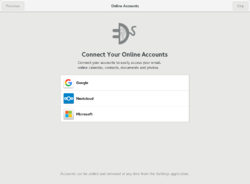
- Switch from iCloud to Nextcloud
- Mini NextCloud Server on Raspberry Pi 5 2023/10


Nextcloud + Duplicati
- The hybrid cloud setup that made me ditch paid Storage
- Duplicati is installed as a separate Windows application. It is configured to selectively back up a subfolder of the Nextcloud data (since free Google Drive is limited to 15GB) to a Google Drive account.
- For reliable backups, you should put Nextcloud in maintenance mode while Duplicati runs. You can automate this with a simple script that runs before and after the backup
Cockpit
Turning Proxmox Into a Pretty Good NAS
Unraid
- https://unraid.net/
- Videos
- NAS with unraid preinstalled.
- LincStation N1 6 Bay NAS: 4 NVME + 2 x 2.5" storage.
- Parity.
- If a drive in the array fails, the data on the other drives can be combined with the parity data to reconstruct the missing data.
- unRAID cannot protect you from two failed disks unless you use two parity disks.
- Parity is not equivalent to backup
- I did a simple test. One parity drive and one data drive. Once parity sync is done, I replace the data drive. Unraid does rebuilt the disk. And I can get my data back. The lesson is the parity disk is not used for data backup. It is used for reconstruct the disk.
- Please help me understand parity vs backup
- Unraid Server Backups Using LuckyBackup
- It seems we don't need to schedule parity sync often, probably once per month or quarter.
- What happens if the parity drive fails?
- GUID & UUID
- GUID (Globally Unique Identifier) is associated with the entire disk, especially in the context of GUID Partition Table (GPT) where it uniquely identifies the disk itself.
- UUID (Universally Unique Identifier) is specific to partitions and is used to uniquely identify each partition on the disk.
- Commands to get the GUID and UUID. In the following case, sda is PNY 1TB SATA drive, sdb is a SATA drive (sdb1 is FAT and sdb2 is ext4).
$ lsblk -o name,uuid # it returns partition-specific uuid

NAME        UUID
sda         68ae4e09-51ae-4327-a080-8a662ca6e9b2
sdb
├─sdb1      8C63-FBEB
└─sdb2      87210264-cc6e-430c-98cb-3eb8a247da20

$ sudo sgdisk -i 1 /dev/sdb # it returns disk-specific GUID

Partition GUID code: EBD0A0A2-B9E5-4433-87C0-68B6B72699C7 (Microsoft basic data)
Partition unique GUID: 2D2BBD4C-5409-4483-B435-1D4AE4A3246E
- USB drive requirements Changing the flash device
- USB 2.0 over USB 3.0: USB 2.0 drives are generally more reliable and universally recognized by computers
- Capacity: The drive should be at least 2 GB in size, but no larger than 32 GB for manual installs. Larger drives can work, but 32 GB is recommended for simplicity.
- Quality: Use a high-quality flash drive from reputable manufacturers such as Lexar, PNY, Samsung, and Kingston.
- My testing
- Zimablade with 16GB Ram. 525G SATA SSD as data disk, 2T WD 2.5" USB HDD as parity disk. Unraid is installed on a Samsung flash drive.
- Main -> History shows that it took 6 hours & 11 min to run parity-sync.
- I swapped the data disk and use a 1T SATA as data disk. It took 3 hours & 45 min to rebuild the data disk. All data are recovered.
- The power usage is 4 Watt when it is idle and about 15 Watt when it is run parity sync. The official power adapter is 12V/3A=36W.
- "hdparm -t --direct" shows nice speed for SATA SSDs but the WD USB HDD is just 25MB/s. Recall that the default filesystem is "xfs" on Unraid. When I benchmark the USB HDD in another machine, it also shows 25MB/s (so it's not an issue with the USB port on zimablade). If I reformat the USB HDD to ext4 and test it in Linux, it shows 110MB/s speed. A huge difference!
- FAQs:
- can i recover data in a 1 parity -1 data disk server ?
- SSD and trim:
- Issue: UNRAID does not fully support TRIM on parity disks, meaning the SSD's performance may degrade over time. TRIM is essential for maintaining SSD speed by clearing out unused data blocks.
- Impact: Without TRIM, SSDs will wear out faster and suffer from slower write performance over time.